
Short answer: A public Snap Map post is a Snap you send to the Map from the Send To screen. Once it’s submitted, Snapchat treats it as Public Content. That means people who aren’t your friends, including complete strangers looking at that part of the Map, can see it. It has nothing to do with sharing your Bitmoji location, which is a separate feature that only your chosen friends can use.
If you’ve ever wondered why a random person’s Snap from a concert shows up when you open the Map, or whether the Snap you posted last weekend is visible to people you’ve never met, this guide walks through the whole life of a Snap Map post, from the moment you tap submit to the moment it’s gone.
First, the mix-up that confuses everyone
Snap Map does two jobs, and most misunderstandings come from treating them as one.
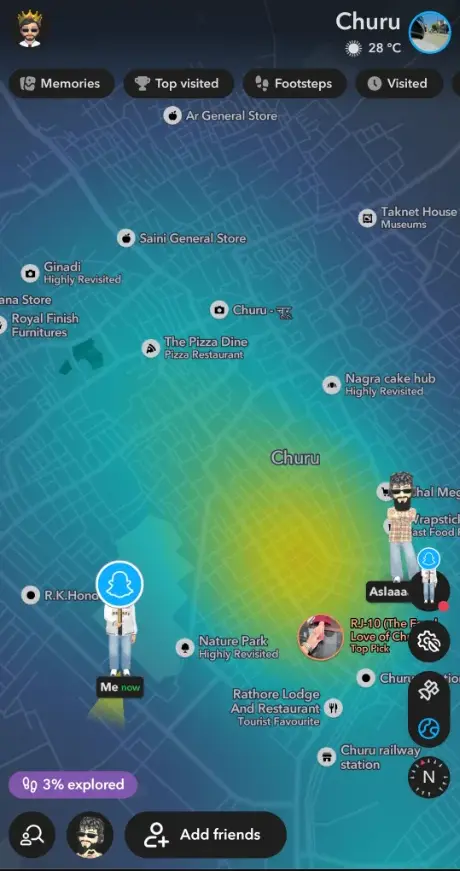
The first job is showing where your friends are. This is opt-in. According to Snapchat’s own privacy page for Snap Map, you don’t appear on a friend’s Map until you’re friends in both directions, you’ve opened the Map, you’ve given the app location permission, and you’ve chosen to share. Ghost Mode hides you from everyone except people you share live location with.
The second job is showing public Snaps from people all over the world. This part has no friend list and no location toggle. It’s a feed of posts that users deliberately submitted, laid out on a map.
Because these are two separate systems, switching on Ghost Mode only affects the first one. A Snap you submitted publicly is a different thing, and Snapchat classes it as Public Content. Everything below is about this second job.
Step one: how a Snap ends up on the Map
The process is quick. You create a Snap and open the Send To screen. In the Post to… list, right under the two My Story options, you’ll find Snap Map with the line “Add to the Map” beneath it. Select it and tap the submit button. That’s all it takes to send it. Snapchat’s help page on submitting a Snap to Snap Map lays out the same three steps.
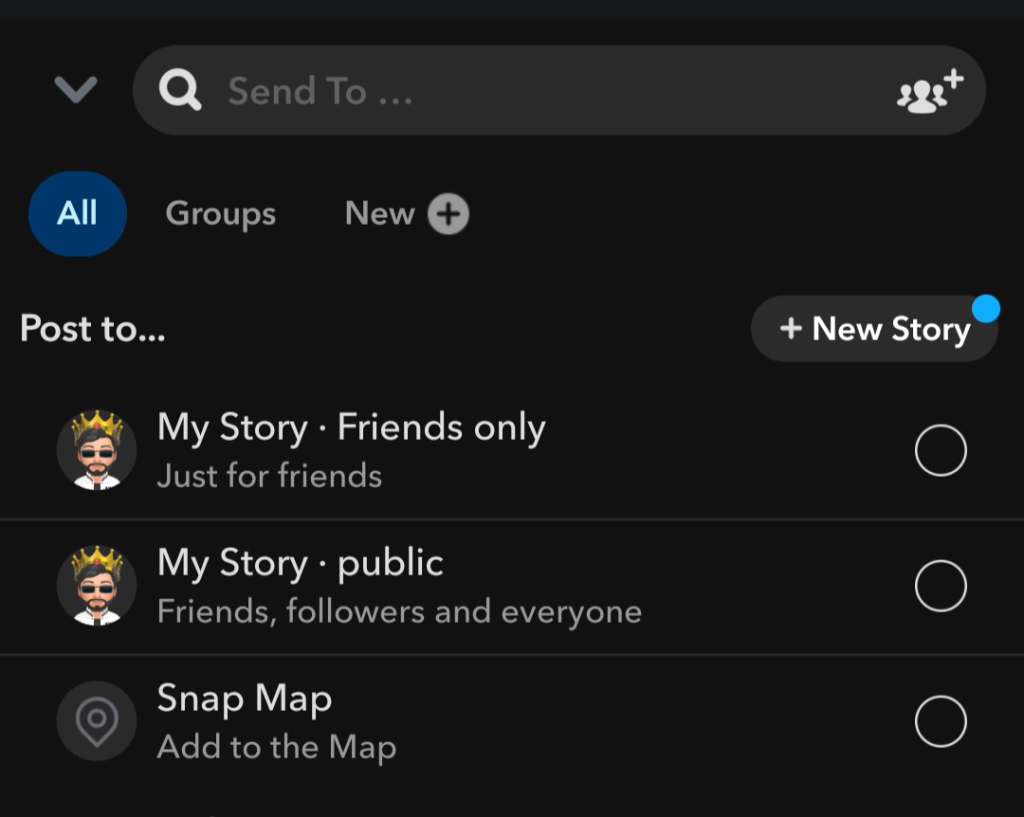
Notice that My Story · public sits in the same list, with the label “Friends, followers and everyone” under it. That is a different choice from Snap Map. Picking it posts a public Story, while Snap Map is its own separate submission aimed at the Map.
What happens next is where people get surprised. Submitting doesn’t mean publishing. Snapchat says automated systems monitor everything that’s submitted, and that it’s hard to say whether or when a particular Snap will appear. Most of what’s on the Map is picked by that automated process.
The system also leaves some things out entirely. Selfies, Snaps with user mentions, Camera roll content and Memories content won’t make it to the Map. What Snapchat wants is a window into everyday life: a place, an event, something going on in a community. A food festival, a football crowd or a busy night market fits that. A mirror selfie doesn’t.
Step two: why so many Snaps never show up
If you’ve submitted to the Map and nothing seemed to happen, that’s normal. The Map is not a place where every submission lands. It works more like a filter than a noticeboard.
There are other routes onto it as well. Snaps that carry a place tag in Spotlight can show up on the Map, and when something interesting is happening in an area, a Story thumbnail may appear there. Stories for Places can also appear as you zoom in. Snapchat says these are mostly built automatically, with only the biggest events getting a more hands-on touch.
So the Map you see is partly submitted by users and partly assembled by Snapchat’s systems. That’s useful to know, because it explains why a Snap can show up without you having done anything unusual, and why your own submission might not.
Step three: who can see it
This is the question most people really care about, so here is the plain version.
Anyone browsing the Map in the app can see public Snaps in the area they’re looking at. They don’t need to be your friend, follow you, or know your username. They only need to open the Map, which Snapchat’s help page says you do by swiping right twice from the Camera screen, and look at the right place.
Your friends see the same thing everyone else sees. Friend status doesn’t change who can see a public Snap. It’s open to everyone, friends included. If you leave your username attached, they’ll also see whose Snap it is.
People who never open the Map may still run into it. Snapchat says some Snaps submitted only to the Map can also be shared in Spotlight, Discover and Search. This mostly happens with event or trending place content, like concerts or sporting events, when the Snap meets Spotlight’s requirements. Snapchat may show you a notice about where your Snap can appear when you post, so it’s worth reading that notice rather than tapping through it.
Finally, there’s everything outside the app. Snapchat warns that a public Snap may appear off Snapchat if it has been shared off Snapchat. Once somebody sends it elsewhere, it’s no longer something you can control.
If your goal is to share something with a limited audience, the Map is the wrong tool. A private Story or friends-only Story does that job, and our breakdown of Snapchat Public Profile vs Private Story explains how each audience setting works.
Step four: how long a post stays visible
Here’s the part that surprises most people. A normal Story disappears after about a day. A Snap Map submission doesn’t follow that rule.
Snapchat’s help page says Map posts can be viewable for different amounts of time, some for only a day or two and others for much longer. Its privacy page goes further and says Snap Map submissions may be stored for a while and can stay visible on Snapchat for long periods, sometimes for years.
So the right mindset is simple. If you submit to the Map, plan as if it could still be there next year. If it turns out you don’t want it there, you’ll need to remove it yourself, and we’ll cover how in a moment.
The name attached to your post
Whether people can tell who posted a Snap depends on your age and one setting.
If you’re over 18, your username appears on your Map posts by default. If you’re under 18, Snapchat doesn’t let you post to the Map with your username attached at all.
Adults can choose to post without a name. In Settings, open Privacy Controls and tap Map. Under the Display my username heading, you’ll see a tick next to “Allow my username to appear when posting to the Snap Map.” Untick it and your Map posts go up without your name. Snapchat’s privacy page confirms you can submit without linking the Snap to your name and other profile details.
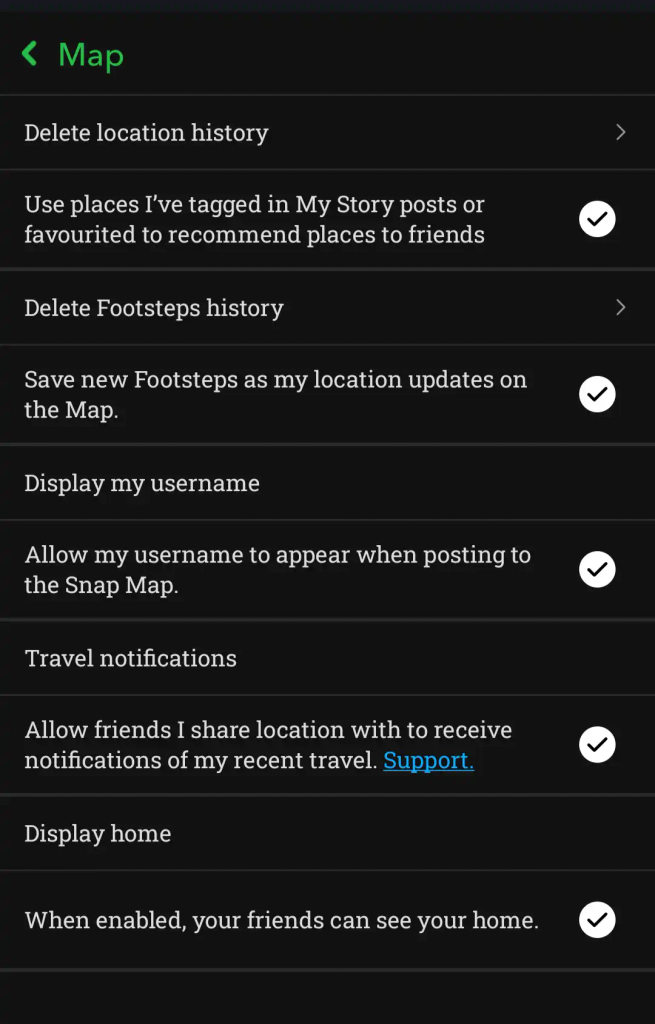
While you’re on that screen, notice how much of it has nothing to do with public posts. The same Map settings list also holds options like saving Footsteps, travel notifications for friends you share location with, and showing your home to friends. Those all belong to the location layer. Only the username option affects what gets attached to a Snap you submit.
Timing matters here, because Snapchat says you can’t go back and change the username setting for a Snap you’ve already submitted. Make the decision before you post, not after.
A visible username also has a side effect people forget. It gives viewers a trail to follow. If you keep a Public Profile, someone who spots your Snap on the Map can look you up and see the public Stories you’ve chosen to share there. If you’d rather not be found that way, turn the name off.
What the picture gives away on its own
Even without a username, the content of a Snap can say a lot about where you are. Snapchat makes the point itself, and its example is a Snap of the Eiffel Tower, which tells everyone you were near the Eiffel Tower in Paris.
The same goes for smaller things. A shop sign, a street name, a school uniform, a stadium seat number or the view from your window can all place you. If you’re posting from somewhere personal, such as your home or workplace, it’s worth looking at the whole frame before you tap submit.
A simple habit helps: post from a public venue after you’ve already left, or skip the Map for anything taken at a private location.
Taking a public post down
You can remove your own Map posts at any time. Open Settings from your profile and tap Spotlight & Snap Map. Each Snap there has two icons. The download icon saves it to Memories, and the trash icon deletes it. Snapchat’s guide on how to save or delete a Snap from Snap Map says deleting also removes it from Search, Context Cards and Spotlight if a copy was shared there.
If you’d like to keep the moment for yourself, save it to Memories first and delete the public version afterwards. Just remember what Snapchat says about outside copies: if the Snap was already shared off the app, that copy can stay online even after you delete yours.
If you’re the one watching, not posting
Most people who open the Map are just looking around. You tap a hotspot, watch a few Snaps from an event, and move on. That’s the easy case.
Sometimes, though, a Snap leads you to a person. The username is attached, they run a Public Profile, and you want to see more of their public Stories without announcing yourself. In our own testing of the GetinDevice snapchat story viewer, pasting a public account’s username or profile link showed all of its Stories together, and we saw no sign of our name in the poster’s view list.
To be clear about what it does and doesn’t do, it works from a username or profile link, and it only works with public content. It doesn’t browse the Map itself, and it can’t open anything a person has kept private.
Why public Stories behave differently from Map posts
It helps to keep these two things apart, because people often lump them together.
A Map post is a one-off submission that Snapchat may or may not surface, tied to a place. A Public Profile is a page you build on purpose, and creators can pin Stories to it so they don’t vanish. If you want to understand how those pinned collections work and how long they last, our guide to Snapchat Highlights on Public Profiles covers it in full.
The practical difference is control. On a Public Profile, the creator decides what’s shown and for how long. On the Map, Snapchat’s systems decide what surfaces, and the post can hang around for a long time.
A short checklist before you submit
Think of the audience as strangers, not friends, because that’s who can see it. Look over the whole frame for signs, landmarks and uniforms. Decide about your username before you post, since you can’t change it afterwards. Don’t expect it to disappear overnight. And know where the trash icon lives: Settings, then Spotlight & Snap Map.
If a clip from the public side of Snapchat is something you’d like to keep for yourself, the main Snapchat downloader page is the place to start.
Frequently asked questions
No. Location sharing only works with the friends you choose, and only after you’ve turned it on. Strangers can see a Snap you submit to the Map, but not your live location.
Ghost Mode is a location setting. A Snap you submit is Public Content and is treated separately, so if you want it gone, delete the post.
No. Snapchat says automated systems decide, and it can’t predict whether or when a given Snap will show. Selfies, mentions, Camera roll and Memories content are never included.
It varies. Snapchat says some posts show for a day or two, while others can remain visible for much longer, sometimes years.
If you’re over 18, yes. Untick the username option in Settings, under Privacy Controls and Map, before you post.
Yes. Go to Settings, tap Spotlight & Snap Map, and use the trash icon. A copy that was already shared off Snapchat may remain.
Sometimes. Select event or trending place Snaps that meet Spotlight’s requirements can also be shared in Spotlight, Discover and Search.