
Kick stream buffering usually comes from one of three places: Kick’s own platform, your connection and browser, or the streamer’s encoder settings. Kick’s help center names the same three causes. Check Kick’s status page first, then work through the fixes below, quickest first.
Quick Overview
Kick stream buffering means the video stops, freezes or stutters because it isn’t reaching your screen fast enough, or your device can’t play it fast enough. Kick’s help center blames three things: the internet connection, the encoder settings and Kick itself. We checked Kick’s lag and buffering help page on November 26, 2026.
Start with Kick’s status page. If Kick has an outage, all you can do is wait. If the page is clear, the problem is almost always closer to home. Viewers should try a private window, an updated browser and the Kick app. Streamers should look at upload speed, bitrate, dropped frames and CPU use.
Kick also sets hard limits for streamers: H.264 video, constant bitrate, up to 8,000 kbps, 1920 x 1080 and 60 fps. A stream that asks for more than a connection can carry will lag. Below you’ll find a symptom table, a five minute check you can run on your own devices, seven fixes in order, and the point where it’s time to call Kick support.
Key Facts at a Glance
- Kick’s help center names three causes: your internet connection, your encoder settings and the Kick platform.
- Kick’s status page is status.kick.com. Check it before you change anything.
- Streamers need an upload speed of at least twice their bitrate. A 6,000 kbps stream needs 12 Mbps.
- Kick’s top bitrate is 8,000 kbps. Resolution tops out at 1920 x 1080 and frame rate at 60 fps.
- Cut the bitrate by 1,000 kbps at a time until the lag stops.
- A CPU above 90 percent calls for a lighter preset or a hardware encoder.
- Kick accepts H.264 and constant bitrate only.
Where to Look First
| What you see | Likely cause | First fix |
|---|---|---|
| Buffering on every channel and every device | Kick platform problem | Check status.kick.com, then wait |
| Buffering in one browser only | Browser, extension or hardware acceleration | Open a private window, update, toggle hardware acceleration |
| Buffering on one network only | Your connection | Move to a wired connection, restart the router |
| Viewers see freezes but your own screen looks fine | Dropped frames from a bitrate that is too high | Lower the bitrate by 1,000 kbps |
| Stutter with high CPU use while live | Encoder overload | Use a lighter preset or a hardware encoder |
| Stream won’t connect, or settings are rejected | Settings Kick doesn’t accept | Use H.264 with constant bitrate |
Only a clip is acting up? That’s a different problem, and we cover it in our guide to Kick clips not working or not loading.
Seven Fixes, Quickest First
The first five suit viewers. The last two are for streamers. Stop as soon as the stream runs smoothly.
1. Check Kick’s Status Page
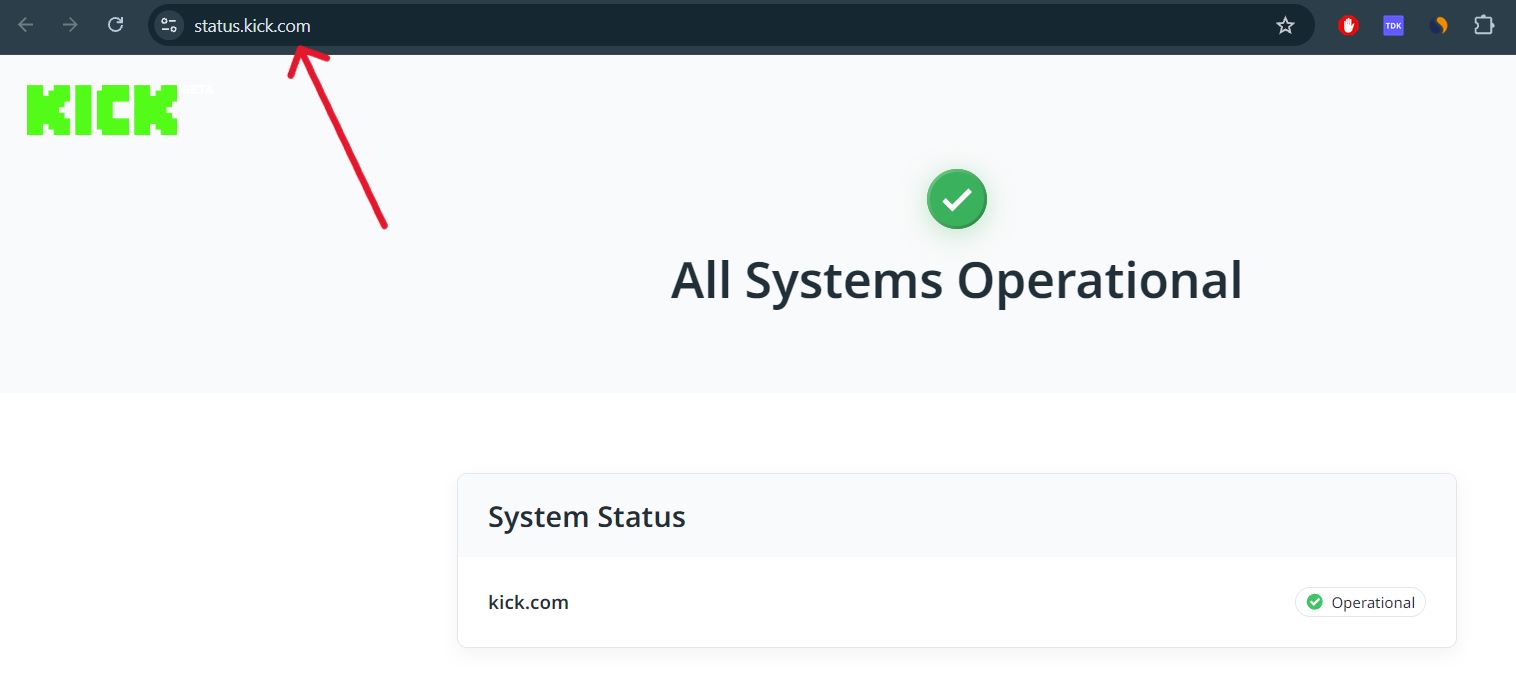
Open status.kick.com before you change anything. We checked Kick’s lag guide on November 26, 2026, and it tells people to check the status page first. If Kick is reporting an outage or a slowdown, the lag is on its side, and no setting on your end will fix it.
2. Try a Private Window
Open the stream in a private or incognito window. Extensions are a common reason a player stalls. Ad blockers, privacy and tracking blockers, script blockers and VPN add-ons all appear on Kick’s list.
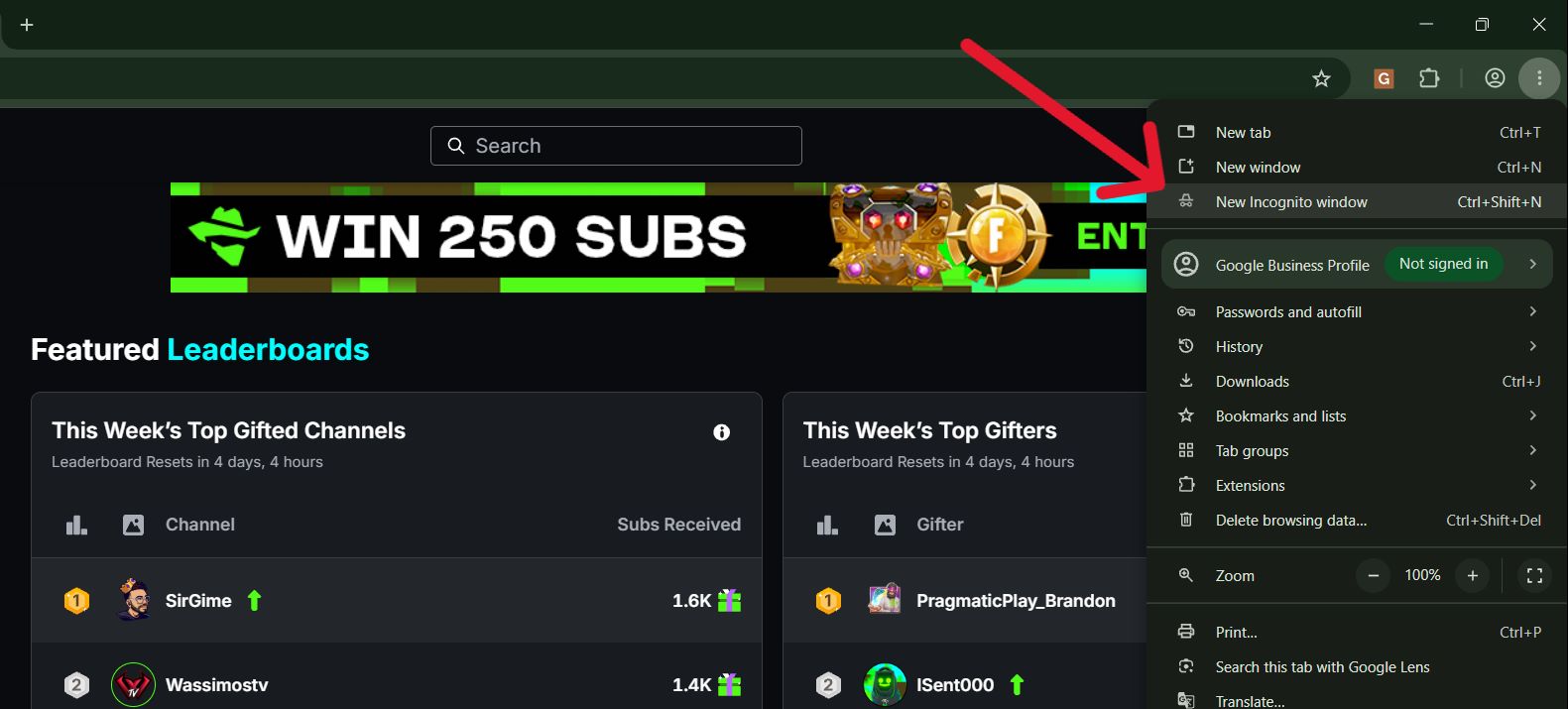
If the stream runs fine in the private window, turn your extensions back on one by one until it breaks again. That one is the culprit. You can often keep an ad blocker and just allow kick.com. Brave, Opera, Edge and uBlock Origin in Firefox have known issues with the site.
3. Update the Browser and Clear Old Data
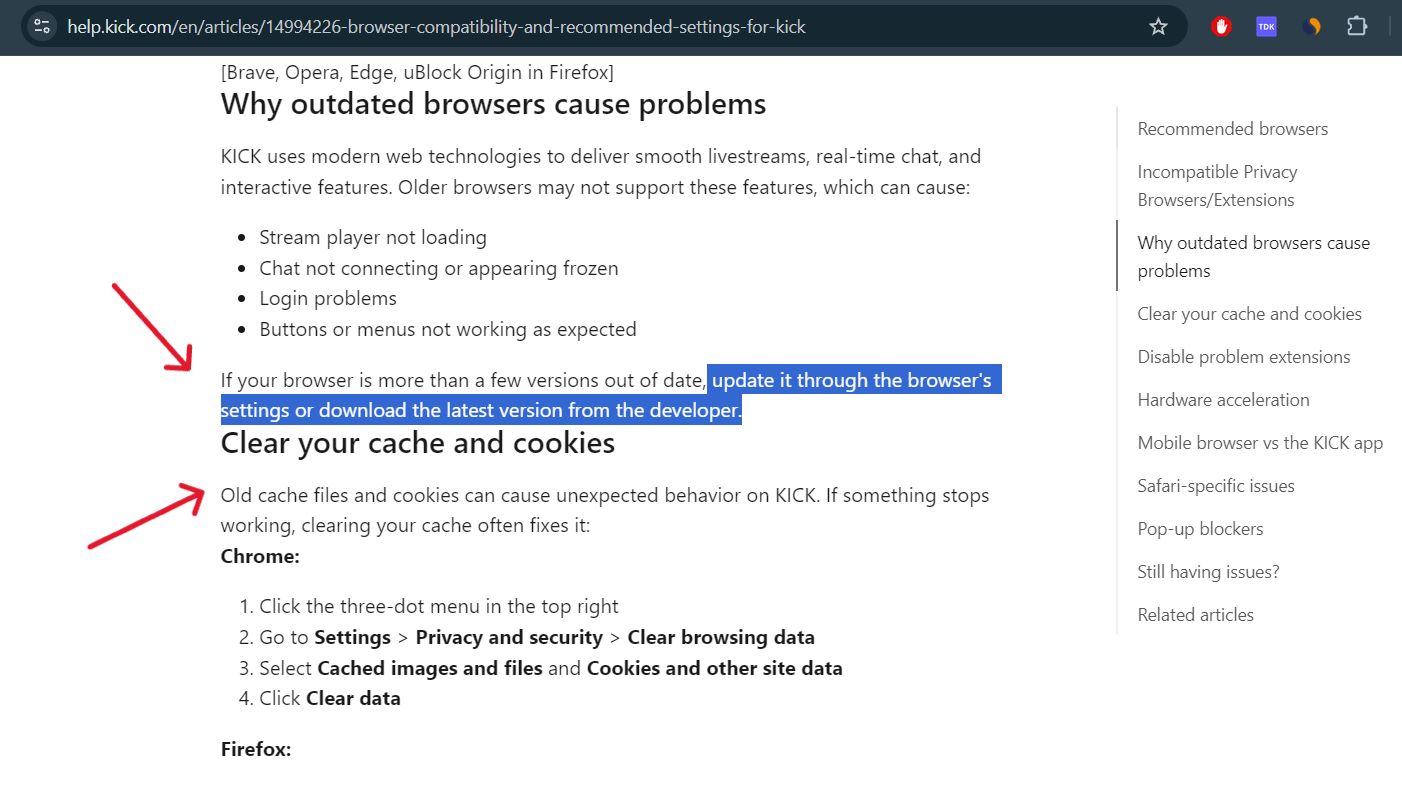
An old browser is one of the most common causes of trouble on Kick. We checked Kick’s browser help page on November 26, 2026, and it says the same. the player may not load, or chat may freeze. Update to the latest Chrome, Firefox, Edge or Safari. Then clear the cached files and cookies for Kick, close the browser completely and open it again.
4. Toggle Hardware Acceleration
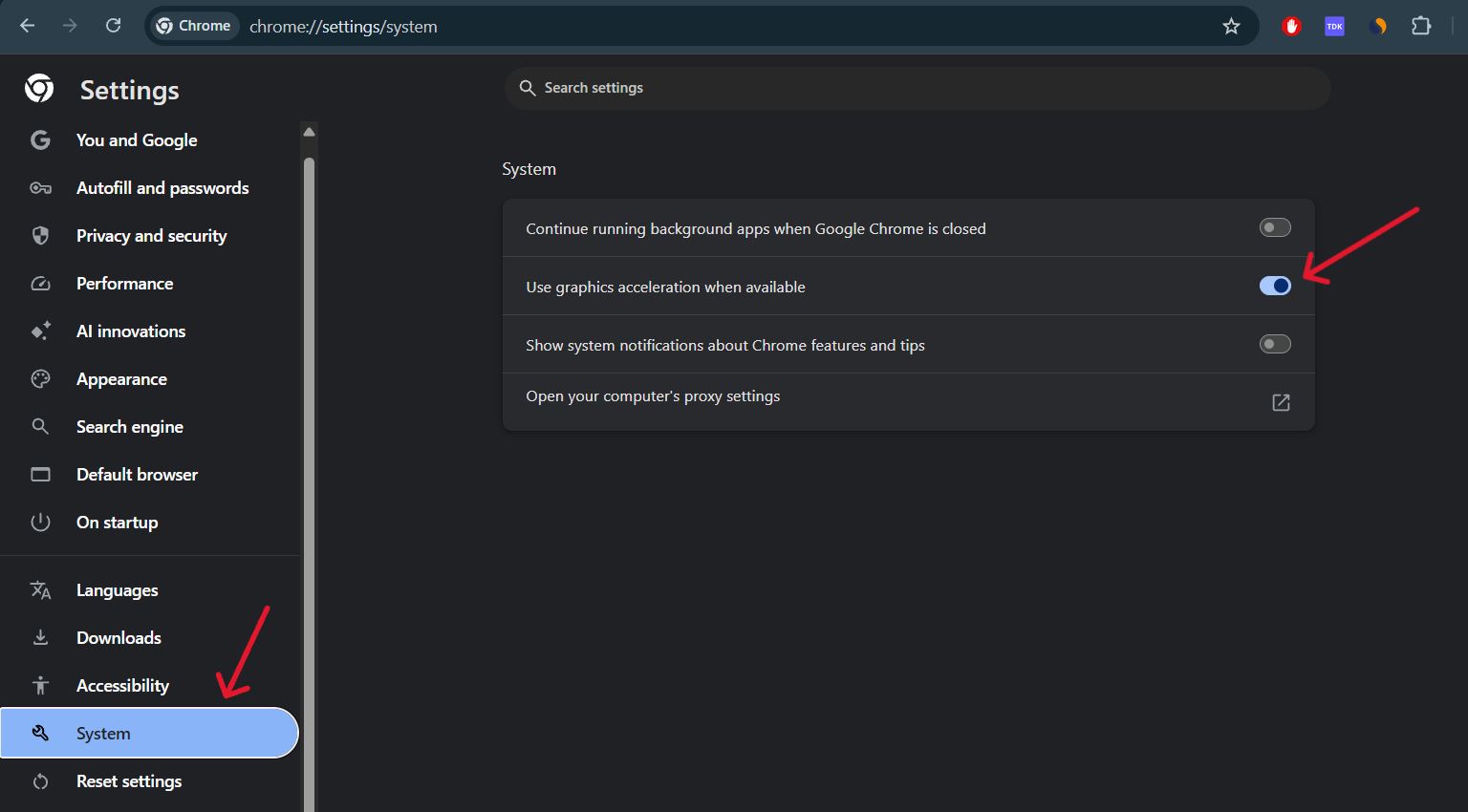
Choppy playback can come down to one setting. Kick’s advice is to flip it. If it’s on, turn it off. If it’s off, turn it on. Which one helps depends on your hardware. In Chrome you’ll find it under Settings, then System. Restart the browser after the change.
5. Try the Kick App or Plug In a Cable
On a phone, the Kick app is built for mobile, so it usually beats a mobile browser. On any device, a cable is almost always steadier than Wi-Fi, most of all in the evening when your neighbours are online too. If you’re stuck on Wi-Fi, restart the router and try again.
6. Streamers: Lower the Bitrate
Your upload speed should be at least double your bitrate. We checked Kick’s lag guide on November 26, 2026, and it gives the same rule. At 6,000 kbps, that means 12 Mbps free. Kick allows up to 8,000 kbps, but pushing the maximum through a weak connection gives you lag and dropped frames. Drop the bitrate by 1,000 kbps, test, and repeat. A lower bitrate that arrives clean beats a high one that keeps stalling.
7. Streamers: Check Dropped Frames and CPU
OBS shows dropped frames at the bottom right of the main window. A number that keeps rising means the bitrate is too high or the network is shaky. Next, look at your CPU in Task Manager or Activity Monitor.
Above 90 percent, close other apps (browsers with lots of tabs are the usual problem) or pick a lighter preset: Superfast for x264, P3: Fast for NVIDIA NVENC H.264 and AMD. A hardware encoder helps too, if your computer has one.
Still stuck? Stop the stream, close the encoder, restart the router and go live again.
A Five Minute Check You Can Run Yourself
Before you change a single setting, find out where the problem lives. This check uses things you already have: a second device, a private window and your own browser settings. Run the steps in order. Write down the time and the result each time, because those notes help if you end up writing to Kick support.
#1. Play the same stream on another device, such as your phone, on the same Wi-Fi.
#2. Switch that phone to mobile data and play the stream again.
#3. On your computer, open the stream in a private window.
#4. Clear Kick’s cached files and cookies in your browser, then reload the page.
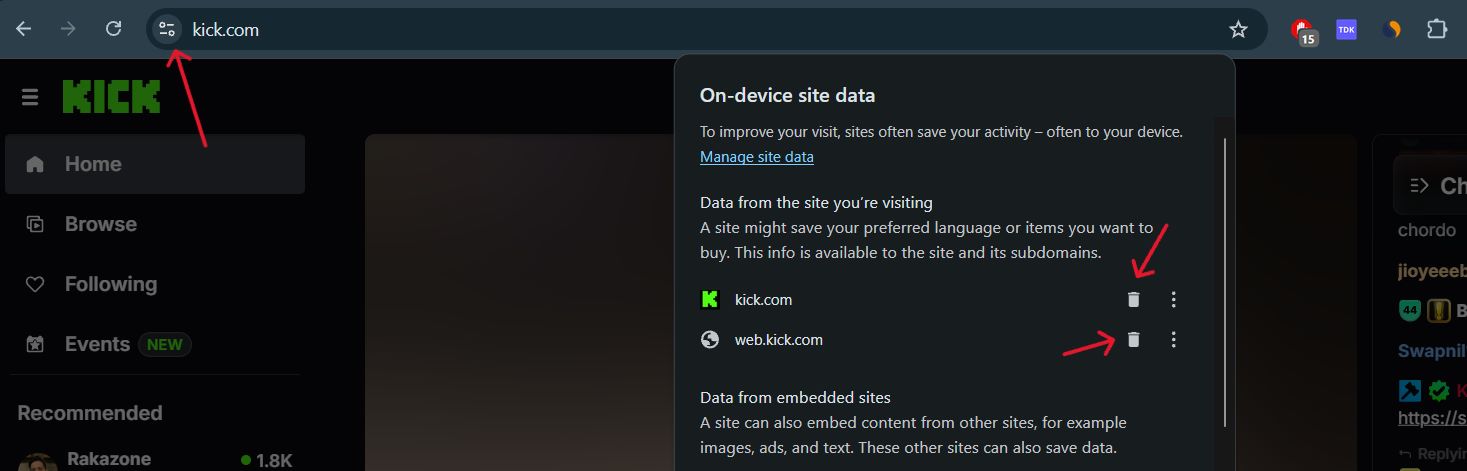
#6. Update the browser, restart it and try once more.
Then match what you saw to this table.
| What happened | What it points to |
|---|---|
| It fails on every device and every network | A Kick platform problem. Check status.kick.com |
| It plays on the phone but not on the computer | The browser, an extension or hardware acceleration |
| It plays on mobile data but not on Wi-Fi | Your home network or router |
| It plays in a private window but not a normal one | An extension or old cached data |
| It plays after the update | An outdated browser |
| Viewers report freezes but your own screen looks fine | Your encoder settings. See fixes 6 and 7 |
Why Kick Streams Buffer: The Three Causes
The three causes behave differently, which is why the order of the fixes matters. A platform problem can’t be fixed from your desk. A browser problem is quick to test. An encoder problem only shows up for the people watching.
The Kick platform. When Kick has an outage or a slowdown, many channels lag at the same moment. You’ll see it on every channel and every device. Changing settings during an outage just wastes your time, so the status page comes first.
Your connection and device. A weak or crowded connection can stall a stream on your side only. So can an extension that gets in the way, an old browser or the wrong playback setting. Another device, another network and a private window show you quickly which one it is.
The encoder settings. Dropped frames mean the encoder makes video faster than your internet can send it to Kick. Viewers then see stutter or freezes, even though the stream looks fine on the streamer’s own screen. Settings outside Kick’s limits cause trouble too. Here are the limits Kick publishes.
| Setting | Kick’s limit |
|---|---|
| Video codec | H.264 only, no H.265 |
| Rate control | Constant bitrate (CBR), no variable bitrate |
| Bitrate | 1,000 to 8,000 kbps |
| Resolution | Up to 1920 x 1080 |
| Frame rate | Up to 60 fps |
| Keyframe interval | 2 seconds |
| Audio | Stereo, 48 kHz at most |
The limits in this table come from Kick’s “How to stream on KICK.com” help page, which we checked on November 26, 2026.
Lowering Resolution or Frame Rate: Pros and Cons
When a lower bitrate alone doesn’t fix the stutter, Kick says to try a lower resolution or frame rate. Its view is blunt: a clean 720p stream at 30 fps looks better to viewers than a stuttering 1080p stream at 60 fps.
That advice has a cost, though. It helps to see both sides before you change anything, because the right choice depends on what you stream and who watches.
Pros of going lower
- It needs less upload speed and less CPU power.
- Delivery is steadier, so viewers see fewer freezes.
- A clean picture looks better than a stuttering one, according to Kick.
Cons of going lower
- The picture is less sharp, so small text and fine detail suffer.
- Fast games look less smooth at 30 fps than at 60 fps.
- You may need to raise settings again later, so it takes a little testing.
Change one thing at a time. Start with the bitrate, then the resolution, then the frame rate. That way you know which change fixed it.
What We Can Say From Our Side
On our Kick video downloader tool page, we list a sample of 50 recent public VODs. The median ran about 4.6 hours, one in ten ran past 16 hours, and the longest was 47 hours. The page also estimates that a nine hour stream comes to around 13 GB at 720p. That is a lot of data to pull in one sitting, which is one reason a slow connection struggles with long VODs.
When to Stop Troubleshooting
If the stream fails on every device and every network, and Kick’s status page shows nothing wrong, stop changing settings and contact Kick support. The team works around the clock.
We checked Kick’s help pages on November 26, 2026 for what to include. Streamers should send their Kick username, the date and time of the bad stream, the encoder and its version, their bitrate and resolution settings, and an upload speed test. Viewers should send their username, browser and version, operating system, a short description of what happens, and a screenshot if they can.
If the live stream was fine but a recording is missing or won’t appear, that is a separate issue. Our guide to Kick VOD not showing explains why it happens.
Saving a Long VOD to Watch Later
If a long VOD keeps stalling, save a copy and watch it from your own device. A tool to download kick videos works from a public VOD or clip link and needs no Kick account. Our tool page says long streams save in MP4 parts of about 400 MB. It can’t save subscriber-only VODs or live broadcasts, and it won’t fix a slow connection. Save only kick streams you made or you have permission to use.
Don’t wait too long, either. Kick deletes VODs after a set time, and how long Kick VODs last depends on the channel.
Kick stream lagging FAQs
Kick says most lag and buffering comes from the internet connection, the encoder settings or the Kick platform. Check Kick’s status page first. Then test a private window and an updated browser if you watch, or check bitrate and dropped frames if you stream.
Open status.kick.com. If Kick reports an outage or a slowdown, the lag is on its side and you wait. A sign of a platform problem is a stream that fails on every channel and every device.
Kick lists VPN extensions and ad blockers among the common causes of trouble. Some privacy tools also change what your browser reports, which can stop Kick from verifying you. Open Kick in a private window to test, and allow kick.com in your blocker if that fixes it.
Kick says at least twice your bitrate. A 6,000 kbps stream needs 12 Mbps. Kick supports up to 8,000 kbps.
No. Kick supports H.264 and constant bitrate only, as its streaming guide explains. On a Mac, Kick says to choose the x264 encoder so you can use constant bitrate.