
Kick clips not working usually traces back to one of four causes. Clipping is switched off on the channel, you are logged out, the clip is still processing, or a stale browser cache is blocking playback. Most fixes take a few minutes. According to Kick’s official clip help page, checked on November 6, 2026, clips run between 10 and 180 seconds and any logged-in account can make one.
That gives you a fast first test. If you are logged in and the stream is live, the fault is probably on the channel, processing, or device side. This guide sorts problems by what you actually see on screen. We cover the missing button, the clip that never shows up, the preview that will not play, and the clip that caught the wrong moment. Where Kick’s own help pages disagree, we say so.
Quick Overview –
Kick clips stop working for four main reasons: the streamer turned clipping off, you are logged out, the clip is still processing, or a stale browser cache is blocking the preview. Per Kick’s clip troubleshooting page, checked on November 6, 2026, a new clip can take a few minutes to appear. Refreshing the page, logging in again, switching browsers, and clearing cache fix most cases. If clips fail on every channel, Kick’s status page is the next stop. The table below maps each symptom to its fix.
| What you see | Most likely cause | First fix | Effort |
|---|---|---|---|
| Clip button missing or greyed out | Clipping off on the channel, logged out, or stream not live | Log in, refresh, confirm the stream is live | Quick |
| Clip never appears in your library | Still processing, or wrong account | Wait a few minutes, refresh, check the account | Quick |
| Preview will not play | Cache, browser, or weak connection | Refresh, switch browser or app, clear cache | Moderate |
| Clip shows the wrong moment | Fixed capture window around your click | Trim the clip in the editor | Quick |
| Clips fail everywhere on Kick | Platform-side issue | Check Kick’s status page, then contact support | Varies |
If the first fix does not work, the sections below go deeper on each row.
Why Kick Clips Stop Working
Clipping looks simple. You press a button and a short video appears. Behind that button, four separate pieces have to cooperate: the channel settings, your account, Kick’s processing, and your own browser or app.
A fault in any one of them looks the same from the outside. The clip just does not work.
Channel side problems come first. Streamers can switch clipping off for their channel, and when they do, nobody can clip that stream. Account side problems come next, mostly logged-out sessions or a second account you forgot about.
Platform-side problems are rarer but real. A clip can fail during processing, or Kick can have a rough hour. Device side problems are the usual reason a clip exists but will not play. Old cache, a stubborn extension, or a weak connection are the common culprits.
Knowing the group saves time. A missing button is almost never a cache problem. A clip that exists but will not play is almost never a channel setting. One side note before the fixes. If a clip plays fine for you and you only need a copy for editing or backup, our kick video downloader works with public clip links, one URL at a time. It cannot open private or deleted content.
If a clip will not play on Kick itself, the download will not work either, so fix playback first.
What Kick’s Help Pages Say About Each Failure
We did not rely on guesswork for this guide. On November 6, 2026, we read Kick’s two official clip pages side by side and sorted every failure they mention. Third-party guides and bot documentation were used only to spot outdated numbers.
The two pages split the work. The clip creation page covers how clips work, including the 10 to 180 second range and the C keyboard shortcut. The troubleshooting page covers what goes wrong. It names four reasons for a missing button, three checks for a clip that never shows up, and four fixes for a preview that will not play.
Here is what stood out when we compared them –
- Agreement on the basics – Both pages say you need a logged-in account, and both say you can trim a clip.
- A split on VODs – The creation page says clips can come from a VOD. The troubleshooting page says clipping is usually live only.
- No exact processing time – Kick only says a few minutes. Any guide that promises a precise number is guessing.
- Two views of length – The creation page describes a 10 to 180 second range. The troubleshooting page describes a fixed window around your click. Trimming after creation bridges the gap.
The practical order follows from that. Run the cheap checks first: log in, refresh, and try another live channel. Move to cache and browser changes only if the clip exists but will not play.
Clip Button Missing or Greyed Out
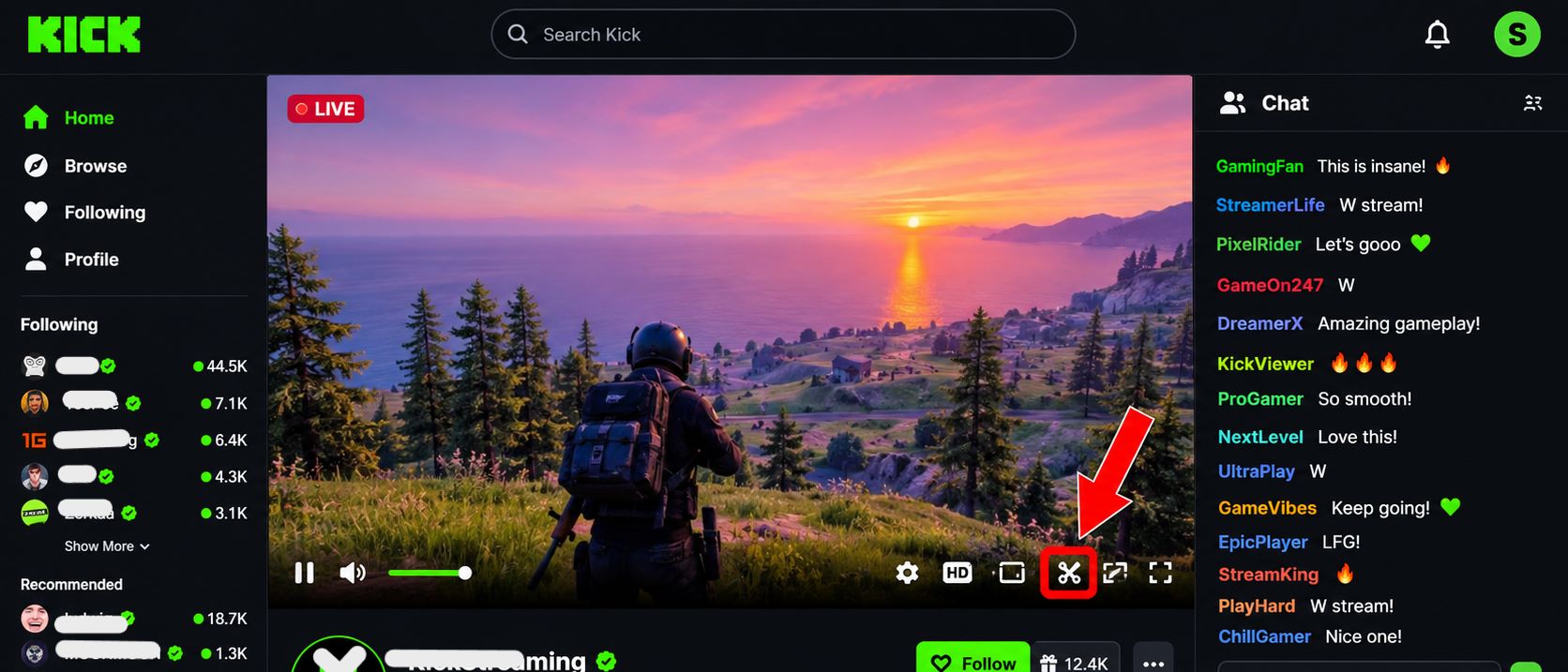
This is the most reported problem, and the cause is usually simple. According to Kick’s official clip troubleshooting page a missing or greyed-out button has four known causes. Work through them in order. The first two take seconds to rule out.
Clipping Is Switched Off on the Channel
Streamers can turn clipping off for their own channel. When it is off, no viewer can clip that stream, and refreshing changes nothing. Test it by opening two or three live channels. If button shows up there, the first channel simply has clipping disabled. Only streamer change that.
You Are Logged Out
Kick needs a logged-in account to create clips. Sessions can expire without warning, so the page may look normal while you are actually signed out. Log back in, refresh, and check again. If you run more than one account, confirm which one you are using.
The Stream Just Started or Just Ended
Kick notes that you may need to wait a short time after a stream begins. A minute or two is usually enough. Clipping right as the broadcast starts can leave the button unavailable. If the stream has already ended, the question changes. Our guide on what happens to a Kick stream after it ends explains where the kick broadcast goes next.
Past Broadcasts and VODs
Here Kick’s own pages disagree. The clip creation page says clips can come from a livestream or a VOD. The troubleshooting page says you can usually clip only from a live stream.
We would treat VOD clipping as hit or miss. If the button is missing on an old broadcast, that mismatch may be the reason.
Clip Not Appearing After You Make It
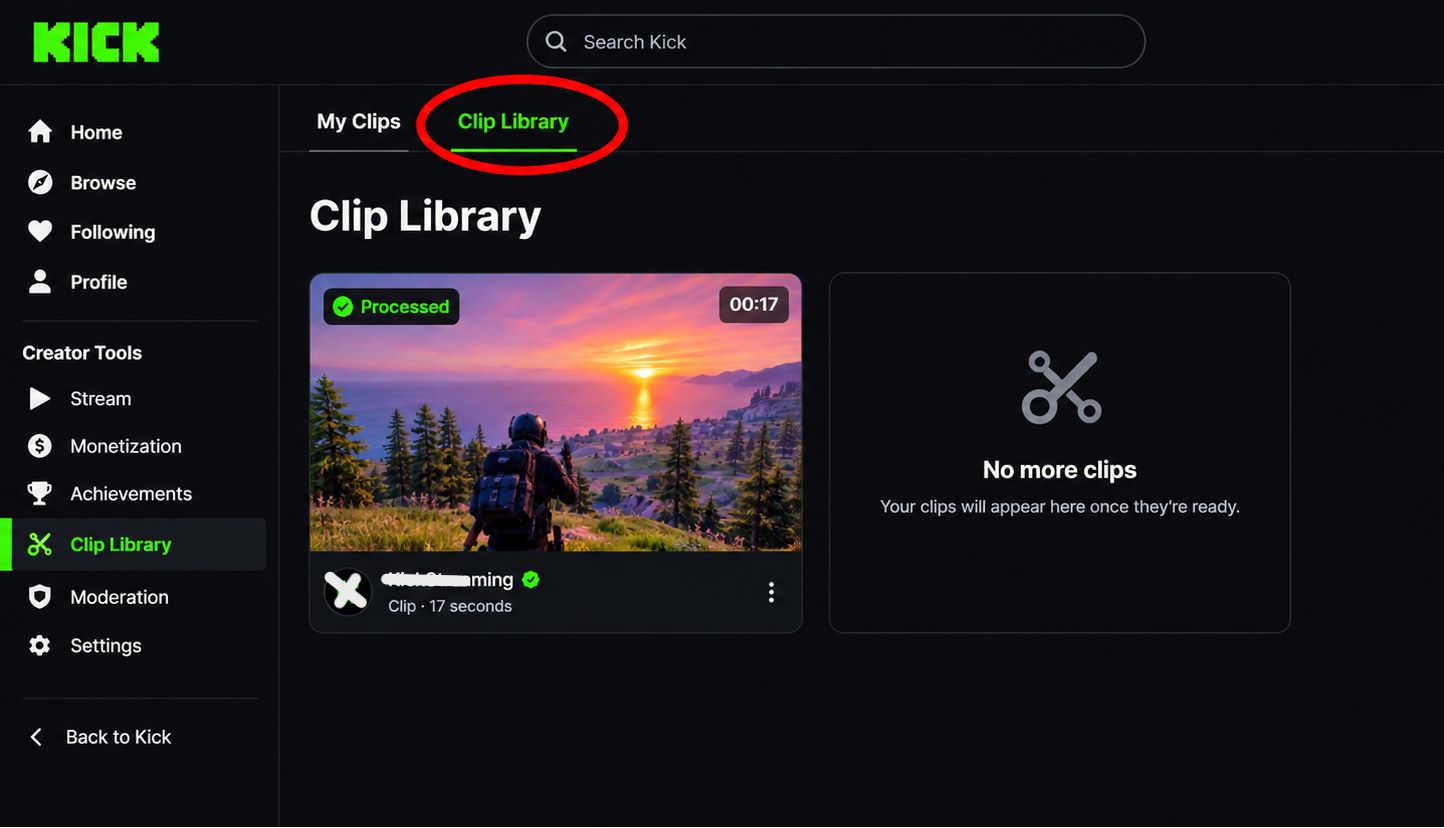
You pressed the button, the clip window opened, and then nothing showed up in your library. Do not panic. Kick says clips can take a few minutes to process. You can try these steps in order:
- Refresh the page or restart the app.
- Open your clip library and wait a few minutes.
- Check that you are signed in to the right account.
- If the stream is still live, clip the same moment again.
If the clip never appears, it may have failed during processing. Making a second clip is the only real fix, and it only works while the stream is live. Sometimes a missing clip is a missing VOD in disguise.
If the whole past broadcast is absent, not just the clip, read our guide on Kick VOD not showing for those causes.
Clip Preview Not Loading or Stuck Buffering
A clip that exists but will not play is a device-side problem in most cases. The video is there. Something between Kick’s servers and your screen is getting in the way. Kick’s help center lists 4 fixes for this, and we agree with the order.
Refresh, Switch Browsers, or Use the App
Refresh first. If that fails, open the same clip in another browser or in the Kick app. A private window is a quick way to rule out extensions, since some of them interfere with video players. If the clip plays in the app but not in the browser, the browser is your problem. Update it. Download the latest version from the browser’s official site if automatic updates are off.
Clear Cache and Cookies
Old cached files can break a video player without any visible error. In Chrome, you can clear Kick’s stored data without touching other sites. Open any kick.com page and click the site settings icon at the left of the address bar. Open the On-device site data panel, then click the trash icon next to kick.com and web.kick.com. Menu names can vary slightly between Chrome versions.
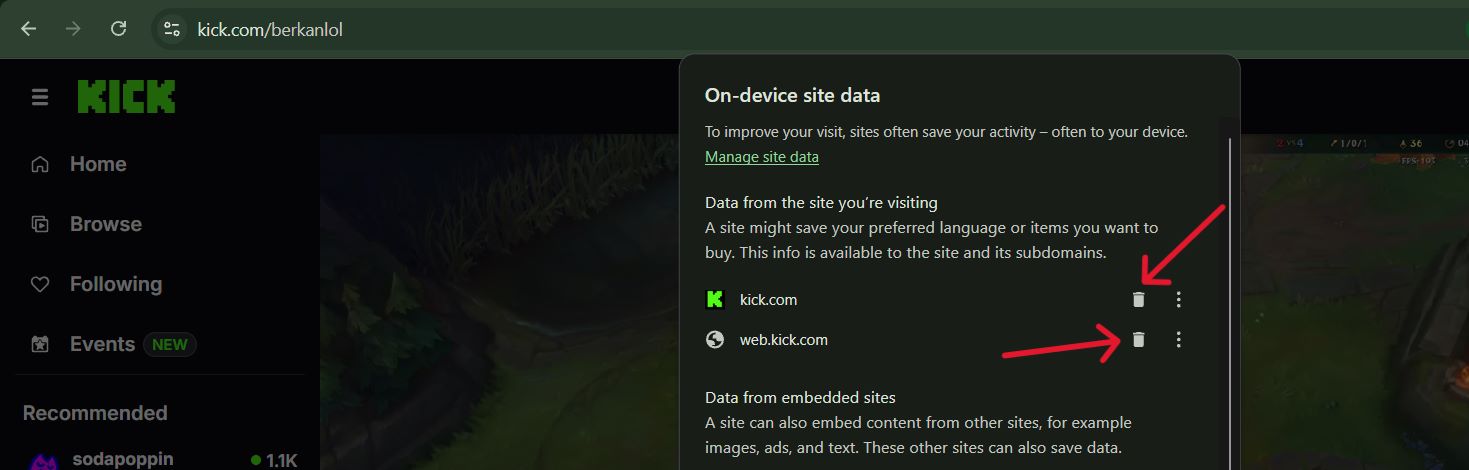
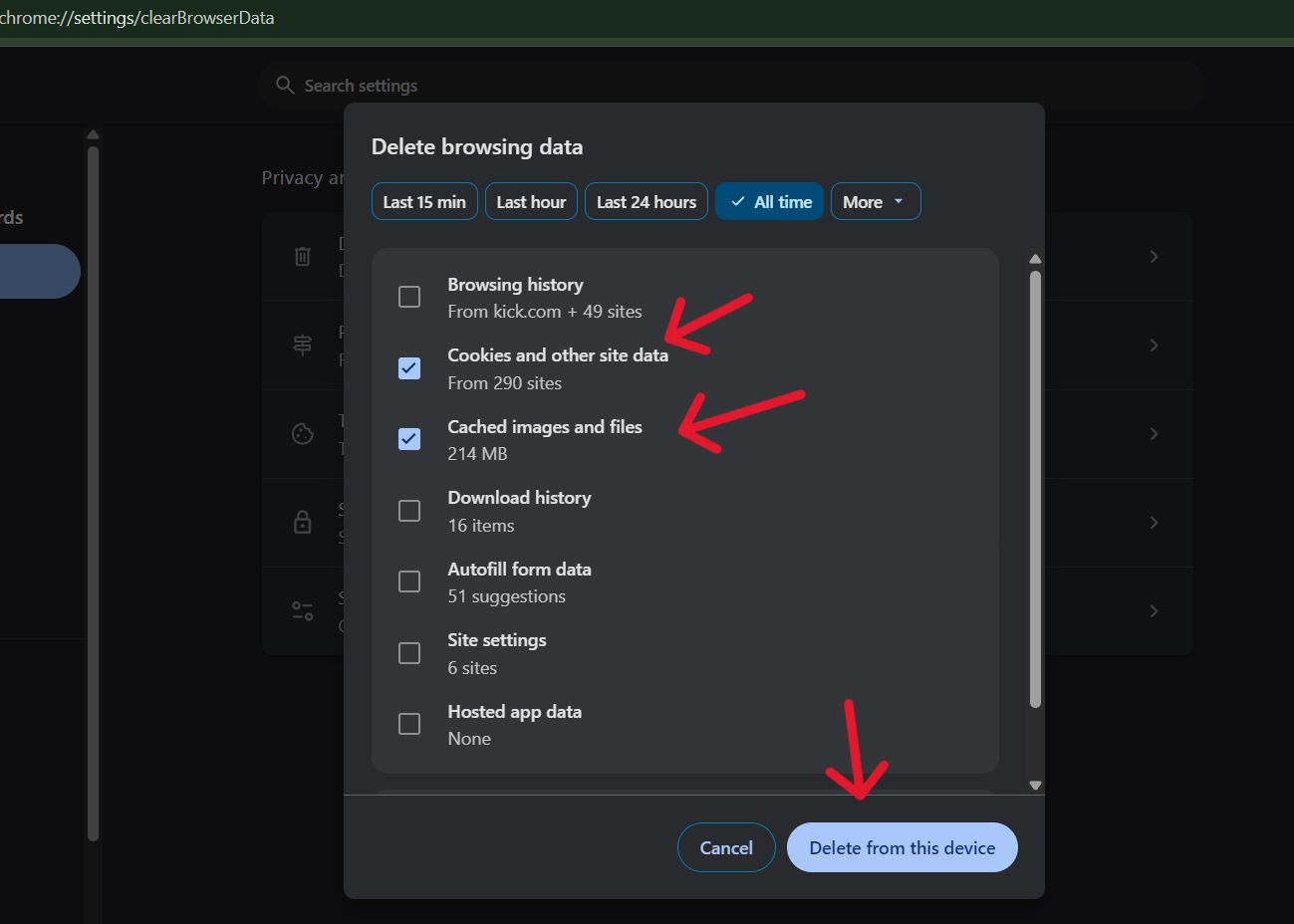
Deleting this data signs you out of Kick, so log back in and reload the page. Other websites stay untouched. If the clip still will not play, clear the full browser cache from Chrome’s Delete browsing data option as a last step.
On mobile, the same idea applies. Clear the app cache from your phone settings, or reinstall the app if the option is missing. App updates arrive through the store, so download the newest version while you are there.
Check Your Connection and Kick’s Status
A clip player has to download small video segments continuously. A weak or unstable connection stalls it, and the preview shows a spinner forever. Switch networks or try mobile data to test.
If previews fail on every clip, check Kick’s system status page. Kick’s help center points users there for platform-wide playback problems, per the article we checked on November 6, 2026. If the page shows an incident, wait. Nothing on your side will fix it.
Clip Shows a Different Moment Than You Wanted
Sometimes the clip works perfectly and still looks wrong. Kick’s troubleshooting page explains that clips capture a fixed amount of stream time around the moment you click. If you clicked late, the highlight may sit right at the edge, or fall outside.
The streamer may also have moved on by the time processing finished. A brief stream interruption can affect what was recorded as well.
The fix is to trim. After creating a clip, you can adjust the start and end points and change the title. Press the clip icon, or the C key on desktop, as soon as the moment happens, then tighten it in the editor.
Length limits cause confusion too. Kick’s current help page says clips run 10 to 180 seconds. Older articles and some bot documentation mention a one-minute cap. Treat those older numbers with caution. Our breakdown of Kick clip length covers the limits in more detail.
Pros and Cons of Kick’s Built-In Clipping
Kick’s clipping tool is built for speed. One click, a quick trim, and a shareable link. For most viewers that is exactly what they want, and the tool handles it well when everything lines up.
The weak spots show up when something breaks. Clips depend on stream status, processing time, and channel settings, and the help pages do not always agree with each other. Clips and full broadcasts also behave differently, which our comparison of Kick clips vs VODs explains side by side.
Pros
- Fast. One icon or one key press starts a clip.
- Open to any logged-in account, not just streamers.
- Built-in trim and title editor after creation.
- Streamers can manage or disable clips on their own channel.
Cons
- Often limited to live streams, so you can miss a moment.
- Processing delay means the clip is not instant.
- Fixed capture window can cut the highlight.
- Streamers can switch clipping off entirely.
- Official help pages contradict each other on VOD clipping.
When the Problem Is on Kick’s Side
If nothing works anywhere, step back. Check the status page, try another browser, and wait an hour. Platform issues tend to clear without any action from you.
If clips are still broken after all the steps above, contact Kick’s support team through the Help Center. Kick says its team is available around the clock. Send details they can act on:
- Your Kick username
- What failed: cannot create, not appearing, or will not load
- The channel you were clipping from
- The date and time you tried
- A screenshot of the error
A clear report speeds up the reply. Vague messages like clips are broken usually bounce back with questions.
Kick Clips Not Working FAQs
The most common reasons are that the channel has clipping disabled, you are logged out, the stream just started, or the stream is not live. Log in, refresh, and test another live channel. If the button works there, the first channel turned clipping off.
Kick says clips can take a few minutes to process. Refresh your library after a short wait. If it never shows up, the clip likely failed, and you should make a new one while the stream is live.
Usually it is a cache, browser, or connection issue. Refresh, switch to another browser or the app, clear cache and cookies, and test your network. If every preview fails, check Kick’s status page.
Kick’s pages disagree, so results vary. One says VOD clipping works and another says clipping is usually live only. Past broadcasts also expire, and our guide on how long Kick VODs last explains the retention side.
The Kick help pages we read do not describe a built-in download option, so people tend to use third-party tools. Whatever you pick, download only public clips and respect the creator’s rights.