
To back up your Kick streams, record each stream locally while you go live, pin the VODs that matter if your channel can, and keep a second copy of anything you can’t lose. Kick deletes VODs after 7 or 30 days and can’t bring them back, so the backup has to start before the stream does. We checked Kick’s and OBS’s help pages on October 30, 2026. Each fact below links to the page it came from.
Who This Guide Is For
This guide is for Kick streamers who want their streams to outlast Kick’s timer. That includes small channels with a 7 day window, verified channels with 30 days, and anyone who has lost a stream they wish they had kept. You don’t need anything beyond the software you already stream with.
Why Kick Streamers Should Back Up Their Streams
Kick does keep your streams for you, but only for a while. Here is what each channel type gets.
| Verified channel | Non-verified channel | |
|---|---|---|
| How long a VOD lasts | Up to 30 days | 7 days |
| Replays held at once | 30 | 16 |
| Pinning to keep a VOD | Yes, up to 5 (Partner and Verified) | No |
Source: Kick Help, KICK VODs (stream replays) and Pinning your VODs, checked October 30, 2026.
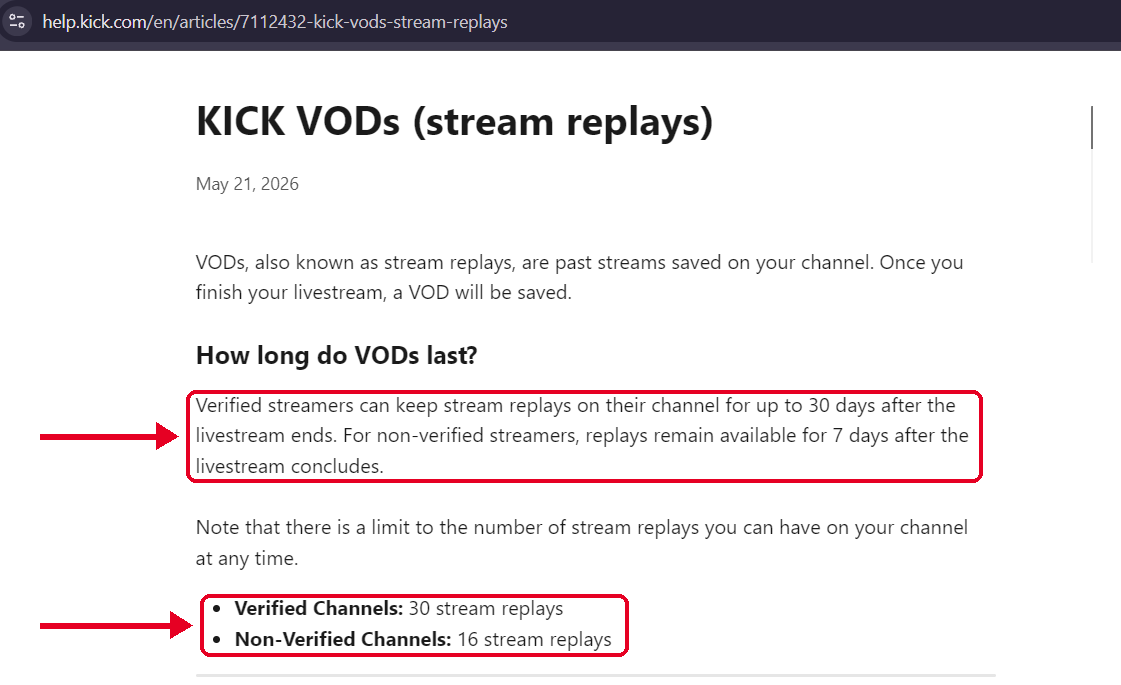
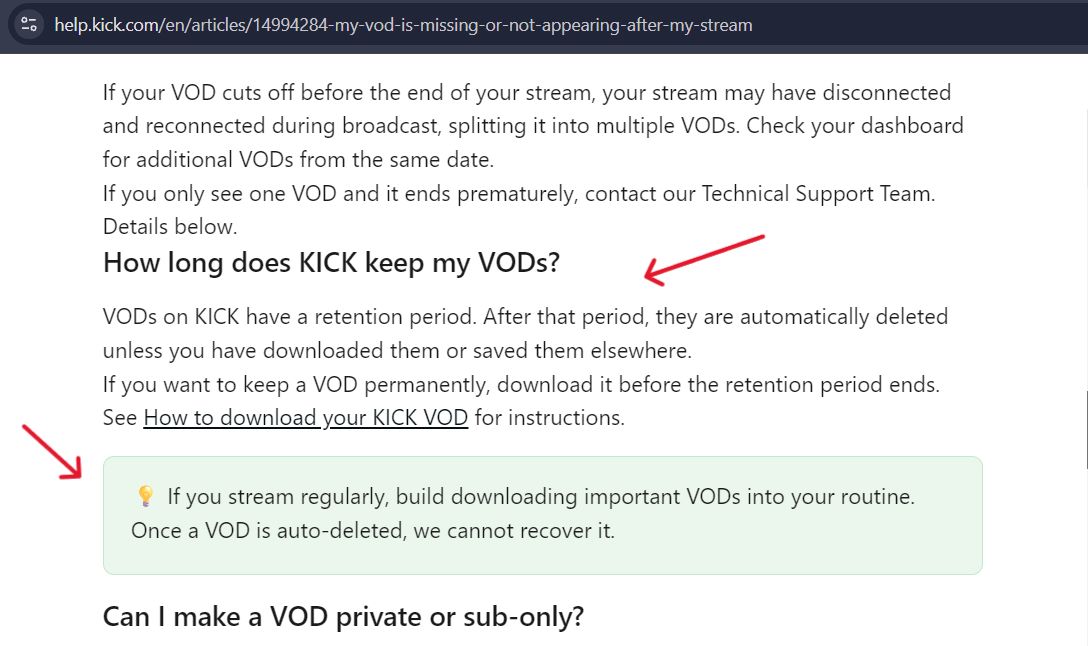
Once Kick deletes a VOD automatically, it says it can’t recover it. Its missing VOD page, dated May 12, 2026 and checked October 30, 2026, tells streamers who go live often to build saving their important VODs into their routine. That is the whole case for a backup habit.
A Quick Way to Keep a Public VOD
If a VOD is still public on Kick, our kick video downloader can fetch it from a pasted link, which makes it a quick way to keep a copy before Kick’s timer runs out. It can’t reach a VOD Kick has already deleted, a subscriber only VOD, or a stream that’s still live. That is why a local recording is the stronger backup, as the steps below show. Use the downloader only for your own streams or content you have permission to keep.
How to Save a Public Kick VOD in 4 Steps
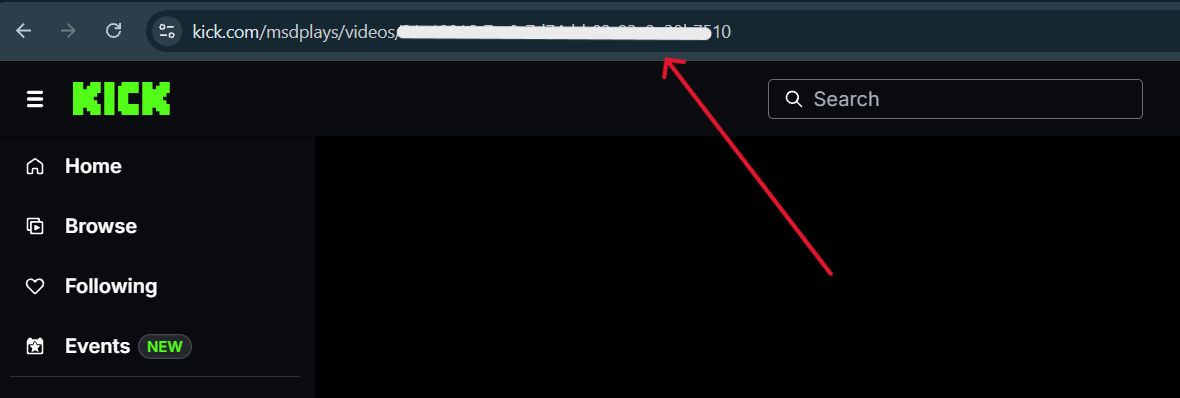
1) Copy the VOD link from Kick – Open the VOD on kick.com while it’s still public and check that it plays. Then copy the full address from your browser’s address bar, or use the Share option under the player. If the VOD doesn’t open for you, the downloader won’t be able to fetch it either.
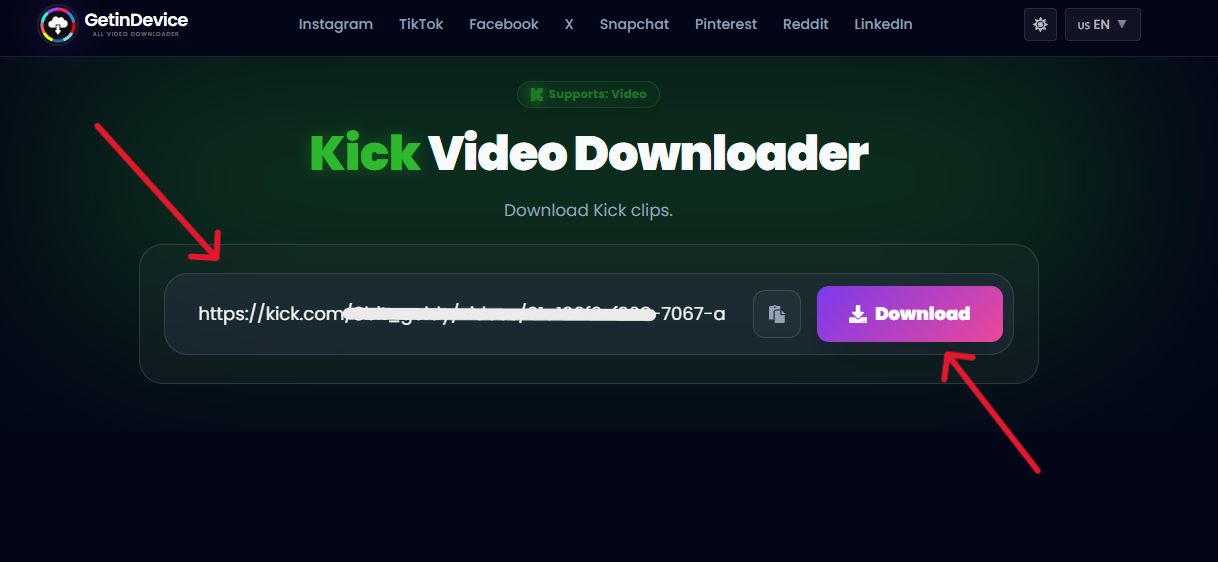
Paste the link into the downloader – Open our kick video downloader page and paste the link into the input box. Use the link to a single VOD, not your Kick channel page Link. If a dropped connection split your stream into several VODs, paste each one separately. Then click the Download button.
Choose your quality and download – Once the tool reads the link, pick the quality you want from the options it shows. Choose the highest for a stream you want to keep, or a lower one for a quick preview copy. Long streams make large files, so check that your device has enough free space before you start.
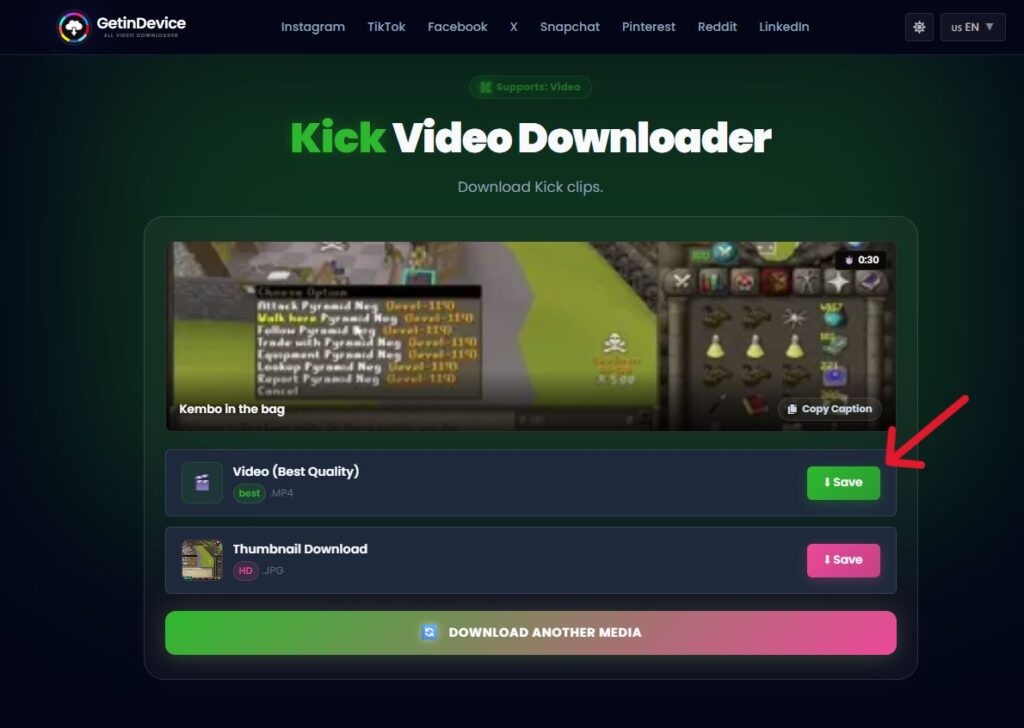
Check the file and store a second copy – When the download finishes, open the file and skim the start, middle and end to confirm the whole stream saved. Then copy it to a second drive or cloud storage. One file on one device still isn’t a backup.
How to Back Up Kick Streams in Six Steps
- Decide what you’re keeping – Full streams, highlights, or both. Full streams take space. Highlights are light and easy to share.
- Record every stream locally – In OBS Studio, open Settings, then Output, and set your Recording Path. In General, you can turn on automatic recording when streaming, according to OBS’s overview guide (checked October 30, 2026). Then every time you go live, a file also lands on your own drive.
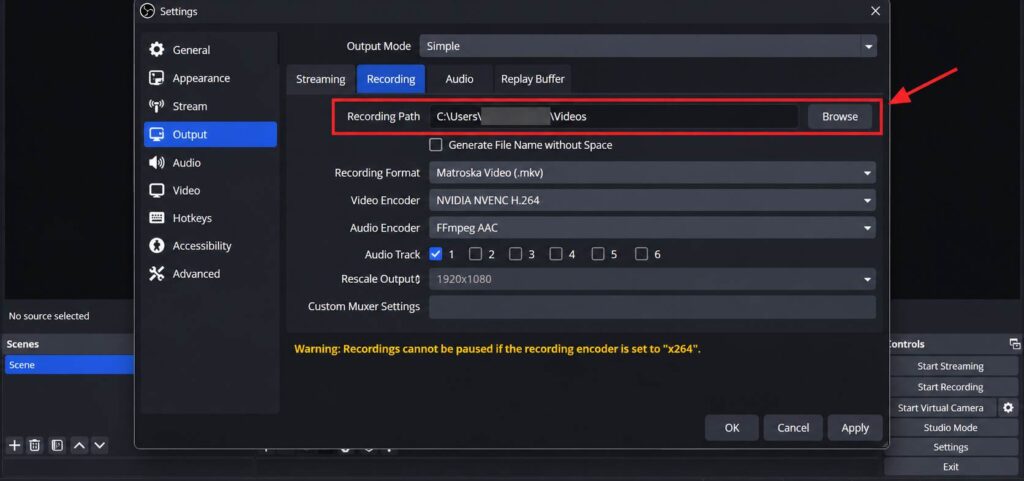
- Name files so you can find them – OBS lets you change the filename formatting in its Advanced settings, and its guide shows a date based folder pattern as an example. A date in every file name saves you hunting later.
- Check the VOD on Kick after you end – Kick says processing takes a few minutes for a short stream and up to an hour for a long one, and that a dropped connection can split a stream into several VODs. Our guide on what happens to a Kick stream after it ends covers the steps in between.
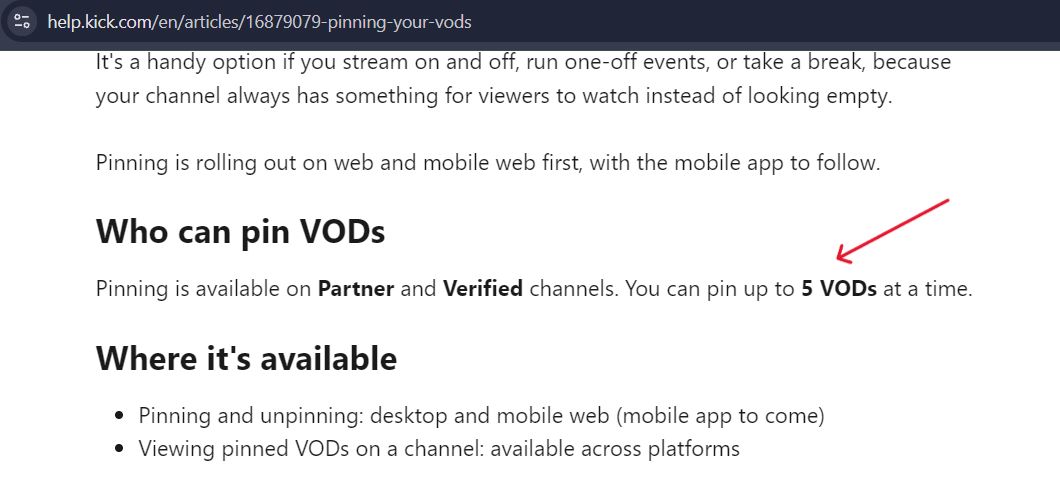
- Pin or save the VODs that matter – Partner and Verified channels can pin up to 5 VODs, and only while they haven’t expired. Kick also announced on September 25, 2026 that creators can download their VODs straight from the platform, as Streams Charts reported. Kick’s own help page on saving VODs, checked October 30, 2026, still lists outside tools and doesn’t name a menu. So look in your Creator Dashboard to see whether the option has reached your channel.
- Keep a second copy somewhere else. Copy the local recording to a second drive or to cloud storage. One copy on one drive isn’t a backup. That is our advice, a common rule of thumb, not something Kick or OBS requires.
Tips From Kick’s and OBS’s Help Pages
- Test before you go live – OBS’s guide says to test everything, including your settings, before your first live stream.
- Use the Replay Buffer for highlights – OBS can keep recent moments in a buffer and save them with a hotkey.
- Clip the moments you’ll want later – Kick clips run from 10 to 180 seconds, as our guide to Kick clip length lays out.
- Check privacy before you worry – A VOD can be public, subscriber only, hidden or unlisted, or deleted, per Kick’s missing VOD page. Your local recording captures the stream whichever setting you pick.
Mistakes to Avoid
- Treating Kick as your only copy – Once a VOD expires, it’s gone.
- Assuming you have 30 days – Only verified channels do. Our guide on how long Kick VODs last shows both windows.
- Unpinning an expired VOD – Kick says it is deleted after a 24 hour window.
- Deleting VODs to free space – Kick says deleting a VOD lowers your total stream time. Free space on your own drive instead.
- Never testing the recording – A backup you haven’t checked is a guess.
Back Up Kick Streams FAQ
Record every stream locally in OBS or your streaming software, pin the VODs that matter if your channel is Partner or Verified, and copy your recordings to a second drive or cloud storage.
Only for a while. Kick keeps a VOD for up to 30 days on a verified channel and 7 days on others, then deletes it. If your VOD isn’t showing at all, our guide on why a Kick VOD isn’t showing covers the fixes.
OBS has a setting to record automatically when you start streaming, according to its overview guide. Once it’s on, each stream also saves a local file.
Your local recording covers it, because it captures what you stream whichever visibility you choose later. Our tool can’t open subscriber only VODs.
Yes. Kick says you can save any clip you can open, and clips are short cuts of a stream, not the full replay. Our guide on Kick clips vs VODs explains how they differ.