
The best AI background remover is the one that matches the job in front of you: a single profile picture, twenty product shots for Pinterest, or a hundred catalog images with a messy edge here and there. This guide compares five tools (Removal.ai, Photiu.ai, Bgeraser, PhotoScissors and Pixa) on the things that actually decide that choice: free limits, batch size, manual fixing tools, output format and what happens to your files.
It is written for people who work with social media content: Instagram posts and stories, Pinterest pins, TikTok covers, and WhatsApp or Instagram profile pictures. The specs below come from each tool’s own page at the time of writing. Free tiers change often, so check the current limits before you plan a big batch.
Quick Picks
- Free, no sign-up, batches of 20: Bgeraser
- Very large batches and API access: Removal.ai
- Fixing tricky edges by hand: PhotoScissors (keep and remove markers) and Photiu.ai (erase and restore brush)
- Transparent PNG, then a new background: Pixa
How Background Removal Fits Into a Social Media Workflow
Most creators do not start from a blank canvas. They save a reference image, keep an old clip of their own, or pull a photo from a post they made earlier, then rework it into something new. Background removal is usually the step that makes that rework possible.
- Save your own source media in original quality, for example with a Pinterest video downloader for your own pins or an Instagram tool for your own posts, instead of relying on a screenshot.
- Remove the background with one of the five tools reviewed below.
- Place the cutout on a new background, a brand color, or a template. If you need to export a finished design out of Canva, the Canva downloader can help.
- Publish to Instagram, TikTok, Pinterest, or wherever your audience is.
One note before you start: only reuse content you own or have permission to use. Removing a background does not change who owns the original image.
Where AI Background Removal Works and Where It Fails
Modern removers use a trained model to decide which pixels belong to the subject and which belong to the scene, then build a mask with soft edges. That works well on a clear subject against a plain background. It struggles in predictable places: hair and fur against a similar-colored wall, glass and other see-through objects, logos and thin line art, and low-contrast scenes where subject and background share colors.
That tells you what to look for in a tool. If most of your images are clean portraits, almost any of the five will do. If you work with glass bottles, lace, jewelry or busy backgrounds, manual fixing options matter more than raw speed.
Why Clean Cutouts Matter for Social Media and Online Selling
A cutout lets one photo travel. The same product can sit on white for a marketplace, on a colored background for an Instagram post and on a lifestyle scene for a Pinterest pin, without a second photoshoot. For creators it also keeps profile pictures, thumbnails and story graphics consistent across platforms like Instagram, TikTok and LinkedIn. If you reuse your own saved media for new posts, for example with an Instagram video downloader or a TikTok video downloader, a clean cutout is often the step that turns an old clip or photo into a fresh design.
1. Removal.ai: Built for Volume
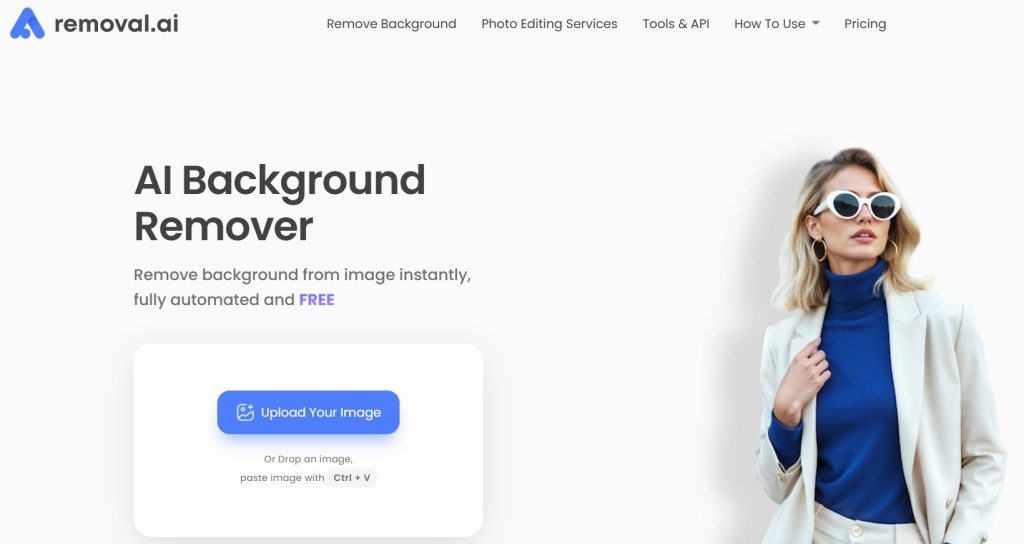
Removal.ai is the tool in this list aimed most clearly at volume. Its page describes processing more than 1,000 images in a single upload, and it offers an API and a desktop app for teams that want background removal inside their own workflow.
What stands out
- Bulk uploads: useful for catalogs and marketplace listings where every image needs the same treatment.
- API: lets developers add background removal to a website, app or product pipeline.
- Built-in editor: background replacement, an erase and restore tool for manual fixes, text and effects, and presets for marketplaces.
- Edge handling: the page specifically mentions hair and fur.
Limits to know
Pricing and credit details sit on a separate pricing page, and the main page does not state the maximum HD resolution, so check before you commit to a large job. The upload error message only mentions JPG and JPEG files, so test other formats before a big batch. For an occasional single image, a lighter tool is enough.
Best for: online sellers, agencies and developers who process many images repeatedly.
2. Photiu.ai: Flexible Batches With a Repair Brush
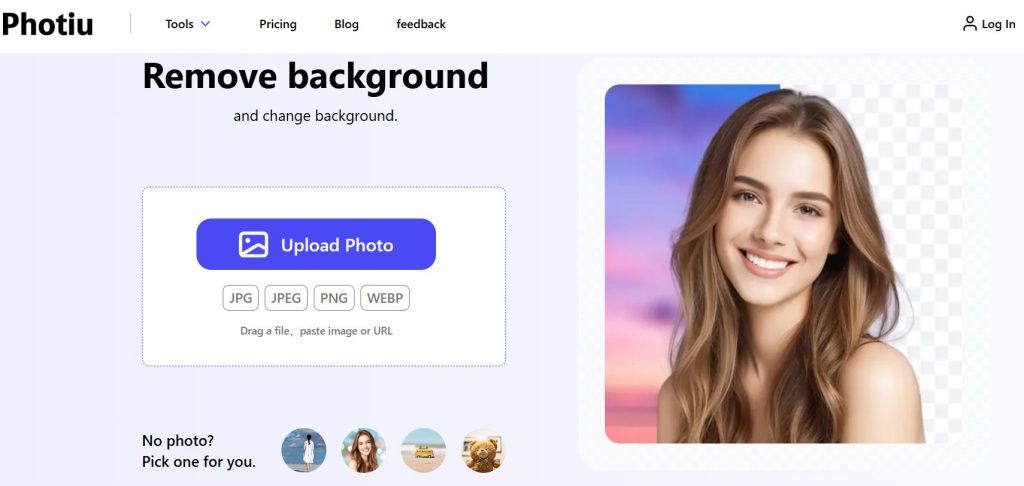
Photiu.ai lets you upload single files, a whole folder or a ZIP, or paste an image or URL, with batches of up to 50 images. It offers a Basic and an Advanced model, plus an erase and restore brush to repair the cutout when the AI gets an edge wrong.
What stands out
- Accepts JPG, JPEG, PNG and WEBP files.
- Background options include transparent, white or red, a template library, or your own image.
- HD output up to 4K is supported.
- The same site offers a magic eraser, an upscaler and a resizer, which helps when one image needs several fixes.
Limits to know
Free users get results in preview quality. According to the page, HD downloads need a small fee, with the exact price on its pricing page. The page also warns that logo images may need brush editing. It does not describe a mobile app, so test it on your phone before relying on it for on-the-go work.
Best for: creators who process small to medium batches and want a brush to fix mistakes.
3. Bgeraser: Free, No Sign-Up, Files Deleted Fast
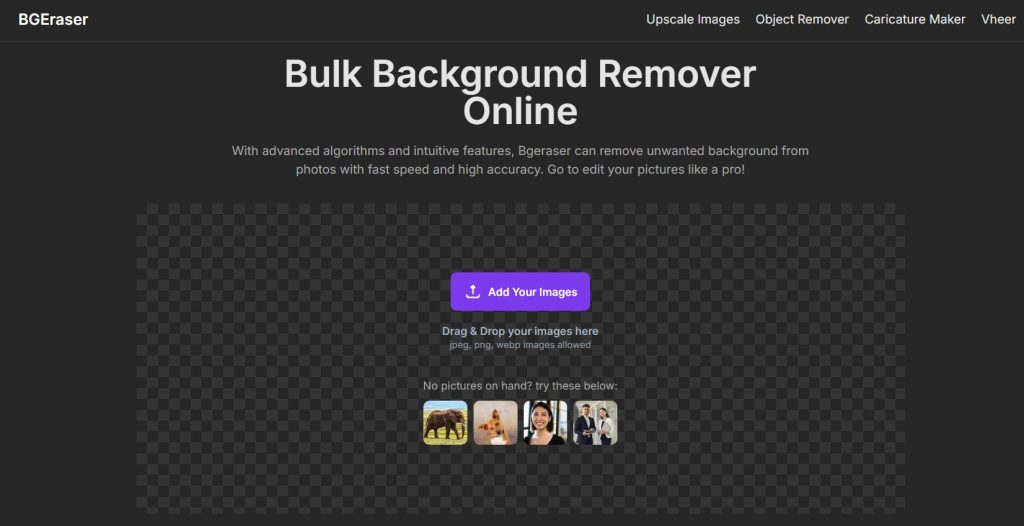
Bgeraser keeps things simple. According to its page it is free, needs no account or sign-up, and has no usage limits. You can upload up to 20 images at once and download the results together as a ZIP file.
What stands out
- Formats: accepts JPG, PNG and WebP, and exports PNG so transparency is preserved. You can also apply a solid color.
- Privacy: the page says uploaded images and generated results are removed automatically within 2 hours.
- Commercial use: allowed, as long as you have the right to edit and use the original image.
- Apps: desktop versions are listed for Windows (Microsoft Store) and Mac (App Store).
Limits to know
The page does not state a maximum resolution, a file size limit or processing time, and it does not mention manual repair tools. If a cutout has rough edges, you will need to fix them in another editor.
Best for: quick profile pictures, one-off posts and small free batches.
4. PhotoScissors: Mark What to Keep and What to Remove
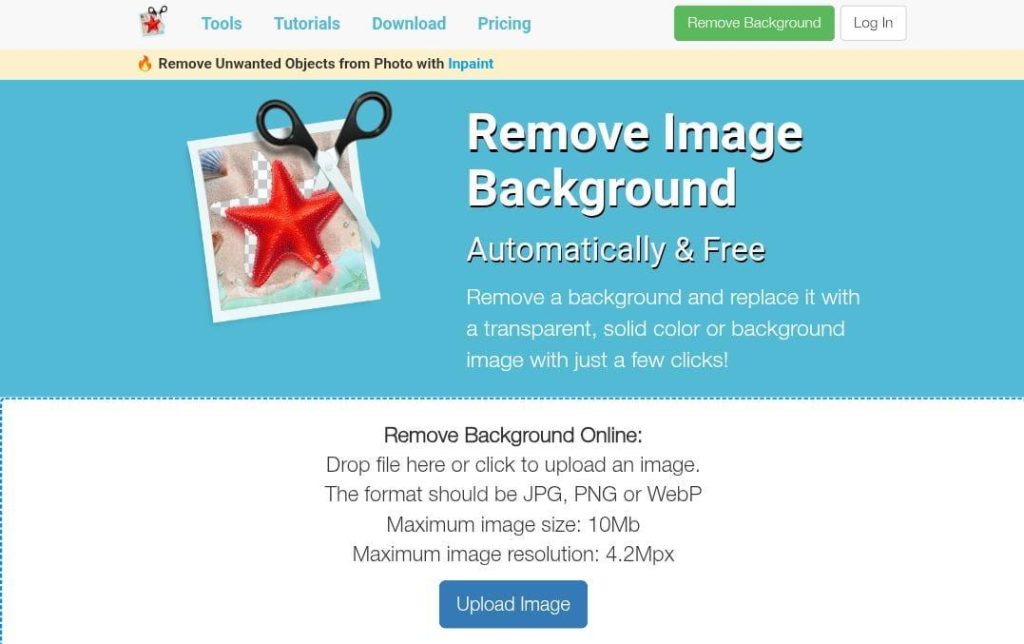
PhotoScissors combines automatic detection with marker tools. You mark the areas to keep and the areas to remove, and the program works out the rest. That gives you control on images where fully automatic tools guess wrong.
What stands out
- Keep and remove markers based on color.
- Transparent marker for objects that should keep both foreground and background texture, such as glass.
- Hair tool for semi-transparent details.
- The online tool accepts JPG, PNG and WebP files.
Limits to know
The online tool caps uploads at 10 MB and 4.2 megapixels, which is below the size of many phone photos, so downscale larger images first. Marking takes longer than one-click tools, and the page does not mention batch processing or free-tier limits.
Best for: product photos with tricky edges, and anyone who prefers to steer the result.
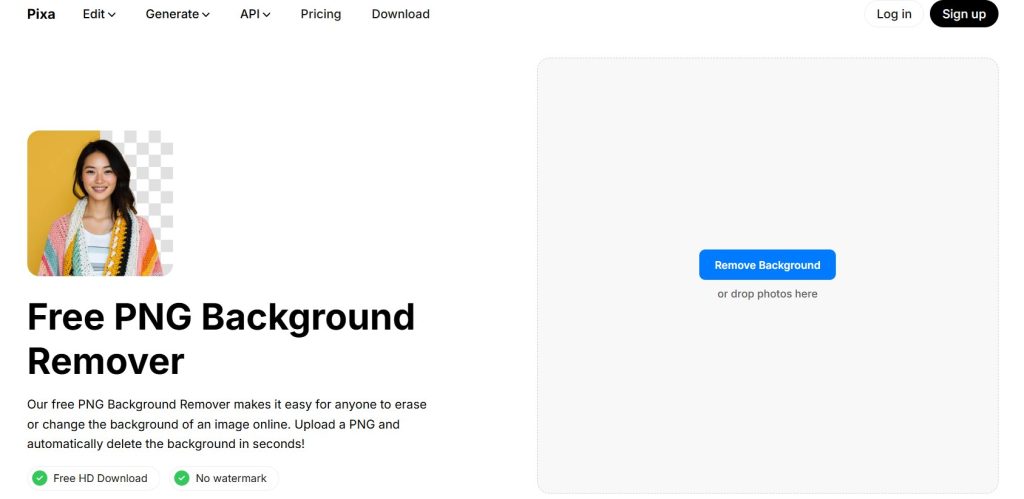
5. Pixa: Free PNG Cutouts With Background Swaps
Pixa offers a free background remover that its page describes as watermark-free. You upload an image and get a PNG with a transparent background.
What stands out
- After removal you can refine the cutout, swap in a solid color, a custom image or an AI-generated background, and resize the result to set dimensions.
- It copes with images shot on white, black or checkered backgrounds.
Limits to know
Bulk removal is part of a paid subscription according to the page. It does not state a maximum resolution, a file size limit or free usage caps, and it mentions PNG uploads, so test other formats before you rely on it.
Best for: designers and social media managers who want a transparent PNG and a quick background swap.
Comparing the Five Tools at a Glance
| Tool | Free access | Batch | Manual fixing | Good to know |
| Removal.ai | Free tool, pricing on a separate page | Over 1,000 images per upload | Erase and restore tool | API and desktop app |
| Photiu.ai | Free in preview quality, HD (up to 4K) needs a small fee | Up to 50 images | Erase and restore brush | Basic and Advanced models |
| Bgeraser | Free, no sign-up, no usage limits | Up to 20 images (ZIP download) | Not mentioned | Files removed within 2 hours |
| PhotoScissors | Not stated on the page | Not mentioned | Keep and remove markers, transparent marker, hair tool | Online upload limit of 10 MB and 4.2 megapixels |
| Pixa | Free, no watermark | Paid subscription | Refine after removal | Transparent PNG, background swaps |
Which Background Remover Fits Which Social Media Task
| Social Media Task | Best Fit | Why |
| One profile picture or a quick Instagram cutout | Bgeraser | Free, no sign-up, PNG output |
| 20 to 50 product photos for Pinterest or a shop | Bgeraser or Photiu.ai | Batches of 20 (free) or 50 (HD download is paid) |
| A large catalog or an automated pipeline | Removal.ai | Over 1,000 images per upload and an API |
| Glass, lace, hair and other tricky edges | PhotoScissors or Photiu.ai | Markers and a transparent marker, or an erase and restore brush |
| Transparent PNG, then a new background for a post | Pixa | Color, image or AI background swaps after removal |
Cutouts From Profile Pictures
If you want a clean cutout of a profile picture, start with a full-size copy rather than the tiny circle the app shows you. Our guide on saving full-size profile pictures from Instagram, WhatsApp and Snapchat explains why the full file matters, and the Instagram DP viewer and WhatsApp DP downloader pages cover the download step. Use someone else’s picture only with their consent.
What About Video Backgrounds?
The five tools reviewed here are covered for still images. If you want to remove the background from a Reel or a TikTok clip, check that a tool explicitly supports video before you upload anything. A simple workaround is to cut out a still frame or thumbnail and use it as a cover image or overlay.
If you manage several accounts and reuse a lot of content, our guide on how social media managers save and reuse content across accounts shows how a cutout step fits into a bigger workflow.
Test Any Tool in Five Minutes
Specs only tell you so much. Before you commit to a tool, run the same three images through each one you are considering:
- A portrait with loose hair against a wall of a similar color.
- A glass or shiny product on a busy surface.
- A logo or a text-heavy graphic.
Zoom to 200 percent on the edges, then place each cutout on a dark background and a white one. Halos, jagged edges and missing fine detail show up immediately, and you will know within minutes which tool suits your images.
Tips for Cleaner Cutouts
Start With the Highest-Resolution Original
More pixels mean more accurate edges. You can always downscale the finished PNG later, but you cannot add detail back once the AI has guessed an edge. Mind the upload caps, though: PhotoScissors, for example, limits online uploads to 4.2 megapixels.
Shoot for Contrast
The model separates subject from background mostly by contrast. A person with dark hair is easier to cut out against a light wall than against dark wood. If you are taking a photo specifically to remove the background later, make sure the subject does not blend into the scenery.
Watch for Color Bleed
If you stand right in front of a bright green wall, the reflected light tints your skin and clothes. The AI removes the wall but leaves the tint. Stand a few feet away from the background when you shoot.
Do Not Over-Smooth the Edges
Heavy blur or feathering gives the subject a glowing halo. Trust the tool’s edge first and only soften a pixel or two if the cutout looks harsh on the new background.
Add a Shadow Back
A cutout on a new floor looks fake without a soft contact shadow under it. Add one in your design tool after the background is replaced, and the subject will look grounded.
Frequently Asked Questions
Are free background removers safe for personal photos?
It depends on the tool. Bgeraser states that uploads and results are deleted within 2 hours, while other tools may keep files longer. Read the privacy policy of any tool before you upload sensitive photos.
Which file format should I export for a transparent background?
PNG. JPG cannot store transparency, so a cutout saved as JPG gets a solid background.
Can I use cutouts commercially?
Usually yes, if you own the original image or have the right to edit and use it. Bgeraser says this explicitly; for the other tools, check the terms on their pages.
Can these tools remove the background from a video?
The tools reviewed here are described for still images. Check for explicit video support before you upload a clip.
Final Thoughts
There is no single best tool, only the best fit for your images. Pick Bgeraser for free, fast, small jobs, Removal.ai when volume or automation matters, PhotoScissors or Photiu.ai when edges need hands-on repair, and Pixa when you want a transparent PNG and a quick background swap. Run the five-minute test on your own photos before you commit.
If your content workflow also involves saving your own videos and photos from social platforms, our free online video downloader covers Instagram, TikTok, Pinterest, Facebook and 50+ other platforms, so you can go from saved original to finished cutout without extra steps.