A profile picture is usually the smallest, most overlooked image on any app – and, oddly enough, one of the hardest to actually save in decent quality. Instagram compresses it into a tiny circle. WhatsApp hides it behind privacy layers most people never fully understand. Snapchat, more often than not, isn’t even showing you a real photograph at all. This guide breaks down exactly how full-size DPs work on each of these three platforms, why the “obvious” methods (screenshotting, right-click-save, zooming in) don’t actually get you a clean copy, and how to do it properly.
Why You Can’t Just Screenshot or Right-Click a DP
Every one of these apps follows the same underlying logic. The image you see in a chat list, a search result, or a profile header is a heavily downscaled preview – not the original file the person uploaded. This exists purely for performance reasons: loading a full 1000×1000 pixel image every time you scroll past someone’s name would slow the app down and burn through data unnecessarily, so the platform serves you a compressed thumbnail instead.
The full-resolution file, however, does still exist somewhere on the platform’s servers. That’s exactly what gets loaded the moment you tap to expand someone’s photo inside a one-on-one chat, or what a business account uses when displaying its logo clearly. A dedicated DP downloader tool is simply requesting that original file directly, rather than trying to stretch or upscale the tiny thumbnail your screen shows you – which is why a screenshot of the thumbnail always looks pixelated, while a proper download doesn’t.
This also explains why a single, generic method never works across all three apps. Instagram, WhatsApp, and Snapchat each store and gate access to that original file differently, so each one genuinely needs its own approach.
Quick Comparison: Full-Size DP Access at a Glance
| Platform | Full-size file exists? | Input needed | Works on private accounts? | Notifies the person? |
|---|---|---|---|---|
| Yes | Profile link | Yes | No | |
| Yes | Phone number | No (privacy-dependent) | No | |
| Snapchat | Yes (usually Bitmoji avatar) | Profile link | Yes | No |
Downloading a Full-Size Instagram Profile Picture
Instagram has never built a “download profile picture” button into the app, for the same reason it doesn’t let you download most other content – the platform is designed to keep media inside its own ecosystem rather than let it flow out easily. What you see when you tap someone’s DP is a small, cropped rendering, capped at a fraction of the resolution Instagram actually stores it at internally.
Tools like our Instagram DP Downloader sidestep this by pulling the image directly from Instagram’s media servers using the profile link – no login step, no app install, and no way for Instagram or the account owner to detect that the photo was viewed.
Step-by-Step
- Open the Instagram DP Viewer & Downloader.
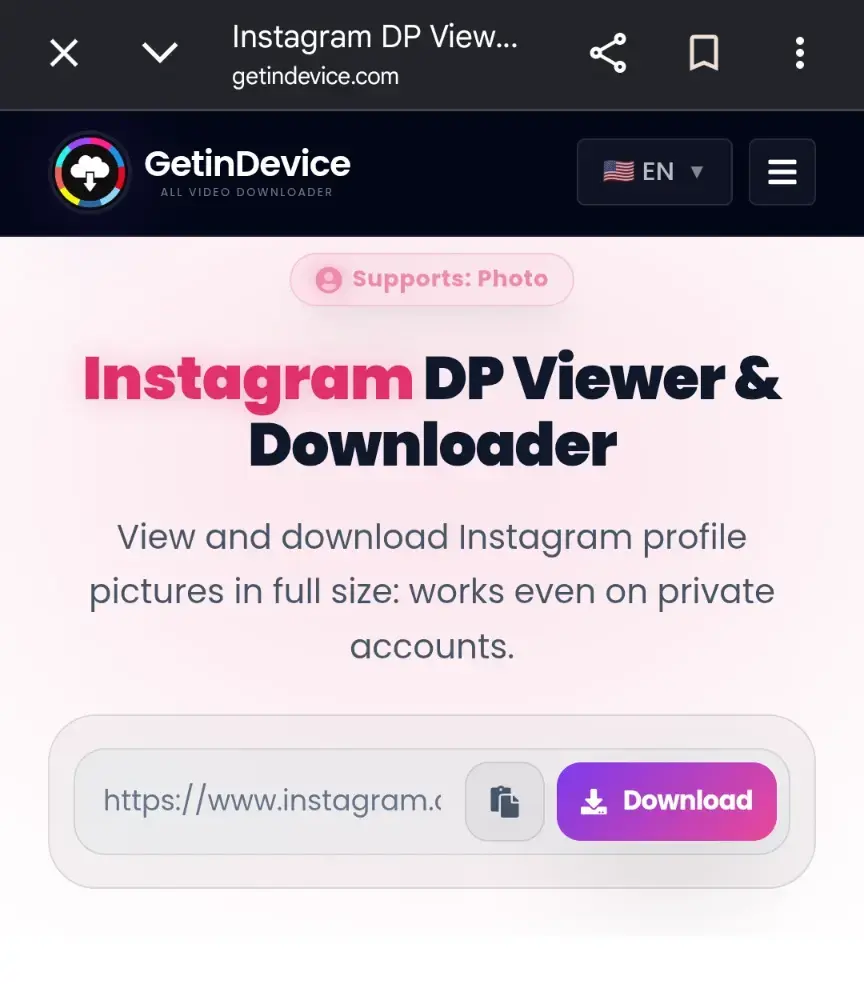
2. Copy the profile link from the Instagram app or website.
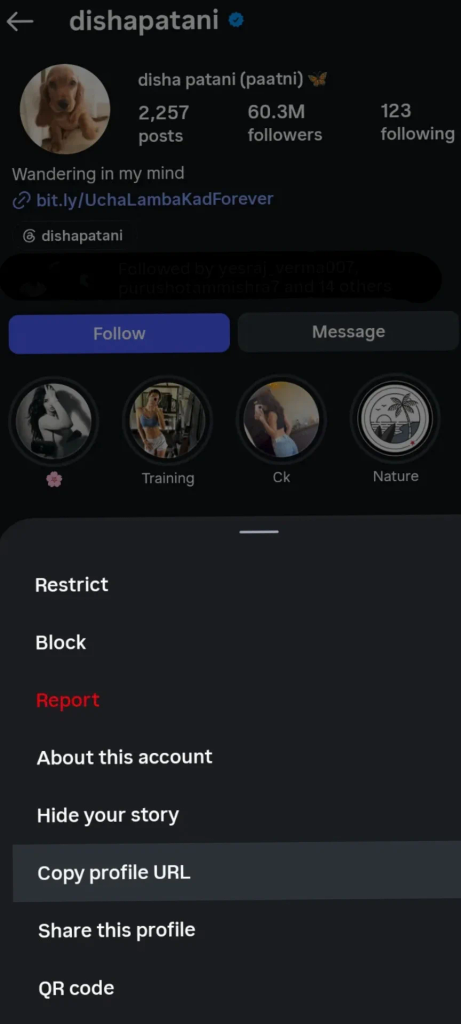
3. Now paste here & Let the tool load a preview of the full-resolution image.
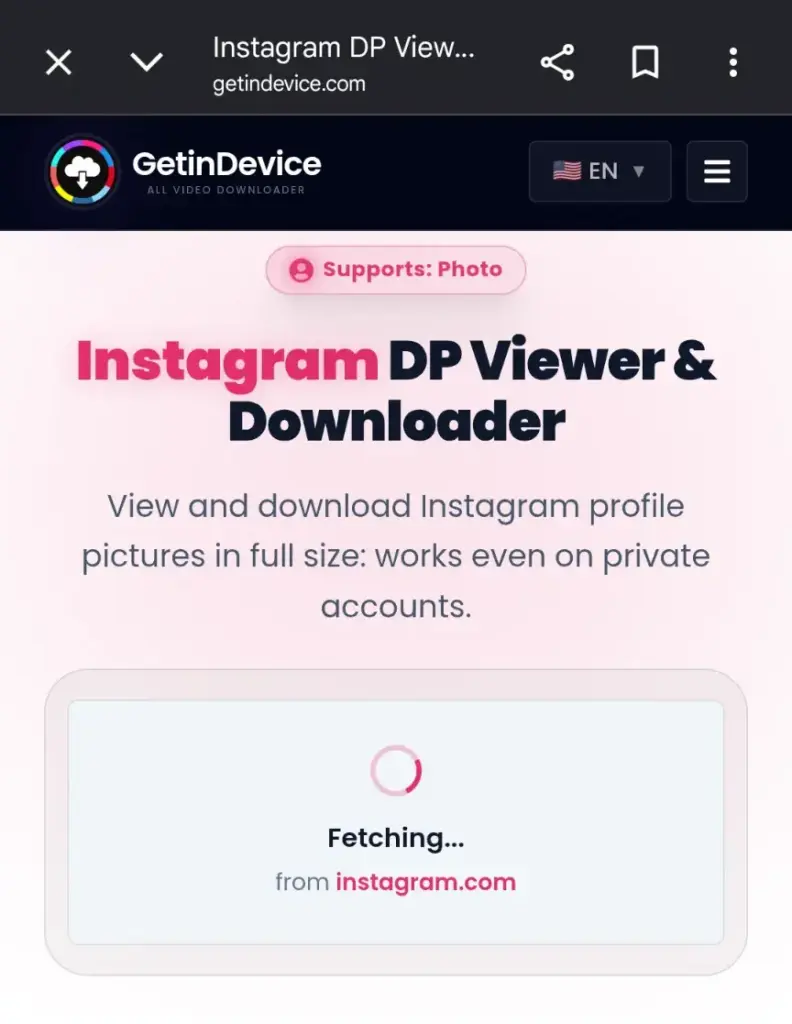
4. Tap save and download it directly to your device – no cropping, no compression.
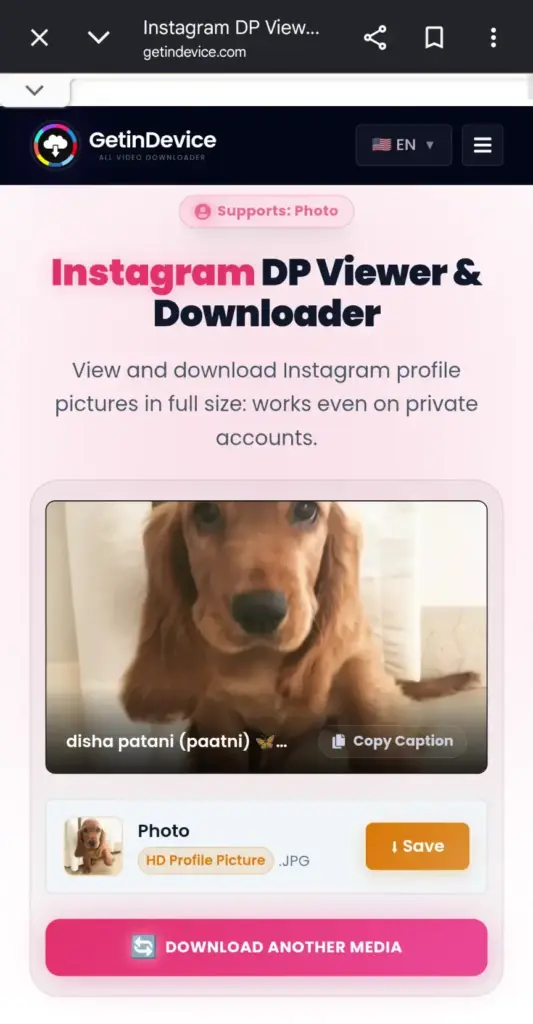
Works on Both Public and Private Accounts
Unlike many similar tools, this works regardless of whether the account is set to public or private – you don’t need to be a follower for the tool to retrieve the full-size DP. This makes it especially useful for cases where you simply want to view or save a clear copy of someone’s profile picture without needing to send a follow request first.
A Few Practical Tips
- Business and creator accounts sometimes serve their DP through a slightly different image pipeline, but the download process is identical from a user’s perspective.
- Always copy the link directly from the profile itself rather than typing it manually, to avoid broken or outdated links.
- The preview step exists specifically so you can confirm you have the right profile before downloading, since profile links can sometimes be copied incorrectly.
Downloading a Full-Size WhatsApp Profile Picture
WhatsApp gives every user four separate visibility levels specifically for their profile photo, found under Settings → Privacy → Profile Photo: Everyone, My Contacts, My Contacts Except, and Nobody. WhatsApp expanded its original three-option system to include a fourth, more granular level a few years back – giving users finer control over exactly who sees their photo.
How the Download Works
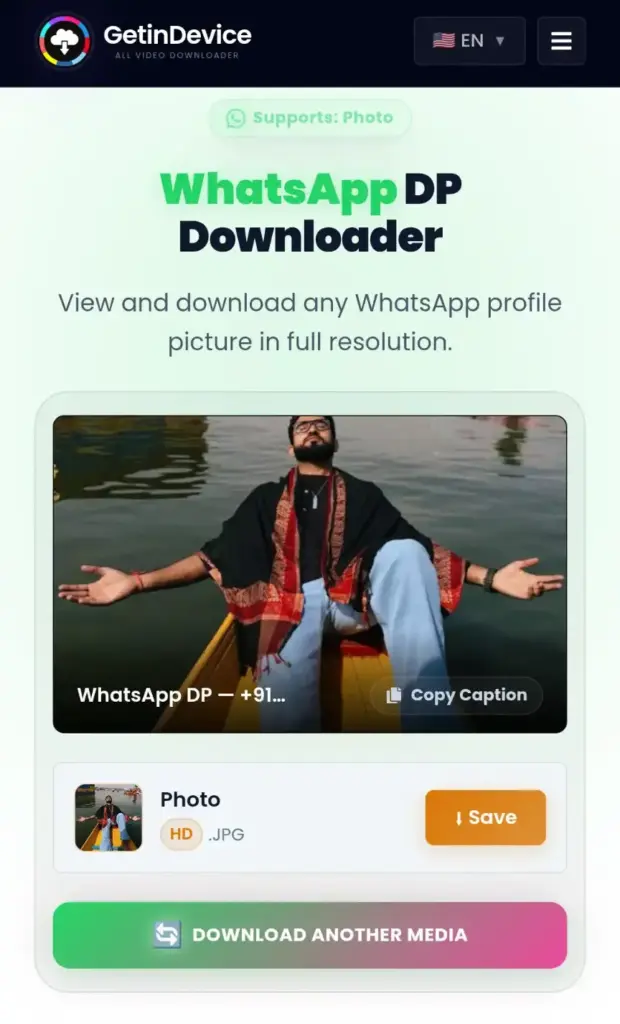
Our WhatsApp DP Downloader retrieves the original, full-resolution photo file directly using just the phone number. However, this depends on the user’s privacy settings – if they have restricted their profile photo to contacts only or ‘Nobody’, the image cannot be retrieved.
Step-by-Step
- Open the WhatsApp DP Downloader.
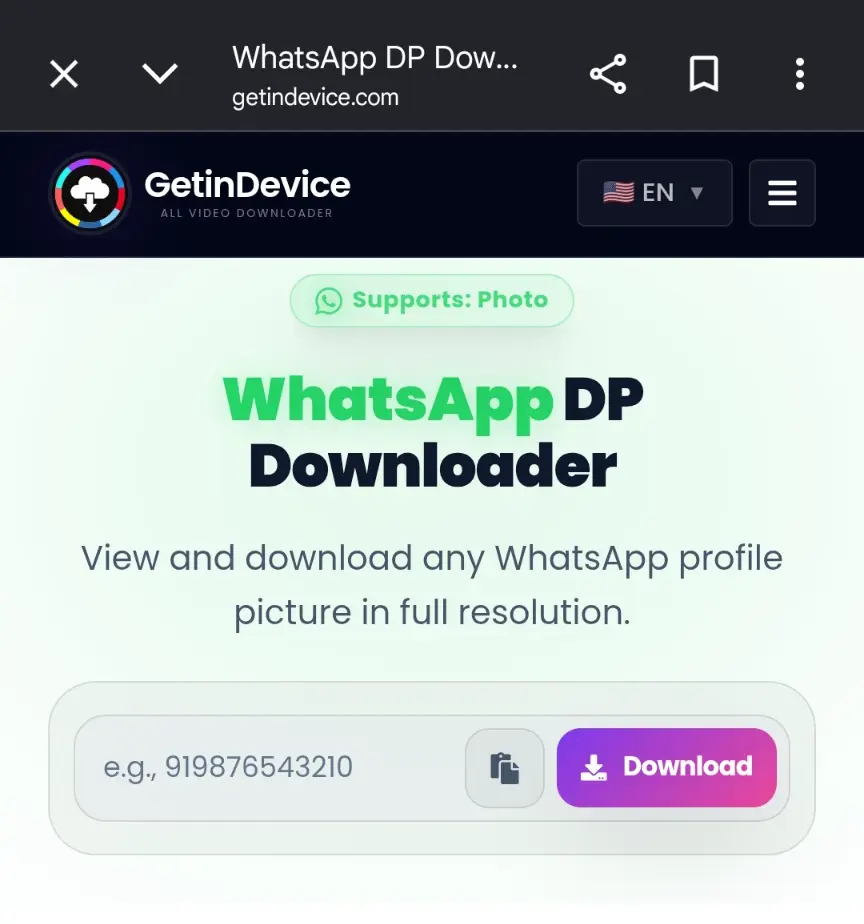
2. Enter the phone number, including the country code.
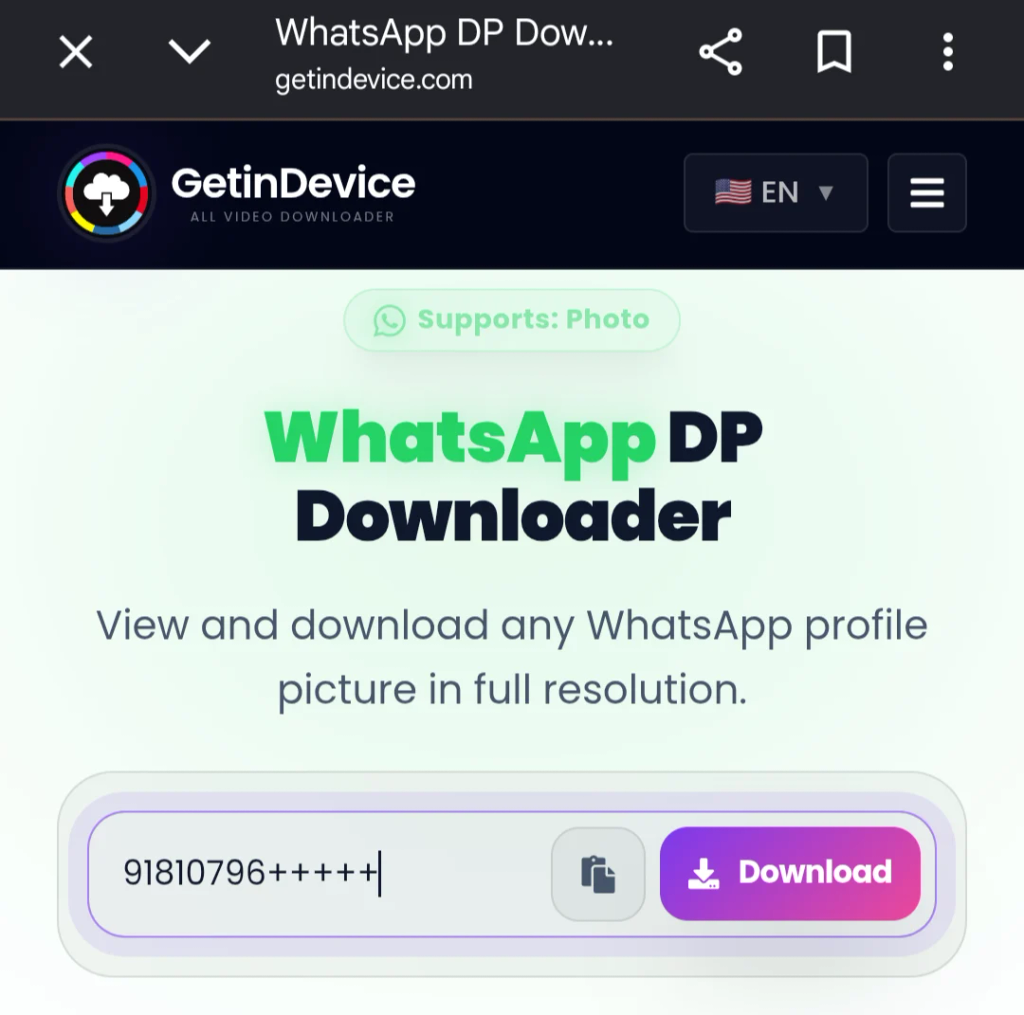
3. The tool loads the full-resolution photo within seconds.
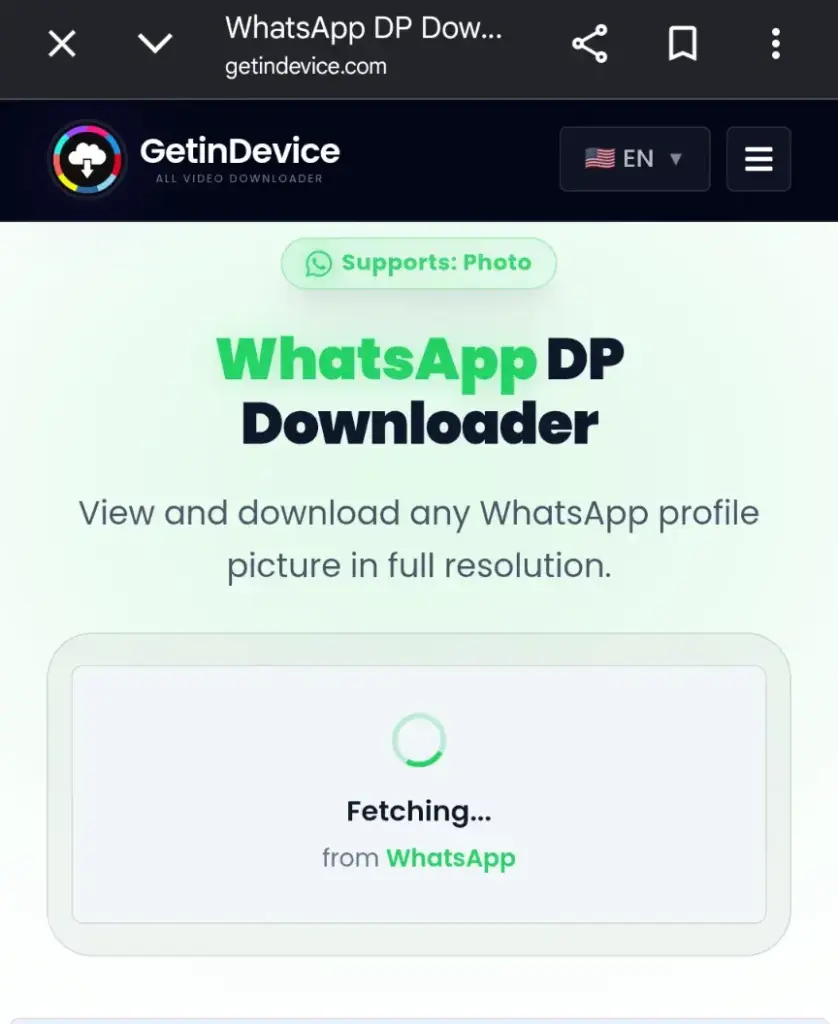
4. Download and save – no account login required on your end.
Downloading a Full-Size Snapchat Profile Picture
This is the platform where expectations need the most adjusting. Unlike Instagram or WhatsApp, the vast majority of Snapchat users don’t upload a real photograph as their profile picture at all – they use a Bitmoji avatar, a cartoon-style representation created through Snapchat’s integrated Bitmoji feature. So in practice, “downloading someone’s Snapchat DP” almost always means saving their avatar image, not a personal photo.
How the Download Works
The Snapchat DP Downloader retrieves this avatar (or, in rarer cases, an actual uploaded photo) in its full, uncompressed form, rather than the small circular version shown in search results or chat headers — and this works for both public and private accounts.
Step-by-Step
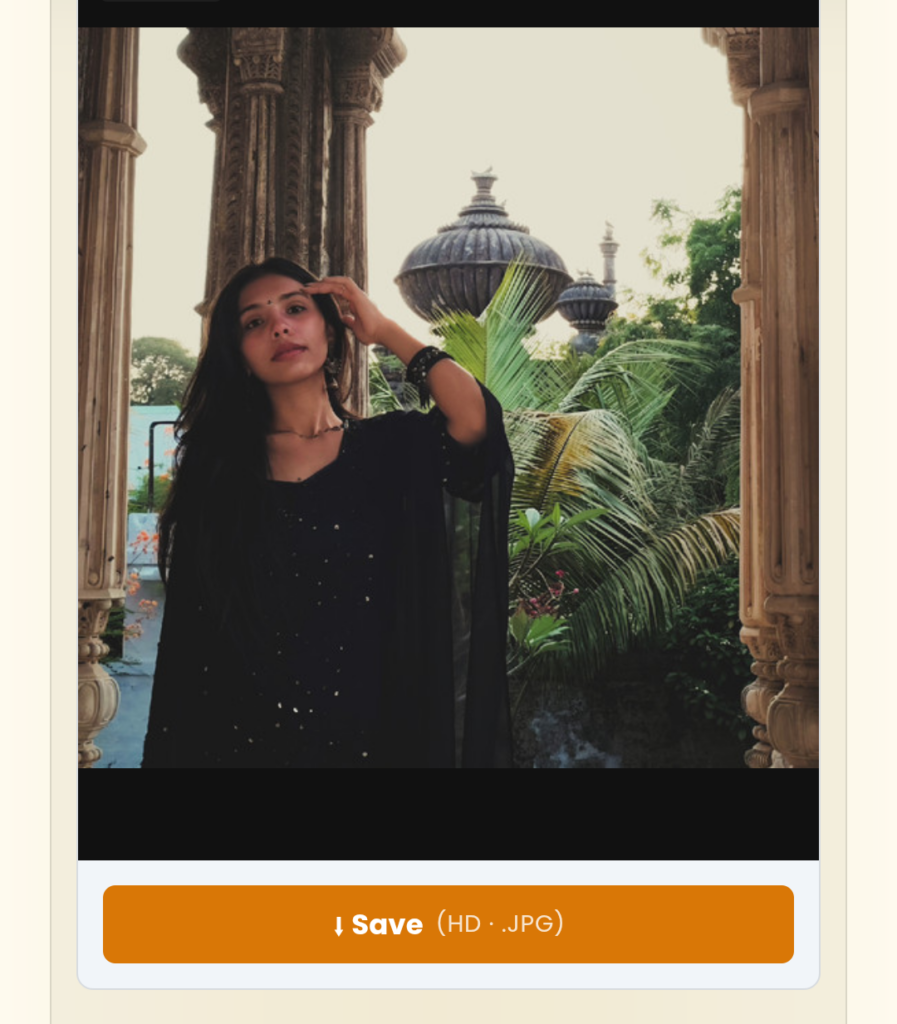
- Open the Snapchat DP Downloader.
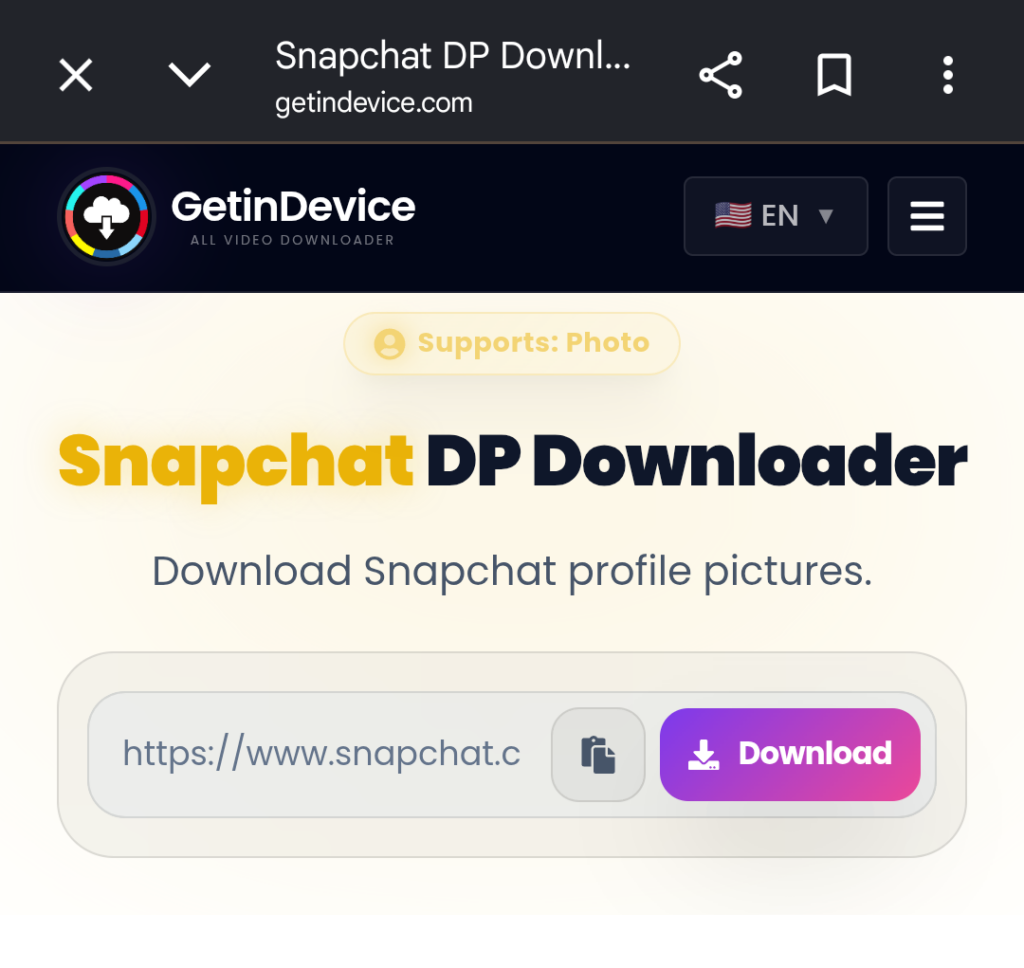
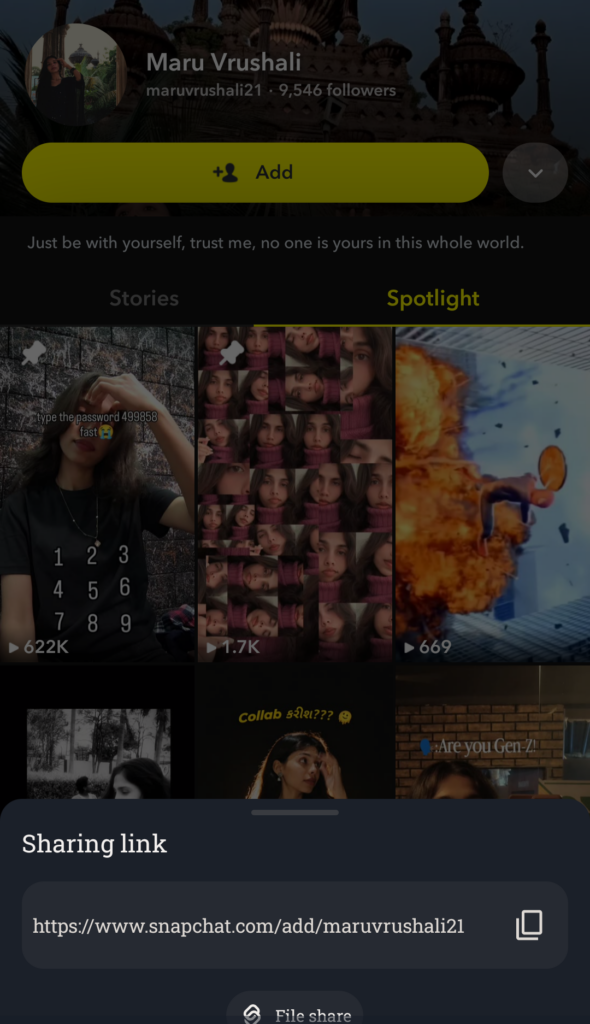
2. Copy the Snapchat user profile link.
3. Paste this into the box and it will be fetched in seconds.
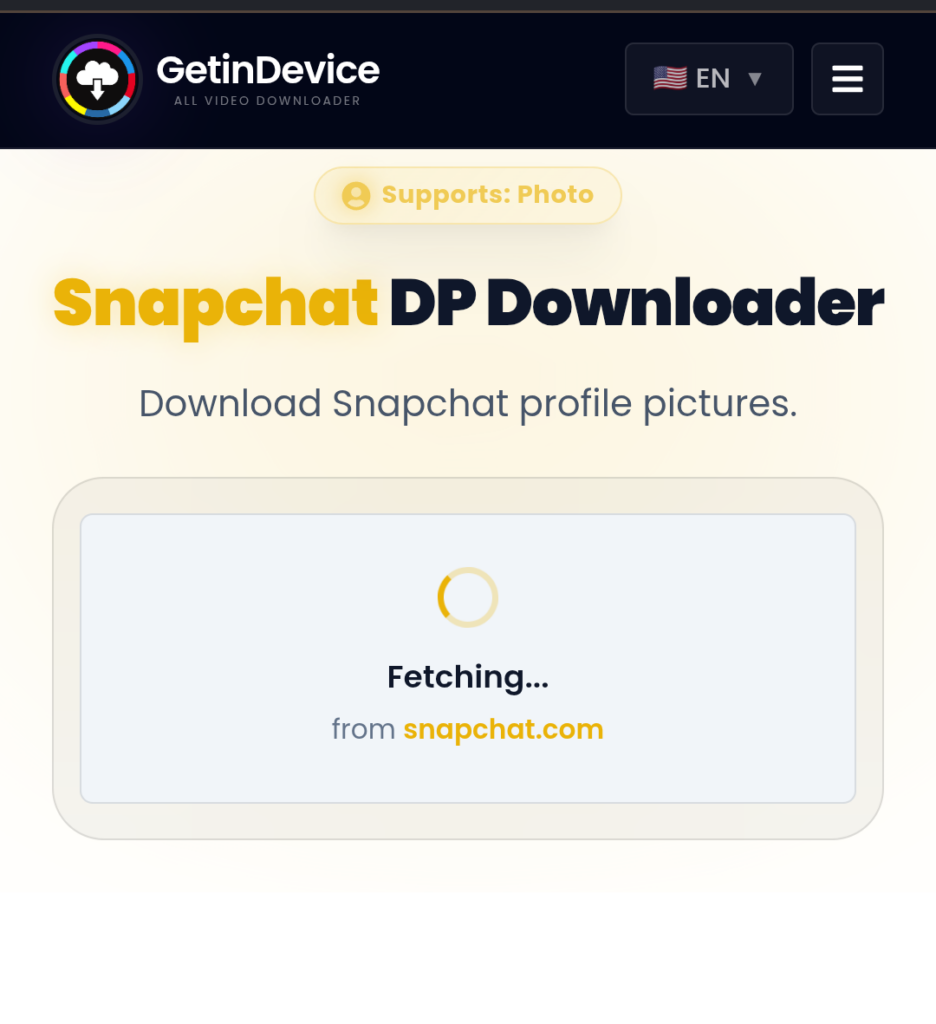
4. Download in a single click.
What If There’s Nothing to Download?
If a user has removed their Bitmoji entirely, Snapchat replaces it with a default grey silhouette — and in that case, there’s genuinely no custom image to retrieve, regardless of which tool is used. This isn’t a bug; it reflects Snapchat’s own fallback behavior when no avatar is linked.
Is This Legal, and Does It Notify the Other Person?
On notifications: No, viewing or saving a DP does not alert the other person on any of these three platforms. None of them have built a ‘someone viewed your profile photo’ mechanism – the same way there’s no notification for someone browsing your public Instagram profile.
On legality: Viewing and saving a profile picture for personal use is generally legal, in the same way saving any publicly posted image is. Where it becomes a problem is in how the image is subsequently used – using someone’s photo to impersonate them, harass them, or represent it commercially without consent crosses into separate legal and ethical territory that has nothing to do with the download method itself.
Responsible Use: A Quick Note
Since this entire category of tool sits close to personal privacy, it’s worth stating plainly: these downloaders are built for legitimate personal use – saving your own DP as a backup, keeping a professional contact’s photo for reference, or simply viewing a profile picture clearly. They are not designed for, and should never be used for, harassment, impersonation, or misuse of someone’s photo without their knowledge.
Frequently Asked Questions
No. None of the three platforms have a mechanism that alerts someone when their profile picture is viewed or saved by another user.
Yes. The Instagram DP Viewer & Downloader works on both public and private accounts, using just the profile link.
Yes. If the user has set their profile photo privacy to “Nobody” or restricted it from you (such as “My Contacts” when you aren’t saved), their DP cannot be retrieved. The tool can only fetch profile pictures that are visible to you.
Because the vast majority of Snapchat users set a Bitmoji avatar as their profile picture rather than uploading a personal photograph – this is standard, expected Snapchat behavior.
No. All three tools – Instagram, Snapchat, and WhatsApp – work using only a profile link or phone number, with no login required on either side.
Yes – that’s essentially the entire purpose of these tools. The app itself only ever displays a compressed thumbnail; the tool retrieves the original file that was uploaded, which is typically several times larger and sharper.