
TeraBox has become one of the most common places people share videos that are too large for WhatsApp or Telegram to handle cleanly. The problem shows up the moment you try to actually save that video to your device: login walls, daily download caps, confusing apps, and popups that lead nowhere. Instead of just listing methods we have heard about, we tested every realistic way to download a TeraBox video ourselves, recorded the actual process for each one, and documented exactly what worked and what did not.
Our Testing Methodology
To keep the comparison fair, every method in this article was tested under the same conditions:
- Same device: All four methods were tested on a laptop/PC, not a mix of phone and desktop.
- Same internet connection: Every test ran over the same WiFi broadband connection, so no method got an advantage from a faster or slower network.
- Same video link: We used the exact same TeraBox share link across all four methods, so the comparison reflects the method itself, not differences in file size or video length.
- No ad blockers or extensions disabled: Each site and app was tested as a typical user would encounter it, popups and ads included.
- Recorded, not remembered: Each attempt was screen recorded as it happened, so the steps described below are exactly what appeared on screen, not a summary from memory.
Key takeaways:
- The fastest, most reliable method for downloading a TeraBox video with no login and no limit is a dedicated tool like GetInDevice’s TeraBox downloader, which loaded and saved the test video in 2 to 3 seconds.
- TeraBox’s own website worked, but it required two login attempts, showed a premium ad mid-process, capped the video at 380p, and its “download” button installed the TeraBox app instead of saving the video.
- A TeraBox Telegram bot required joining a channel first and, in our test, only offered streaming through an online player with no working download option.
- The browser developer-tools method, tested with the same link, did not work at all in its current state.
What Is TeraBox and Why Is Downloading From It Not Straightforward?
TeraBox is a cloud storage service that many people use to share large video files that apps like WhatsApp or Telegram would otherwise compress or reject. It offers a generous amount of free storage, which is why so many creators and everyday users rely on it to send videos. The catch is that TeraBox is built around getting people to sign up and eventually pay for premium, so it puts real friction between a shared link and an actual saved file: login prompts, quality caps for free accounts, and daily limits on how much you can download. That friction is exactly why dedicated downloader tools and workarounds exist in the first place, and it is also why the four methods below behave so differently from one another even though they are all trying to do the same basic thing.
Method 1: Using GetInDevice.com (No Login, No App Needed)
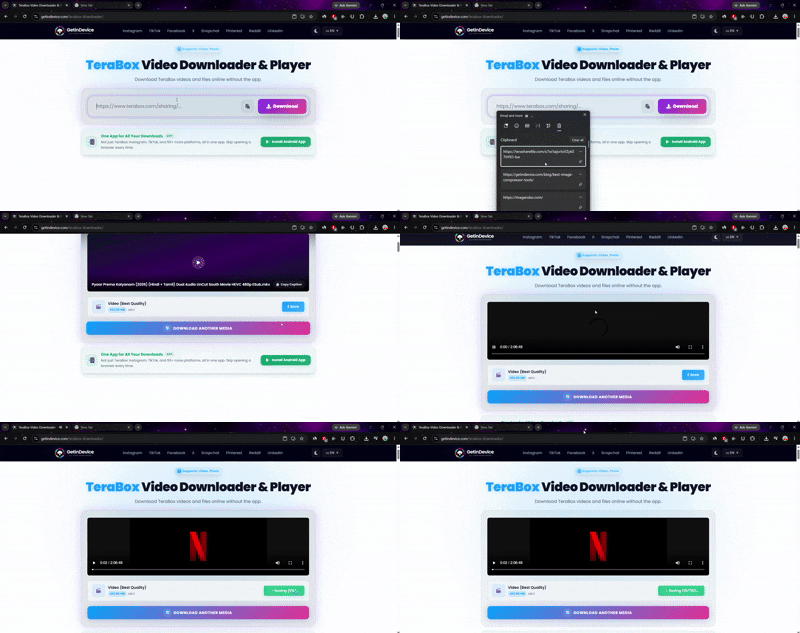
Steps
- Open the TeraBox video and copy its share link.
- Go to GetInDevice’s TeraBox downloader page.
- Paste the link into the box and hit fetch.
- The video loads with a preview, and you get a direct save option.
What We Experienced
The moment the link was pasted, the video showed up in 2 to 3 seconds flat, already loaded with a play button and a save option right below it. No redirects, no extra pages to click through, nothing standing between the paste and the download. It was the only method in our test where the download button actually downloaded the video.
Pros
- No login or account needed
- No daily download limit
- Fetched and loaded in 2 to 3 seconds in our test
- The save button saved the actual video, not an app
- Works the same on phone and desktop
Cons
- Depends on a third-party site staying online and updated
Our Verdict
This was the clear winner of the four methods we tested, both for speed and for simply doing what it says it will do.
Method 2: Using TeraBox Directly (Login Required)

Steps
- Open the TeraBox app or website and log into your account.
- Locate the shared video in your files or through the link you received.
- Tap the download icon.
What We Experienced
Pasting the link took us straight to TeraBox’s own site, and the video showed up on screen within moments with a play button sitting right on it. That is when a popup appeared with two options, Save or Replay. Tapping Save immediately asked for a login. The first login attempt with a Gmail account failed for no clear reason, and it took a second try to actually get in. Right after logging in, TeraBox showed an ad pushing its premium plan, and only after that did the video actually start playing. The same Save/Replay popup appeared again, and tapping Save this time triggered a “file saved” message before the video played. On top of all that, the video was capped at 380p, well below what most people would want.
The download icon itself was even more misleading. Clicking it did not download the video at all, it downloaded the TeraBox app instead.
Pros
- No third-party site involved
- Works if you already use TeraBox regularly
Cons
- Requires a TeraBox account and login
- Login failed on the first attempt in our test
- Video quality capped at 380p for free accounts
- Daily download limit for free accounts
- The “download” button installed the app instead of saving the video
- Pushes a premium plan upgrade before letting you watch
Our Verdict
Workable if you are already logged into TeraBox for other reasons, but by far the most friction of the four methods, and the only one where the labeled “download” button did not actually download the video file.
Method 3: Using a TeraBox Telegram Bot
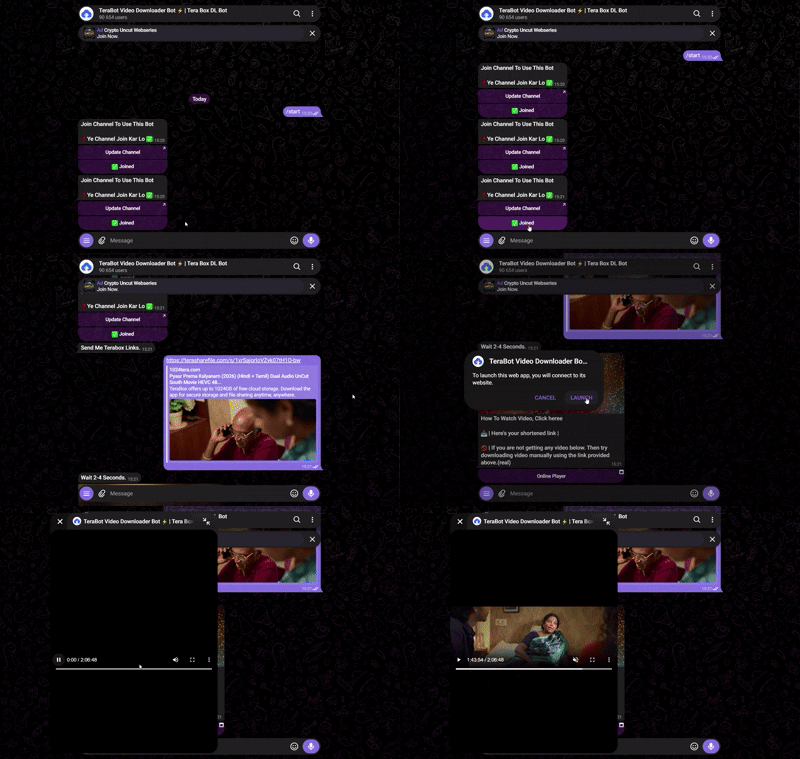
Steps
- Open Telegram and search for a TeraBox downloader bot.
- Start a chat with the bot and send it the TeraBox share link.
- Wait for the bot to process the link and send back the video or a download button.
What We Experienced
Before the bot would even accept our link, it asked us to join its channel first. Only after joining did it let us paste the TeraBox link. Processing also took noticeably longer than the browser tool, closer to several seconds rather than an instant fetch.
Once it finished, instead of a direct video or download button, it sent back a shortened link with instructions to click through to “watch the video,” along with a note saying to try the link manually if no video showed up. Tapping through opened a small online player where the video started streaming, but there was no actual download option anywhere in the flow, only playback. If your goal is to save the file rather than just watch it, this method leaves you stuck at streaming.
Pros
- No login required
- Convenient if you already use Telegram
Cons
- Forces you to join a channel before it works
- Slower processing than a browser tool, even on the same connection
- No actual download option in our test, only streaming
- Large videos can fail to send due to Telegram’s file-size limits
Our Verdict
Fine as a quick way to preview a video inside Telegram, but not a real download method based on what we saw.
Method 4: Manual Method via Browser Network Tab (Advanced Users)
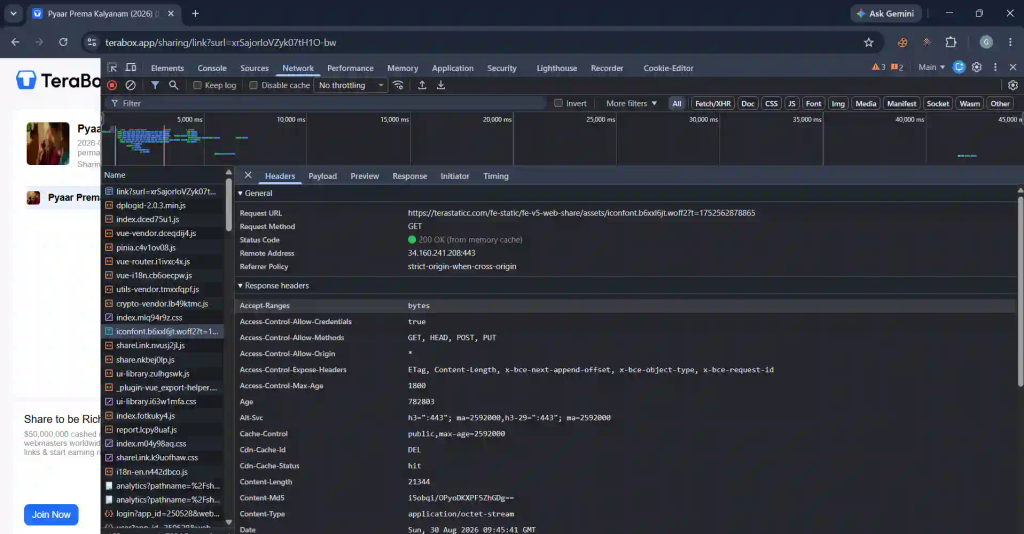
Steps
- Open the TeraBox link and start playing the video.
- Open the browser’s developer tools and go to the Network tab.
- Filter by media requests and locate the video file URL.
- Open that URL directly or use a download manager to save it.
What We Experienced
This method is commonly suggested in other guides, and every TeraBox video is technically just a file being streamed from a server, so in theory it should be possible to grab that file’s direct URL through developer tools. We tested it with our link and it simply did not work. Even after locating requests in the Network tab, we could not get a usable, playable video file out of the process. TeraBox appears to have changed how it serves video data, which breaks this workaround for most users today.
Pros
- No login or app needed, in theory
Cons
- Failed completely in our test
- Requires comfort with browser developer tools
- Breaks whenever TeraBox changes its backend
- Not beginner-friendly even when it does work
Our Verdict
We are including this method because it still shows up often in other articles, but based on our own test with a real link, it is not something we would currently recommend trying.
Speed and Reliability Comparison
| Method | Time to Get Video | Actually Downloadable? |
|---|---|---|
| GetInDevice.com | 2-3 seconds | Yes |
| TeraBox App/Website | Over a minute (login retry + ad + popups) | Only after multiple steps, capped at 380p |
| Telegram Bot | Several seconds to process, plus channel join | No, streaming only |
| Browser Network Tab | Did not complete | No |
Full Feature Comparison
| Method | Login Needed | Daily Limit | Extra App Needed | Result in Our Test |
|---|---|---|---|---|
| GetInDevice.com | No | No | No | Worked instantly, full save option |
| TeraBox App/Website | Yes | Yes | Yes (or account) | Worked, but 380p cap and login issues |
| Telegram Bot | No | Depends on bot | Telegram | Streamed only, no download |
| Browser Network Tab | No | No | No | Failed completely |
Which One Should You Actually Use?
Based on our tests, a straightforward tool like GetInDevice’s TeraBox video downloader is the clear pick if you just want the video saved without jumping through hoops: no login, no limit, no app, and it worked in seconds. The official TeraBox route only makes sense if you are already a regular TeraBox user and do not mind the daily cap, the lower quality, and the extra login friction. The Telegram bot is worth trying only if streaming is enough for you, since it did not offer a real download in our test. The browser developer-tools method, based on our latest attempt, is not currently worth the effort.
If you regularly download videos from other platforms too, GetInDevice also has dedicated downloaders for Instagram, TikTok, etc. all working the same paste-and-download way.
Things to Keep in Mind Before Downloading
A couple of practical points apply no matter which method you pick. First, only download videos you have the right to save, whether that is your own content, something shared with you directly, or material that is clearly meant to be public. Second, avoid any tool or bot that asks for your TeraBox account password directly rather than just a public share link, since that is a much bigger red flag than a few ads. Sticking to tools that only need the link itself keeps your actual TeraBox account out of the process entirely.
Frequently Asked Questions
Based on our testing, pasting the TeraBox share link into a dedicated tool like GetInDevice’s TeraBox downloader is the fastest method, with the video loading and ready to save within 2 to 3 seconds.
As long as the site does not ask for your TeraBox login credentials and simply processes the public share link, it is not accessing your account, only the file behind the link you provide.
Why does TeraBox limit downloads for free accounts?
It is a common way cloud storage services push users toward premium plans, by capping free-tier video quality, bandwidth, or daily download counts.
No. Private videos are only accessible to the account they were shared with, so any download method still requires access to that account.
The browser-based tool and the Telegram bot both work fine on mobile since neither needs a desktop app. Our tests were run on a laptop, so mobile timing may vary slightly.