
To find the original creator of a Pinterest video, start with the Pin. Read the account name and description, then check the Visit site link and the three dot menu. If that fails, look for a watermark or username inside the video, and run a still frame through Google Lens. Most Pinterest videos are reposts, so expect a short trail that ends on another app.
Who This Guide Is For
Maybe you want to credit a video before you share it. Maybe you need permission to reuse a clip. Or you watched a tutorial on Pinterest and want the full version from the person who made it. The steps below fit all three, and none of them needs any software.
Why Pinterest Videos Are Hard to Trace
Pinterest works like a pinboard. So many Pins point to something posted somewhere else, and people save the same video again and again. Every save adds one more layer between you and the maker.
Pinterest’s help page on broken links also says you can only edit the link on a Pin you created. Links on Pins you saved can’t be changed. That helps a little, because a re-pin keeps the link the first Pin had. It doesn’t help when the first Pin never had a link at all.
Find the Original Creator in Six Steps
Work down the list and stop when you find a name you can check.
- Read everything on the Pin – Look at the account that posted it, the description, the board name and the comments. Sometimes the creator, or a viewer, names the source in the first few comments.

- Check the Visit site link – Pinterest says this link usually shows as a button on the Pin. If the page is a 404, doesn’t match the Pin, loads slowly or looks unsafe, Pinterest moves the link into the three dot menu. So open that menu even when you see no button. A link that points to the creator’s own channel, blog or shop is often the answer.
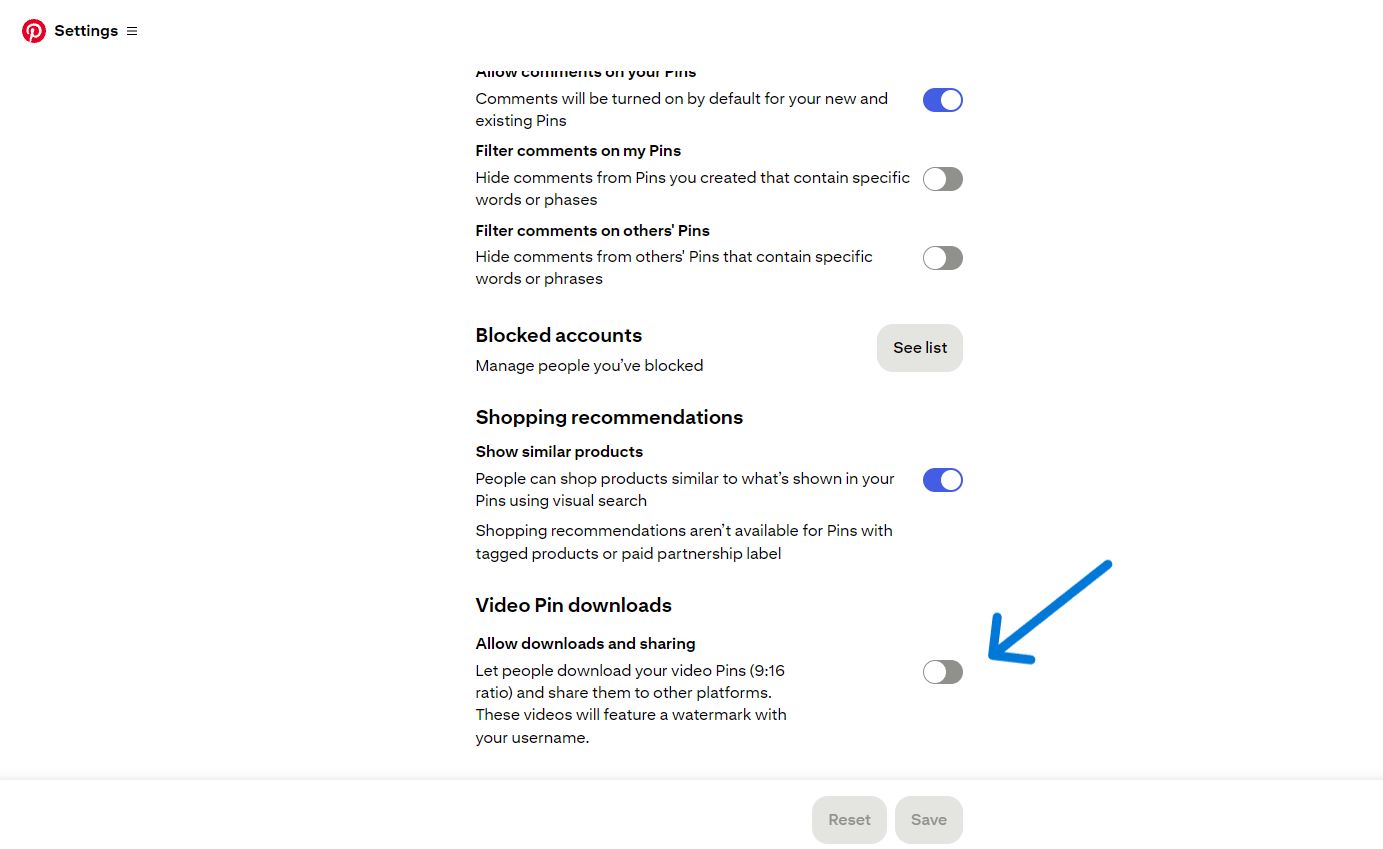
- Look for a watermark or username in the video – Many creators burn their handle into the clip before they upload it. Pinterest can add one too. When a creator lets people save and share their full screen video Pins, Pinterest adds a watermark with the username at the bottom, as Pinterest Help explains. The setting only covers full-screen, 9:16 video Pins, so plenty of videos won’t have it.
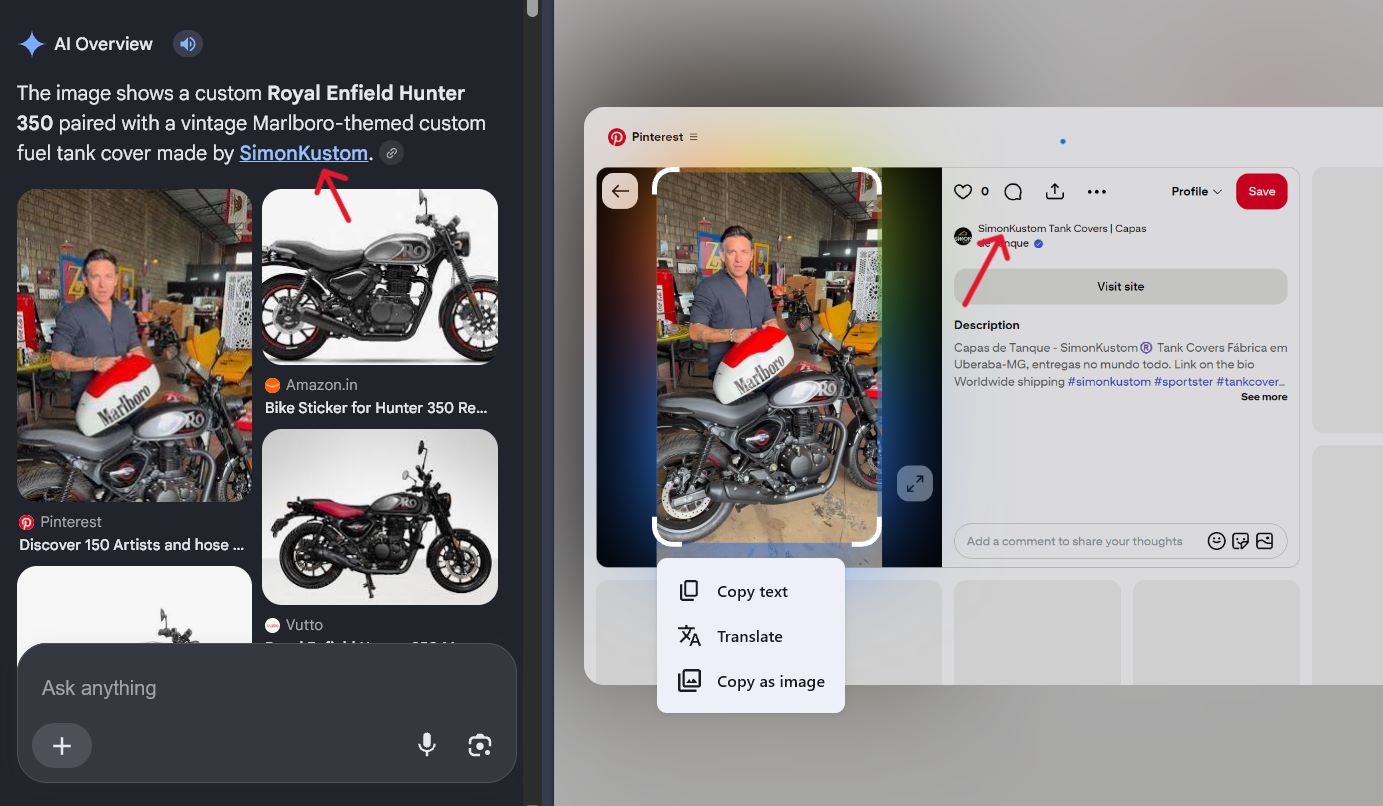
- Search a still frame – Pause on a clear frame, take a screenshot and upload it to Google Lens. Google’s help page says you can upload a file, drag an image into the search box, or paste an image link. Results can include websites that use the same image or a similar one. Pick frames with a clear subject and no heavy text on top. Try three of them: an early one, one from the middle, and one that shows a face, a logo or a product. Our guide on tracing a still Pinterest image back to its source covers the same idea for photos.
- Search the words – Put any on-screen text, the username or a spoken phrase into Google, inside quotation marks. Then search the username on Instagram, TikTok and YouTube. Many Pinterest videos start on one of those apps.
- Check before you credit – Compare upload dates and trust the earliest one. Open the account and see whether it posts other videos like this. A real creator usually has a body of work, and an account that only reposts other people’s clips is not the source. Write down each account and date as you go, so you can see the trail. Still unsure? Ask in the comments or message the account.
Pros and Cons of Each Method
No single method works every time. Here is how they compare.
| Method | Pros | Cons |
|---|---|---|
| Pin page and Visit site link | Fast, no tools, often names the account | The link can be missing, broken or point to a repost |
| Watermark or username in the video | Names the creator directly | Only on some videos, and easy to crop out |
| Search a still frame | Finds copies on other sites | Works on stills only, and reposts can show up first |
| Search text and usernames | Works well when the video has words or a handle | Common names give noisy results |
| Ask the poster or commenters | Can settle it quickly | Depends on a reply, which may never come |
Mistakes That Lead to Wrong Credit
- Crediting the person who saved the Pin – The account that posted a Pin is not always the maker.
- Trusting the first search result – Reposts often rank above the original.
- Reading a missing watermark as proof – Reposts crop or cover marks, so a clean video tells you very little.
- Treating a watermark as permission – It names the creator. It doesn’t give you the right to reuse the video.
After You Find the Creator
Ask before you reuse the video. A short message with the Pin link and a line about how you plan to use it is a polite start. Credit alone is not a license, a point we cover in our guide to reposting Pinterest videos to Reels and TikTok, along with what tends to happen when creators notice a repost.
What Our Tool Can and Cannot Do
If the Pin is public and you need the file to check a frame or a watermark, our pinterest video downloader page can fetch it, one link at a time. It doesn’t work with secret boards or private profiles. Use it for your own videos or content you have permission to keep. Naming the creator still takes the research steps above.
Frequently Asked Questions
You can see the account that posted a Pin, but that account may only have saved it. Check the description, the Visit site link and any watermark to get to the maker.
Pinterest says it moves the link into the three dot menu when the page is broken, doesn’t match the Pin, loads slowly or looks unsafe. Open the menu and look there.
When it appears on a full-screen video Pin, Pinterest says the watermark carries the creator’s username. Many videos have none, because the creator has to turn the setting on.
Not on the whole video. It works on a still frame, so take screenshots of a few clear moments and search each one.
Then say so. Link to the Pin instead of naming a guess, and don’t reuse the video without permission.