Want to extract audio from an Instagram Reel? Instagram has no button that hands you a Reel’s sound as a file, so creators use an online tool for Instagram audio download: copy the Reel link, paste it into the downloader, and save the audio. This guide shows how to do an Instagram audio download by link with the GetInDevice Instagram Audio Downloader, with no app to install, no redirects and no heavy pop-up ads. It also shows how to use the saved audio in Edits or CapCut for your own Reel.
Quick Answer: Instagram Audio Download by Link in 4 Easy Steps
- Open the Reel in Instagram, tap share, then Copy link.
- Open the GetInDevice Instagram Audio Downloader in your browser and paste the link into the box.
- Choose the audio option and download the file.
- Import it into Edits, CapCut or any other editor.
The rest of this guide explains each step with screenshots and answers the common questions about Instagram audio download.
What Is an Instagram Audio Downloader and How Does It Work?
An Instagram audio downloader is an online tool that takes the link of a public Reel and gives you back just the sound as a file. It does three things: it reads the Reel from the link you pasted, separates the audio from the video, and hands you the audio to save. You never handle the video file, and you do not need an editing app for this step.
Can You Extract Audio from an Instagram Reel?
Inside the app, Instagram lets you save a sound and tap Use audio to make a new Reel with it, as covered in Instagram’s own guide to adding music and original audio to Reels. That works well if you plan to build the Reel entirely inside Instagram. What it does not give you is an audio file on your phone or computer.
If you want to edit in CapCut, trim the sound to an exact moment, loop it, or layer it with a voiceover, you need the audio as a separate file. That is where an Instagram audio download tool comes in. You give it the public Reel link, and it gives you the audio track to save.
Online Downloader vs. Mobile App: Which Should You Use?
People frequently look for dedicated apps to pull audio out of Instagram clips or extract Reel sounds. While mobile apps are common, they aren’t always the best or quickest route.
| Method | Install needed | Best for | Watch out for |
|---|---|---|---|
| Online downloader in your browser | No | Quick Instagram audio download by link on any device | Public Reels only, so use a trusted site |
| Mobile downloader app | Yes | Frequent downloads on one phone | Permissions, ads and in-app purchases |
| Instagram Save audio and Use audio | No | Making a Reel inside Instagram | No audio file on your device |
| Desktop editor or converter | Yes | Pulling audio from a video file you already own | Extra steps, and you need the video file first |
For most creators, the online route is the quickest, because it works the same on Android, iPhone and computer and leaves nothing installed on your device. If you searched for an Instagram audio download app video tool, you can skip the app store and use the browser.
Why Use the GetInDevice Instagram Audio Downloader?
GetInDevice is built to keep the process simple. You paste the link, pick what you want and download, all on one page.
- Easy interface. There is nothing to set up. Copy the link, paste it and download.
- No redirects. You stay on the same page instead of being sent to other sites.
- No heavy pop-up ads. The page stays clean, so you can find the real download button without a hunt.
- More than audio. The same tool also lets you download Instagram Reels, videos, captions and profile pictures (DP), so you do not need a different site for each.
- Works in your browser. Nothing to install on Android, iPhone or computer.
Step-by-Step: Instagram Audio Download with Copy and Paste
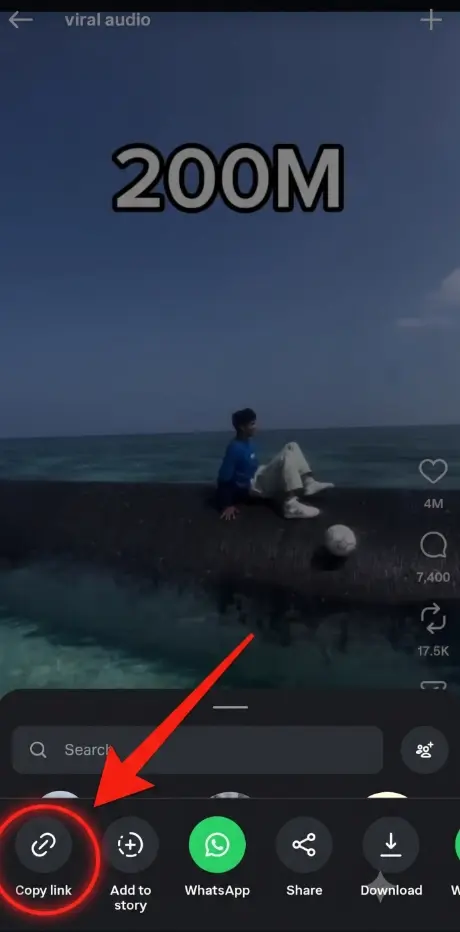
Step 1: Copy the Reel link
Open the Reel in Instagram, tap the share icon and choose Copy link. The Reel needs to be public.
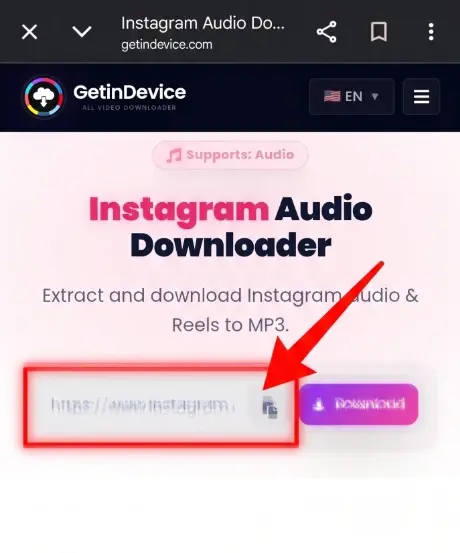
Step 2: Paste the link in the downloader
Open the GetInDevice Instagram Audio Downloader, paste the link into the box and tap the download button.
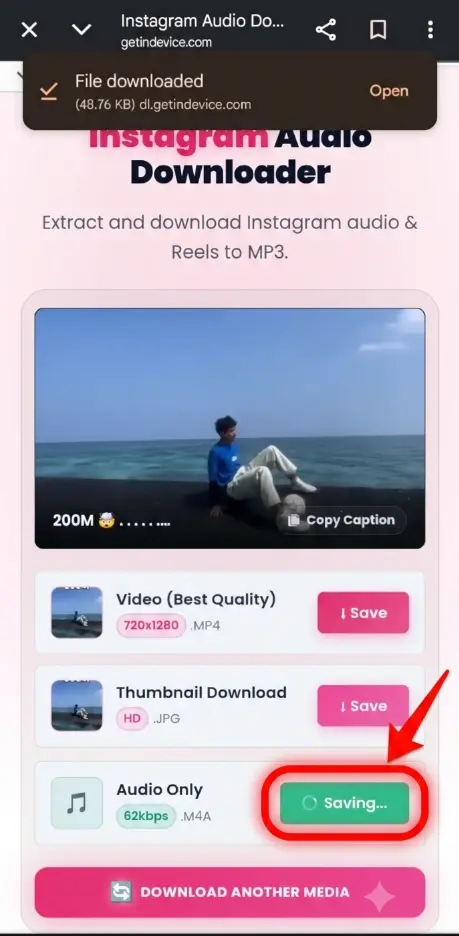
Step 3: Download the audio
Choose the audio option and tap save. The file goes to your Downloads folder, or to the Files app on iPhone.
Step 4: Add it in your editing app
Open Edits, CapCut or any editing software, add your own video, then import the audio file and place it under your clips. Mute the original sound, trim the audio to fit, and export.
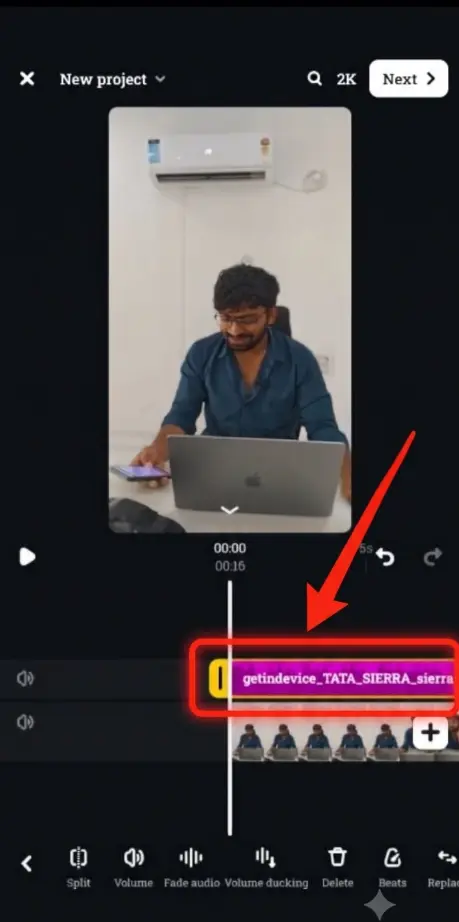
Tip: play the audio file once before you start editing, so you know it is the right sound and starts where you expect.
Instagram Audio Download on Android, iPhone and Computer
The steps are the same everywhere. Only the place where the file lands changes.
- Android: Copy the link in the Instagram app, open Chrome, paste it into the downloader and save. The file appears in your Downloads folder, where CapCut and Edits can pick it up.
- iPhone: Use Safari. After saving, open the Files app and look in Downloads. Most editing apps can import audio from Files.
- Computer: Copy the Reel address from the browser bar, paste it into the downloader and save. Then import the file into CapCut for desktop, Premiere Pro or DaVinci Resolve.
Free Audio Extractors: What to Check Before Using Any Site
Plenty of web tools let you rip audio from Reels for free, but reliability and safety vary widely. Before pasting any link, keep these red flags and safety tips in mind:
- Never enter your Instagram password. A downloader only needs a public Reel link, so any site asking you to log in is a red flag.
- Be careful with forced installs. If a site pushes you to install an app or browser extension just to save one file, close the tab.
- Do not pay for a basic link-to-audio job. Copy and paste downloads are simple, so be suspicious of steep fees.
- Watch the buttons. Some pages surround the real download button with ads. Pick the button that matches the audio option you chose.
- Stick to public Reels. Private accounts cannot be processed, and you should not try to work around that.
Want the Full Song? Find the Original Track
Many viral Reels use a short clip from a longer song. For licensed music, the audio label on the Reel usually shows the track name and artist, which you can search on a streaming service to hear the full version. Keep in mind that a saved file holds only the snippet used in that Reel, and its quality depends on the original audio. If you plan to post the sound in your own video, the safest route is a track you have rights to or one that is licensed for your account type.
Instagram Audio Download Link Not Working? Common Fixes
- The tool says the link is invalid. Copy the link again and make sure it points to a Reel, not a profile or a story. Paste the whole link.
- Nothing loads. The Reel may be private or deleted. Only public Reels can be processed.
- You cannot find the file. On iPhone, check the Files app under Downloads. On Android, check your Files app or the browser’s download history.
- The Reel gets muted after you post. The sound may be restricted for your account type or region. Try original audio or a royalty-free track.
Credit, Copyright and Etiquette
Sounds on Instagram come from different places. Original audio belongs to the creator who made it. Licensed music falls under Instagram’s music guidelines, which describe the licensed library as intended for personal, non-commercial use and point business accounts to Meta’s royalty-free Sound Collection. Royalty-free library tracks come with their own rules.
Instagram’s in-app Save audio keeps a sound linked to its original creator, but a downloaded file carries no credit on its own, so giving credit is up to you.
Rules also vary by country, and even a short clip can raise copyright questions. Music rights organizations such as GEMA note that background music in a private account is usually fine, while business use is not treated as private. For US readers, the U.S. Copyright Office’s fair use overview gives general background.
- Use saved audio for personal creative projects and do not re-upload someone else’s work as your own.
- Credit the original creator in your caption or with a tag whenever you can.
- If you run a business account or plan to use a sound in an ad, review Instagram’s music policies and choose a track whose rights are clear.
When in doubt, choose original audio you recorded yourself or a track from a royalty-free library.
Frequently Asked Questions
Copy the Reel link from Instagram, paste it into the GetInDevice Instagram Audio Downloader, choose the audio option and save the file.
Open the Reel, tap the share icon and choose Copy link. On a computer, copy the address from the browser bar.
Yes. The downloader runs in your browser on Android, iPhone and computer, so there is nothing to install.
Yes. You can use the GetInDevice Instagram Audio Downloader online without installing anything. Whatever tool you use, never enter your Instagram password and be careful with sites that force installs or payments.
There are apps for it, but you do not need one. An online downloader gives you the audio from a public Reel without installing anything.
Saving audio keeps the sound inside your Instagram account for reuse in the app. Downloading it gives you a file on your device that you can use in any external editor.
No. Only public Reels can be processed.
A public Reel link works best, and it usually contains instagram.com/reel. Links from private accounts and deleted posts cannot be processed.
The saved audio is the sound track of the original Reel, so its quality depends on how the creator recorded and uploaded it. A clear original gives you a clear file for your editor.
Treat it as material for personal creative projects. If you publish it, credit the creator, and for music or commercial use make sure you have the rights or choose a licensed or royalty-free track.
Final Thoughts
Grabbing the sound from a trending Reel takes under a minute: copy the link, paste it into the online downloader and save the audio. With GetInDevice, everything happens on one clean page, without redirects or heavy pop-up ads, and the same tool also lets you download the Reel video, caption and profile picture. Use the audio creatively, credit the original creator, and start editing.