It is 9:40 on a Monday morning and Neha has a problem. She handles social media for a bakery, a physiotherapy clinic and a small furniture brand, and the bakery’s best reel from last week, the one with the cinnamon rolls, needs to go onto the bakery’s Pinterest board today. The original video is somewhere in a WhatsApp chat she muted on Friday.
The edited version is on her laptop, but she is not sure whether it is the one with the new logo. And when she finally opens Instagram on her phone to grab the caption, she notices she is logged in as the clinic.
Nothing dramatic happened. No account was hacked, no post went out wrong. But twenty minutes disappeared, and the whole time Neha had that low, familiar worry: what if I post this on the wrong page?
If you manage more than one account, some version of this morning has probably happened to you. The good news is that it is almost never a talent problem. It is a system problem, and systems can be fixed. This guide walks through one that works for freelancers, small agencies and in-house marketers alike.
In this guide
- Why managing several accounts gets messy so fast
- Build a structure you can trust
- When one phone stops being enough
- Save and reuse your own content the right way
- Safety habits that protect every account
- A weekly checklist you can copy
Why managing several accounts gets messy so fast
Nobody plans to end up with a chaotic setup. It grows. One personal account becomes two brands, then a client, then a client’s second brand. Each new profile adds a login, a posting schedule and a pile of files, and none of it is connected to the rest.
Three things usually go wrong first.
Logins collide. Most apps let you switch between a few accounts, but switching is exactly where mistakes happen. A tired Friday afternoon, two similar profile pictures, and a caption meant for one brand lands on another. Even when nothing goes live, the constant logging in and out breaks your focus.
Files scatter. A single video can exist in six places: the camera roll, a chat thread, an email attachment, a download folder, a cloud drive and the editing app’s own project. When someone asks for “the final version”, nobody can say which copy that is.
Storage runs out at the worst moment. Short video is heavy. A few hundred clips, screenshots and exports will fill a phone, and the warning always appears when you are about to record something new.
None of these problems need an expensive tool to fix. They need a few habits, applied the same way every time.
Three mistakes almost every manager makes once
- Posting to the wrong account – Usually caught within minutes, but the deleted post can still be screenshotted, and the client notices.
- Losing the only copy of a video – A phone is replaced or a chat is cleared, and the one file that performed well is gone.
- Using the same password everywhere – One leaked login quietly becomes access to every account you look after.
If any of these sound familiar, you are in good company. The fixes below are built around them.
Build a structure you can trust
Start with folders, because everything else depends on them. Create one main folder per account, and give each of them the same four subfolders: raw, edited, published and ideas. The exact names matter less than the fact that every account looks identical. When you open any folder, you already know where things are.
Next, name files so you can find them without opening them. A pattern like brand_date_topic_version works well. A file called bakery_2410_cinnamon-rolls_v2 tells you the account, the month, the subject and which edit it is. Sort by name and your whole archive lines up in order.
Then add a simple content calendar. A spreadsheet is enough. Use one row per post and a handful of columns:
| Column | What goes in it |
|---|---|
| Account | Which profile the post is for |
| Platform | Instagram, Pinterest, Facebook and so on |
| Publish date | The day and time it goes live |
| File name | The exact file from your edited folder |
| Status | Idea, draft, ready or published |
Once a week, spend ten minutes updating it. That small ritual removes most of the last-minute scrambling, and it gives clients or teammates a single place to see what is coming.
Tip: Move every new file into the right folder the same day you create it. “I will sort it later” is how the scattered-files problem starts.
Finally, keep a four-line checklist you read before every post: right account, right caption, right file, right time. It sounds almost too simple. It is also the habit that prevents the mistakes that cost the most.
When one phone stops being enough
There is a point where careful folders still do not solve the real issue, which is that all your accounts live on one device. Notifications from five brands arrive on the same screen. Apps remember the last profile you used. If a platform flags a login from an unusual place, it can affect every account you touch.
People solve this in different ways. Some keep a drawer of spare phones, one for each important client. That works, but it means charging, updating and carrying them, and it is hard to share with a teammate.
Others move the accounts into cloud-based Android devices. With a service such as DuoPlus Cloud Phone, each profile runs inside its own virtual phone that you open from a browser. Each one keeps its own apps, its own settings and its own saved state, so the work for the bakery never touches the clinic. A teammate can open the same device without anyone handing over a personal phone, and you can close the browser tab at the end of the day and leave the work exactly where it was.
Here is how the two approaches compare day to day:
| One phone, many logins | One clean space per account | |
|---|---|---|
| Switching accounts | Log out and back in, again and again | Open a different device, nothing to log out of |
| Risk of wrong-account posts | High, especially when tired | Low, each space shows one brand only |
| Notifications | All brands mixed together | Separated by account |
| Working with a team | Share a personal phone or passwords | Give access to the one device needed |
| Storage on your own phone | Fills up with every brand’s files | Stays free for your own use |
You do not need this setup on day one. A freelancer with two accounts will do fine with good folders and a calendar. But once you are responsible for several brands, or for brands that other people also work on, giving every account its own clean environment is one of the biggest steps you can take toward fewer mistakes. The principle stays the same either way: one account, one clean space.
Save and reuse your own content the right way
Good content deserves more than one life. The reel that did well on Instagram can become a short video on Pinterest. A pin that keeps getting saved can be refreshed with a new caption instead of being rebuilt from nothing. A tutorial clip can be trimmed into three tips for stories.
One rule comes before everything else: reuse what is yours, or what you have clear permission to use. Reposting someone else’s work without asking is bad manners and, depending on the platform, can get your account in trouble.
Here is a routine that works well in practice.
- Keep the original export – Whenever you finish a video, save the final file from your editing app into the account’s edited folder straight away. It is always the best quality you will have.
- Recover the published version when the original is gone – It happens: a project file is deleted, a phone is replaced, a freelancer leaves. If the only surviving copy is the one you posted, a tool like this Instagram video downloader lets you save a clean copy of your own reel or video, which is much better than filming your screen and getting overlays and compression on top.
- Back up your pins before you reorganise – Pinterest boards often hold the only copy of an idea video or a product image. Before you restructure a board or archive old pins, use a Pinterest video downloader to keep a local copy of your own pins, so nothing disappears with the change.
- File it where it belongs – Put each saved file into the right account folder and add a line to your calendar noting where it could be reused next.
- Adapt before you repost – A vertical reel and a pin do not need the same crop, the same length or the same call to action. Change the size, rewrite the caption and add the new platform’s native touches before you publish.
How saving a copy of your own reel works, step by step
If you have never done it, the process takes under a minute.
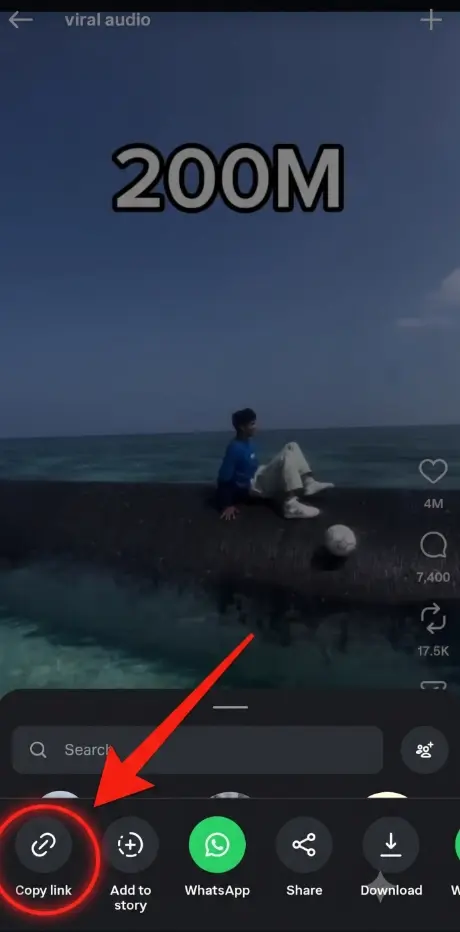
1) Open your own reel on Instagram and copy its link from the share menu.
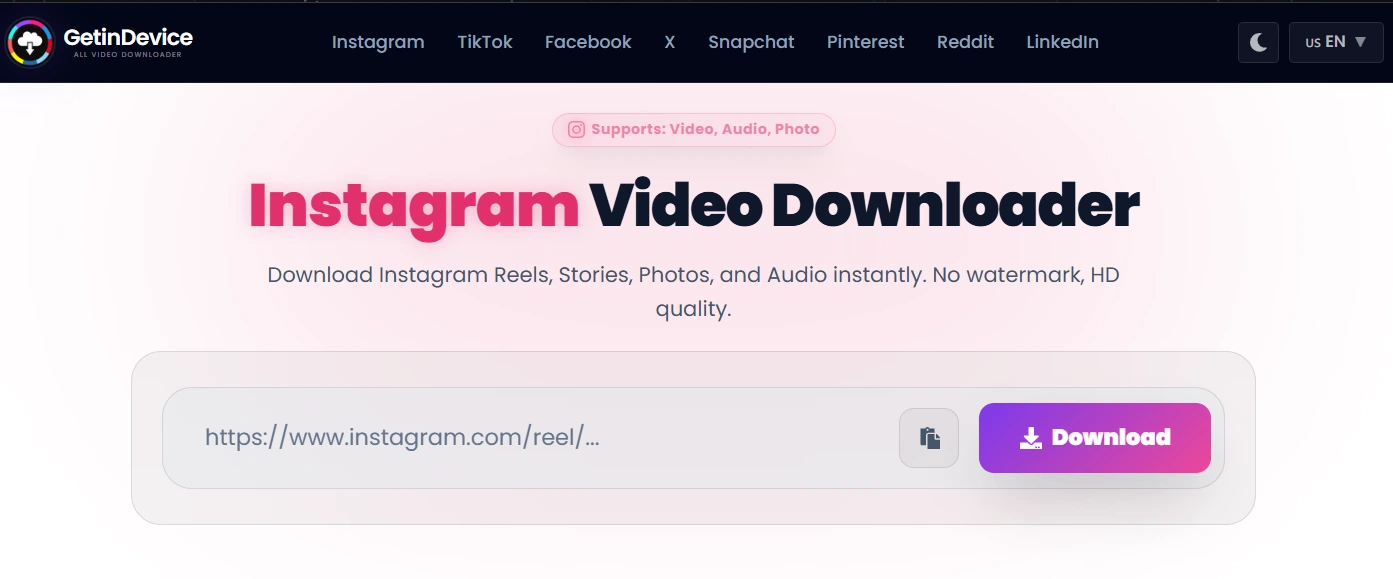
2) Paste the link into the downloader and press the download button.
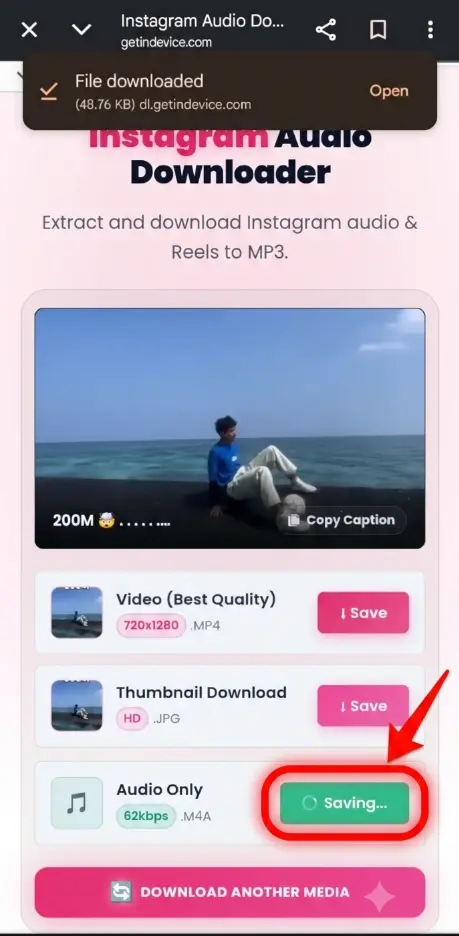
3) Choose the file type you want and save the file to the right account folder.
4) Rename the file with your naming pattern and add it to your content calendar.
Done consistently, this routine means you are never starting from a blank screen. After a few months you have a searchable archive of everything you have made, and it does not depend on any single app staying the same.
Safety habits that protect every account
Organising files is half the job. The other half is making sure nobody can take the accounts away from you.
Use a different strong password for every account – Reusing passwords is how one leak turns into five. A password manager takes the effort out of it.
Turn on two-step verification everywhere – Prefer an authenticator app to SMS when the platform allows it, and store the backup codes somewhere safe and separate from your phone.
Give people only the access they need – A freelance designer rarely needs the admin login. When a project ends, remove access the same day.
Back up on a schedule – Once a month, copy your account folders to a second place, such as an external drive or a separate storage account. If one fails, the other is still there.
Treat login alerts seriously – If a platform tells you about a sign-in from a device you do not recognise, change the password immediately and check the active sessions.
A weekly checklist you can copy
Keep this somewhere you will see it every Monday. It takes about ten minutes.
- Update the content calendar for every account
- Move this week’s new files into the right folders
- Check that every scheduled post has the right file and caption
- Save a copy of any published post you do not have the original for
- Review login alerts and remove access nobody needs any more
- Once a month: back up all account folders to a second location
A last word
Managing many accounts will never be effortless, but it can be calm. Give every account its own clean space, name and store files the same way each time, reuse only what is yours, and protect every login like it belongs to a client, because often it does.
Go back to Neha for a moment. A month later, her Monday looks different. The cinnamon roll reel is in bakery/edited, the calendar says it is ready for Pinterest, and each brand opens in its own space. It takes her four minutes instead of twenty, and the worry is gone. That is what a good system gives you: not more hours, just less friction.
Frequently asked questions
There is no fixed number, but the limit usually comes from how organised your files and schedule are, not from the apps. With a clear structure and a calendar, many managers handle five to ten accounts comfortably.
Yes, saving a copy of content you created is normal practice, especially for backups. Just make sure you only reuse content you own or have permission to use.
Not at the start. It becomes useful when you handle several brands, when a team shares access, or when you want each account to stay fully separate from the others.
Create the four-folder structure for each account today and rename your last ten files using the same pattern. It takes less than an hour and the benefit shows up immediately.