
To clip on Kick, open a livestream or VOD, click the clip icon or press C, drag the slider to pick 10 to 180 seconds, add a title and press Publish. Then copy the clip link to share it, and credit the streamer wherever you post it.
You need to be logged in and not banned from the streamer’s chat. We checked Kick’s help pages on October 29, 2026. The Kick facts below come from How to create clips on KICK and Clips not saving or clip errors on KICK.
Who This Guide Is For
Maybe you watched a great moment and want to keep it. Maybe you’re a streamer clipping your own show. Or you plan to post a clip on another app and want to do it without upsetting the person in it. This guide covers all three: making the clip, sharing it and crediting the streamer. If you only need the numbers, our guide to Kick clip length limits has them in one table.
How to Clip on Kick in Six Steps
Work through these in order. The steps are the same for viewers and streamers.
- Check that you can clip – You need to be logged in and not banned from the streamer’s chat, and the streamer must not have turned clipping off. Kick also says you may need to wait a short time after a stream begins.
- Open the stream or the VOD – Kick’s clip page says you can clip a livestream or a VOD. Its clip errors page says you can usually only clip while the streamer is live, so if you see no clip icon on a VOD, that may be why.
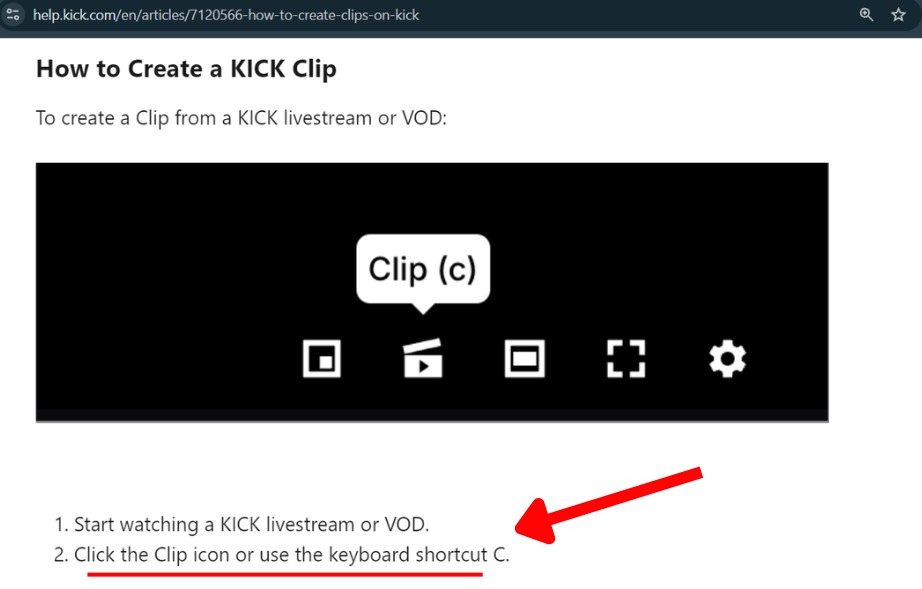
- Click the clip icon or press C – The Create clip window opens.
- Set the length – Drag the slider handles along the timeline to frame your moment. A length indicator shows your selection next to the maximum. Kick clips run from 10 to 180 seconds, on both desktop and mobile.
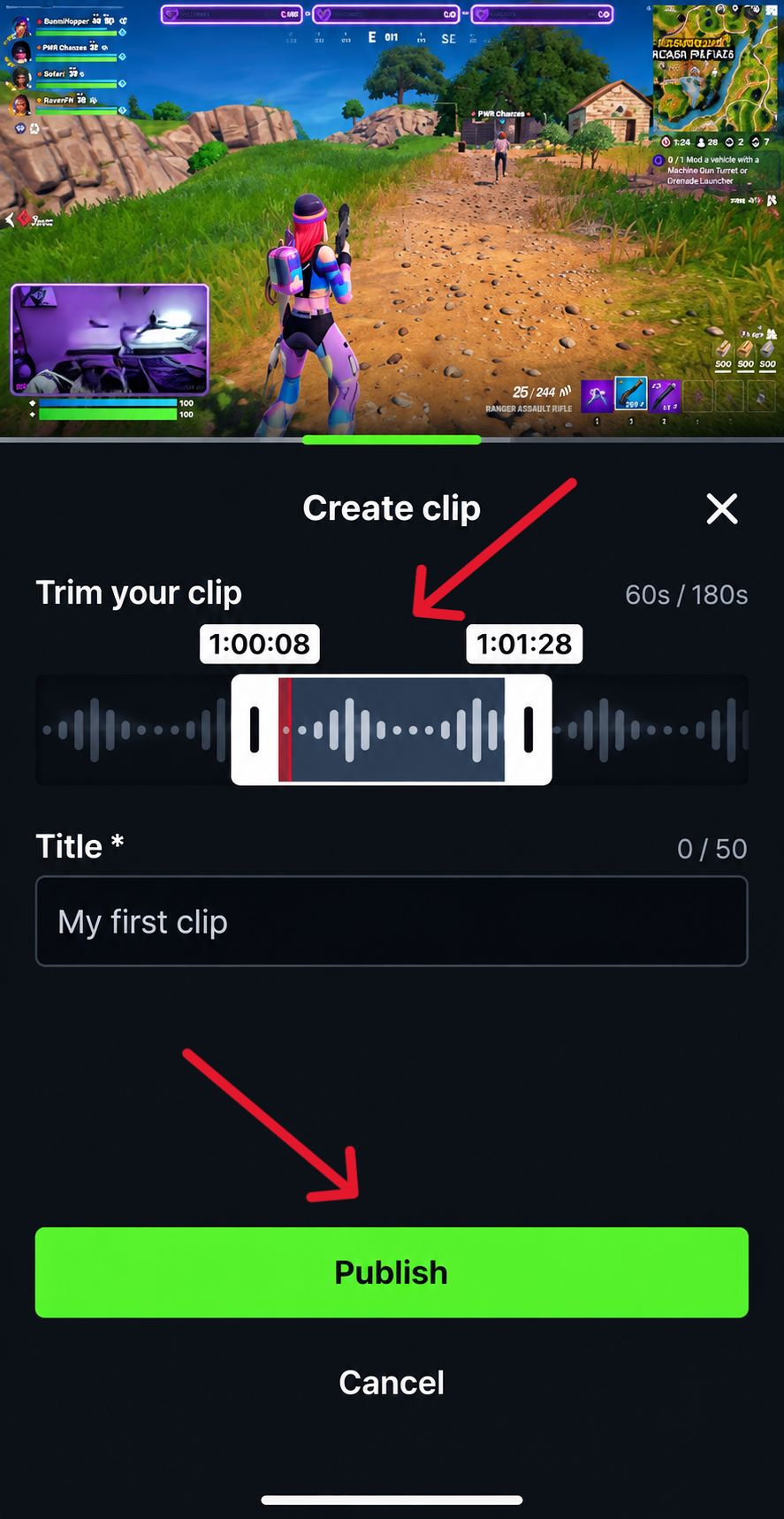
- Add a title – Keep it short and say what happens in the clip.
- Click Publish – The button reads “Publishing to KICK” while Kick builds the clip. It can take a few minutes to show up in your clip library.
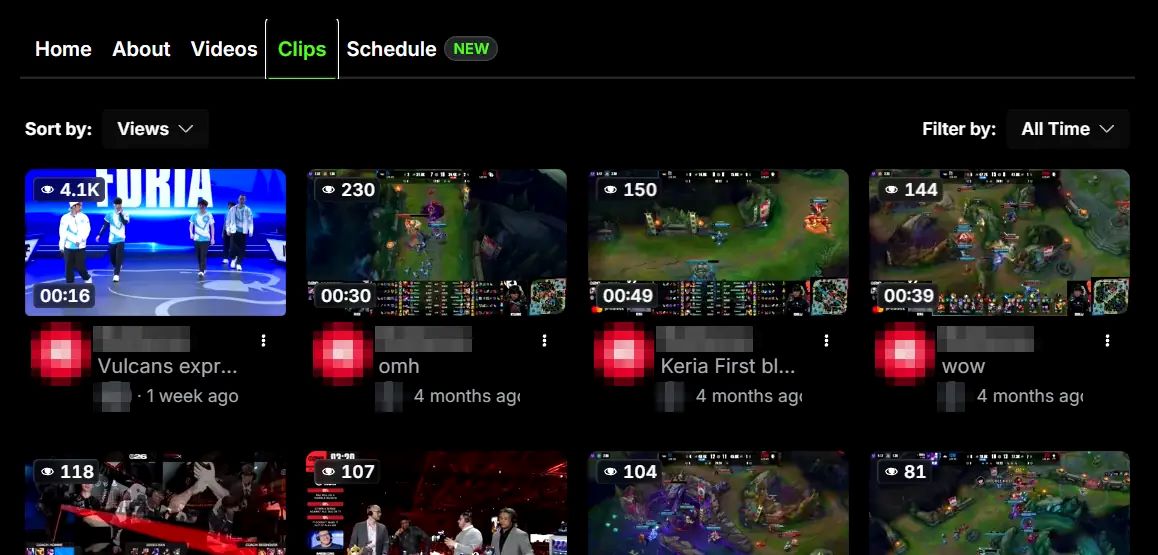
To find your clip later, open your clip library from your profile. Streamers can also see clips of their channel in the Clips section of the Streamer Dashboard.
Keep a Copy of Your Clip
Kick’s own clip page has a Download button that gives you an .mp4 file, and it says any clip you can open has it. If the clip is public and you’d rather fetch it from its link, our kick clip downloader page does that, one link at a time, with no Kick login. It can’t open a subscriber only video. Use it for your own clips or content you have permission to keep.
How to Share a Clip
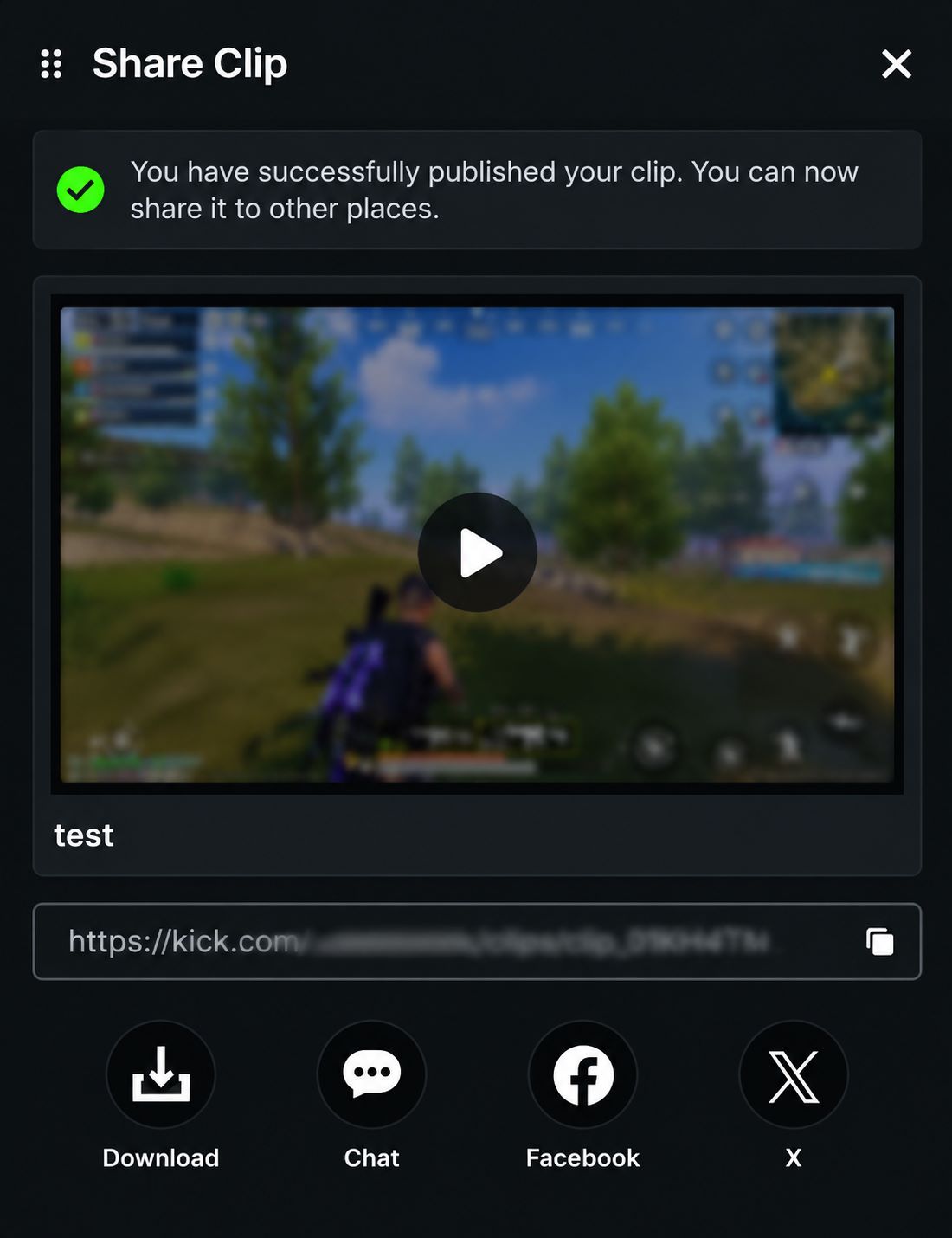
After you publish, Kick shows three options on the same help page.
- Download – Saves the clip as an .mp4 file.
- Chat – Sends the clip to the streamer’s chat. This option isn’t available when you clip a VOD.
- Clip link – Copies the link so you can share the clip on other social platforms.
For most sharing, the link is the simplest choice. It opens the clip on Kick, with the streamer’s channel right there.
How to Credit the Streamer
Kick’s help pages don’t set rules for crediting, so this is good practice, not a Kick requirement. The footage usually belongs to the streamer, and sometimes to others, such as music rights holders.
- Name the streamer in your title or caption.
- Link to the original clip or the channel.
- Ask before you earn money from a clip or use it in an ad.
- Take it down if the streamer asks.
- Keep your edits honest, and don’t change what happened.
Not sure whether to share a clip or the full replay? Our guide on Kick clips vs VODs explains how they differ.
Tips for Better Clips
- Clip right away – Kick captures a fixed amount of stream time before and after your click, so a late click can miss the moment. If the clip shows the wrong time, refresh the page and try again.
- Trim tight – Short clips are easier to watch and share.
- Plan around the 60 second wait – After one clip, Kick makes you wait a minute before you make another.
- Streamers, you’re in control – You can delete clips of your channel from your Streamer Dashboard, report clips that break Kick’s guidelines, or turn clipping off.
If you plan to clip from a VOD, do it before the VOD expires. Kick keeps VODs for up to 30 days on a verified channel and 7 days on others, as our guide on how long Kick VODs last explains.
Mistakes to Avoid
- Clipping while logged out or banned – Nothing happens, so fix that first.
- Trusting an old length – Some third-party pages say 30 to 60 seconds or 1 minute. Kick’s help page says 10 to 180.
- Posting without credit – It’s the quickest way to upset a streamer.
- Assuming a clip lasts forever – Kick’s help pages give no expiry for clips, so keep your own copy of anything you can’t lose.
- Expecting the Chat button on a VOD clip – Kick says it isn’t available there.
How to Clip on Kick FAQ
Open a stream, click the clip icon or press C, drag the slider to the length you want, add a title and click Publish. The length can be 10 to 180 seconds.
Kick’s clip page says you can clip VODs, but its clip errors page says you can usually only clip while the streamer is live. The two pages disagree, so look for the clip icon on the VOD page. To see what happens to a stream once it ends, read our guide on what happens to a Kick stream after it ends.
Sharing the clip link is how Kick built clips to be shared. Posting the video on another app, or earning money from it, is a different matter. Ask the streamer first, because Kick’s help pages don’t set rules for it.
Kick says the 180 second limit is the same on mobile. Its clip page doesn’t show separate app steps. If the clip option is missing, refresh the page or restart the app.
It may have expired, been hidden or still be processing.