
In an era where 4K displays and high-speed streaming are the norm, uploading low-resolution or pixelated video can significantly hurt your brand’s credibility. Whether you are a YouTuber trying to save old footage, a social media manager repurposing vertical clips, or a filmmaker working with archival media, AI video upscaling has become a mandatory part of the modern workflow.
Unlike traditional “stretching,” AI upscalers use neural networks to intelligently guess and generate missing pixels, resulting in sharp, lifelike textures that look natively high-definition.
Understanding the Technology: How AI Video Upscaling Works
“In simple terms, AI video upscaling gives your old, fuzzy videos a modern makeover by using a ‘smart brain’ to fill in the gaps and make every frame look crisp enough for today’s high-end displays.”
Spatial vs. Temporal Enhancement
Traditional upscaling simply enlarges existing pixels, making the image look “soft” or blurry. Modern AI uses two primary methods: Spatial AI analyzes a single frame to sharpen details like hair and skin, while Temporal AI looks at a sequence of frames to ensure that movement remains fluid and that there is no “flickering” or “shimmering” between frames.
The Power of Frame Interpolation and De-Noising
Top-tier tools don’t just increase resolution; they fix the “noise” (graininess) often found in low-light footage. Many also include Frame Interpolation, which can turn a choppy 24fps video into a silky-smooth 60fps cinematic experience by generating entirely new frames between the originals.
Top AI Video Upscalers : Ranked by Popularity and Performance
With the rapid growth of AI-powered tools, choosing the right video upscaler can be overwhelming. To simplify your decision, we’ve ranked the top AI video upscalers based on popularity, performance, and real-world usability.
✅1. Free.upscaler.video
Free.upscaler.video is redefining how AI video enhancement works by eliminating one of the biggest friction points-software installation. Instead of relying on cloud processing or heavy desktop applications, it runs entirely inside your browser using modern GPU acceleration technologies.

What makes this tool stand out is its ability to deliver near-instant upscaling results while keeping the workflow extremely lightweight. For creators who need quick improvements without diving into complex settings, it offers a rare combination of speed, simplicity, and accessibility.
⚡Core Strengths That Make It Stand Out
🖥️ Runs Directly on Your Device
The entire processing pipeline operates locally through your browser, meaning your video files don’t need to be uploaded externally. This not only improves speed but also removes privacy concerns that come with cloud-based tools.
⚡ Optimized for Real-Time Performance
By utilizing modern GPU acceleration (via WebGPU), the tool can process clips significantly faster than traditional browser tools, especially on devices with capable graphics hardware.
🎯 Built for Instant Results, Not Complexity
There are no complicated sliders, AI model selections, or technical adjustments. The tool focuses on delivering quick, reliable enhancements with minimal input-perfect for fast-paced content workflows.
💸 Completely Free to Use
Since it doesn’t rely on expensive server infrastructure, the platform remains accessible without subscriptions or usage limits, making it highly appealing for daily creators.
🎯 Who Should Use It
Free.upscaler.video is best suited for:
- Content creators working on short-form videos (Reels, Shorts, TikTok)
- Users who want quick improvements without learning advanced tools
- Anyone looking for a privacy-friendly AI solution
- Creators using mid-range laptops or systems without heavy software support
⚠️ Where It Falls Short
Because of its simplified approach, it lacks the deep customization and advanced AI model control that professional-grade tools provide. For high-end film restoration or detailed manual adjustments, more advanced software may be required.
🧠 Final Take
Free.upscaler.video earns its top position not by offering the most features, but by solving the most common user problems-speed, ease of use, and accessibility. It’s a practical, no-barrier entry point into AI video upscaling that fits perfectly into modern, fast-moving content workflows.
✅ 2. Gigapixel AI Video (Topaz Labs)
When it comes to serious video restoration and cinematic upscaling, Topaz Labs’ Gigapixel AI Video sits in a category of its own. Designed for professionals rather than casual users, this desktop software delivers a level of precision and control that browser-based tools simply cannot match.
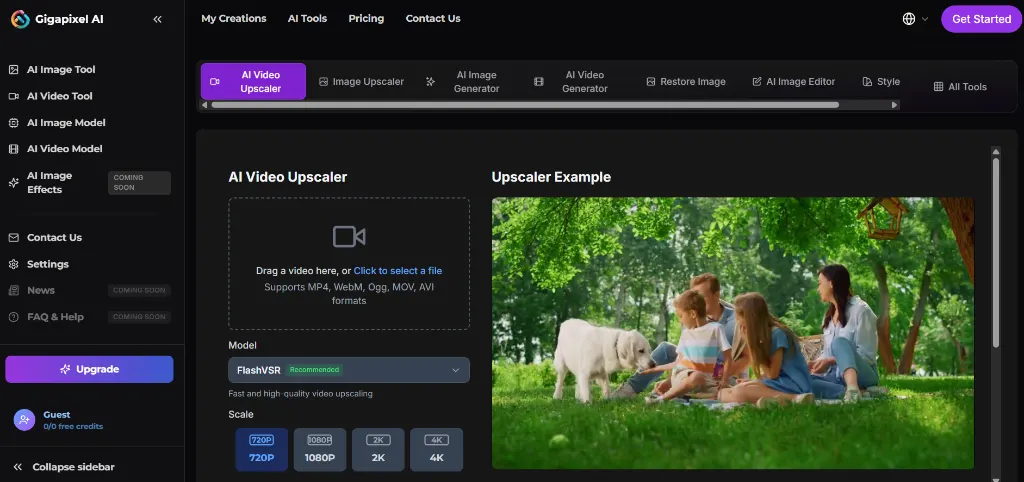
Its biggest strength lies in how deeply users can interact with the AI models. Instead of relying on automated presets, editors can fine-tune the enhancement process to recover lost detail, correct compression artifacts, and rebuild visual clarity from extremely low-quality sources. For footage starting as low as 480p-or even degraded archival clips-this level of control can make the difference between unusable and production-ready output.
🎛️ Advanced AI Models & Controls
🧠 Iris Model — Precision Face Reconstruction
The Iris model is specifically engineered for human subjects. It intelligently rebuilds facial details such as eyes, skin texture, and fine expressions that are typically lost in low-resolution footage, making it highly effective for interviews, vlogs, and documentary content.
🎚️ Proteus Model — Full Manual Control
Proteus is built for editors who want complete authority over the output. With multiple adjustable parameters like sharpening, noise reduction, and compression recovery, it allows frame-by-frame refinement tailored to the specific condition of the footage.
🌙 Nyx Model — Extreme Low-Light Recovery
Nyx is optimized for heavily degraded or dark scenes. It focuses on removing digital noise while preserving edges and important details, preventing the overly smooth or “plastic” look that many AI tools struggle with in low-light conditions.
🎯 Where It Excels
- Restoring old films, DVDs, and archival footage
- Professional video editing and post-production workflows
- Projects requiring maximum control and precision
- High-end content where detail accuracy matters most
⚠️ Things to Keep in Mind
This level of power comes with a trade-off. Gigapixel AI Video requires a capable system-preferably with a dedicated GPU-to run efficiently. Processing times can also be longer compared to lightweight tools, especially when working with high-resolution exports or complex adjustments.
🧠 Final Take
Gigapixel AI Video isn’t built for speed-it’s built for results. For professionals who need absolute control over how their footage is enhanced, it remains one of the most reliable and powerful AI upscaling solutions available today.
✅ 3. Picwand AI Video Upscaler
Picwand AI Video Upscaler stands out by focusing on a segment that many AI tools struggle with-animation and visually delicate footage. While most upscalers are trained primarily on real-world visuals, Picwand is optimized to preserve fine edges, clean lines, and stylistic details that are critical in animated content.
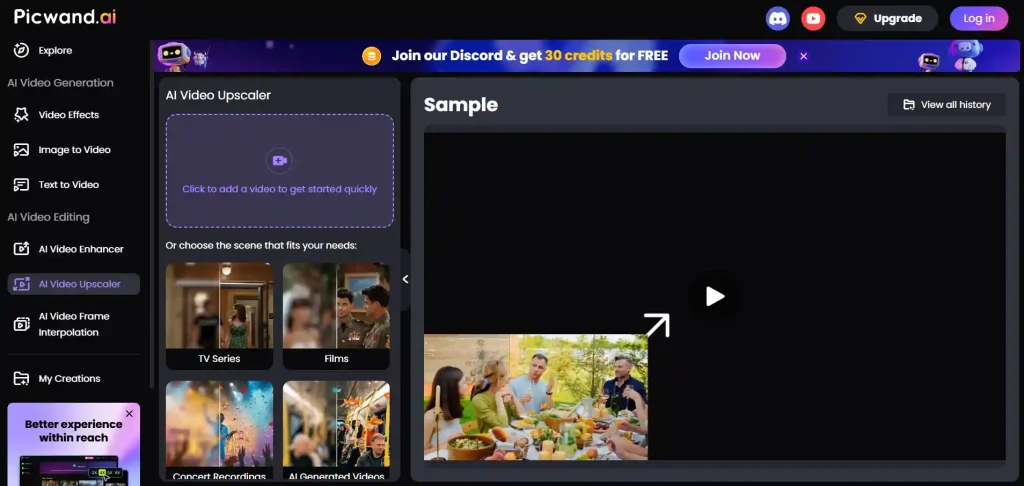
This makes it especially popular among creators working with anime edits, AMVs, and digitally illustrated videos, where maintaining sharp line art during upscaling is far more important than simply increasing resolution.
🎯 What Makes Picwand Different
☁️ Cloud-Powered Processing
All heavy AI computations are handled on remote servers, allowing users to upscale videos without relying on high-end hardware. This makes it a strong choice for creators using standard laptops, tablets, or even mobile devices.
🎨 Detail-Aware Enhancement
Instead of aggressively sharpening everything, Picwand focuses on preserving the natural structure of visuals—especially important for animation, where over-processing can distort outlines and textures.
🌈 Intelligent Color Improvement
The tool doesn’t just enhance resolution—it also refines color balance and contrast. Older or faded footage can appear more vibrant and visually modern after processing.
🔄 Seamless Cross-Platform Workflow
Projects can be started on one device and continued on another, thanks to its synced ecosystem across mobile and web platforms. This flexibility fits well into modern, multi-device editing workflows.
🎯 Best Use Cases
- Anime edits, AMVs, and animation-based content
- Restoring old digital or stylized footage
- Creators working without access to high-performance hardware
- Social media videos that need both clarity and color enhancement
⚠️ Limitations to Consider
Since processing is cloud-based, performance depends on internet speed and server load. It may also offer less manual control compared to professional desktop software, which can be a limitation for advanced users seeking frame-level precision.
🧠 Final Take
Picwand excels by doing what many AI tools overlook—respecting the integrity of artistic visuals. For creators working with animation or restoration-focused projects, it offers a balanced mix of quality, convenience, and specialized optimization.
✅ 4. Morph Studio
Morph Studio goes beyond traditional video enhancement by blending upscaling with generative AI capabilities. Instead of only improving resolution, it focuses on refining AI-generated visuals-addressing common issues like inconsistencies, distortions, and unnatural details that often appear in synthetic video content.
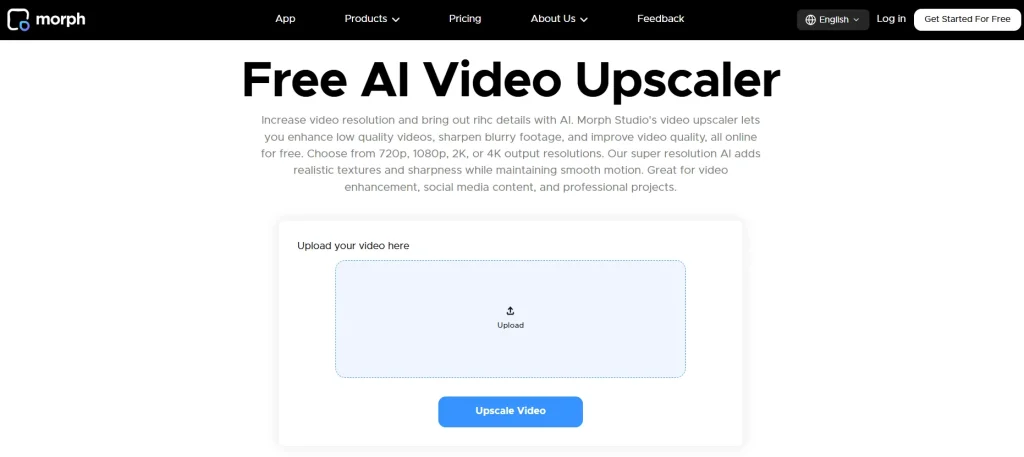
As generative video tools continue to grow, Morph Studio positions itself as a bridge between creation and refinement-helping transform rough AI outputs into polished, production-ready visuals.
🎬 Creative Capabilities for Next-Gen Workflows
🧠 AI-Assisted Detail Reconstruction
Morph Studio can intelligently enhance blurry or incomplete frames by adding realistic visual elements. Rather than just sharpening, it rebuilds scenes in a way that feels more cinematic and visually complete.
🎨 Style Preservation Across Frames
One of its strongest features is maintaining visual consistency. Whether you’re working with stylized renders or themed content, the tool ensures that the overall look and feel remain uniform throughout the entire video.
📽️ Optimized for AI-Generated Content
Unlike standard upscalers, Morph Studio is specifically tuned to handle artifacts commonly found in text-to-video outputs-such as flickering details, warped objects, or unstable textures.
📐 Professional Output Formats
It supports a wide range of aspect ratios and export settings suited for modern platforms, including cinematic formats and high-end digital campaigns.
🎯 Best Use Cases
- Refining AI-generated or text-to-video content
- Enhancing videos with creative or stylized visuals
- Projects requiring consistent artistic direction
- Content for ads, storytelling, or cinematic reels
⚠️ Limitations to Consider
Because of its generative approach, results may vary depending on the input quality and style. It’s also less focused on traditional restoration tasks compared to dedicated upscaling tools designed for real-world footage.
🧠 Final Take
Morph Studio represents the next evolution of video enhancement-where AI doesn’t just improve quality, but actively contributes to the creative process. For creators working with generative content, it offers a unique advantage that standard upscalers can’t replicate.
✅ 5. TensorPix AI
TensorPix AI is designed for users who need more than basic upscaling. Instead of focusing on a single enhancement method, it offers a wide range of AI-driven filters that can be combined to handle complex video restoration tasks.
This flexibility makes it particularly valuable for projects involving older or damaged footage, where multiple issues-such as noise, instability, and low resolution-need to be addressed simultaneously. Its cloud-based system also ensures that even large workloads can be processed without putting pressure on local hardware.
🛠️ Advanced Features for Heavy Workflows
📦 Batch Processing at Scale
TensorPix allows users to process multiple videos in one go, making it ideal for bulk projects. Whether you’re working on a documentary archive or a series of clips, the platform can handle large queues efficiently.
🎥 Built-In Video Stabilization
In addition to upscaling, it includes AI stabilization that reduces camera shake—especially useful for old handheld recordings or digitized footage.
📼 Dedicated Analog Restoration Tools
The platform includes specialized filters for restoring VHS and other legacy formats, helping remove artifacts like tracking lines, color distortion, and signal noise.
🧩 Multi-Filter Enhancement System
Users can apply and combine different AI filters depending on the condition of the footage, offering a more tailored restoration process compared to one-click tools.
🎯 Best Use Cases
- Restoring archival footage, documentaries, and historical media
- Handling large-scale video processing projects
- Improving damaged or analog video sources
- Users who need flexibility and multiple enhancement options
⚠️ Limitations to Consider
Because it operates in the cloud, processing times can vary depending on server demand and file size. The interface may also feel slightly complex for beginners due to the number of available options.
🧠 Final Take
TensorPix is built for depth and flexibility. For users dealing with challenging footage or large volumes of video, it offers a powerful toolkit that goes far beyond basic upscaling.
✅ 6. AIVideoUpscaler
AIVideoUpscaler takes a completely different approach by focusing on simplicity above all else. Instead of offering multiple models or advanced configurations, it delivers a straightforward experience designed for users who just want quick, visible improvements without technical complexity.
This makes it especially appealing for beginners or casual creators who don’t want to spend time understanding AI settings or workflows.
⚡ Key Highlights
⚡ Instant Preview Rendering
Users can quickly generate a short preview of the enhanced video, allowing them to evaluate the results before committing to a full upscale.
📤 Optimized for Social Platforms
Export settings are aligned with popular platforms like YouTube and Meta, ensuring that videos are ready for upload without additional adjustments.
🧼 Clean and Distraction-Free Interface
The platform keeps everything minimal—no clutter, no advanced panels—just a direct upload-and-process workflow.
🎯 Fast and Beginner-Friendly
The entire experience is built for speed, making it ideal for users who need results quickly without diving into technical details.
🎯 Best Use Cases
- Beginners exploring AI video enhancement for the first time
- Quick fixes for social media uploads
- Users who prefer simple tools over advanced controls
- Fast turnaround projects with minimal setup
⚠️ Limitations to Consider
The simplicity comes at the cost of flexibility. Advanced users may find the lack of manual controls limiting, especially for detailed restoration or professional editing tasks.
🧠 Final Take
AIVideoUpscaler.com is all about convenience. It may not offer the depth of high-end tools, but for quick, no-hassle enhancements, it delivers exactly what most casual users need.
⚖️ Cloud vs. Local AI Upscaling: What Actually Matters
Choosing between cloud-based tools and local software isn’t just about convenience—it directly impacts speed, quality, and workflow efficiency. The right choice depends on your hardware, project size, and how much control you need over the final output.
☁️ When Cloud-Based Tools Make More Sense
Cloud-powered platforms like TensorPix and Picwand are ideal when your system lacks dedicated GPU power or when you want to avoid heavy processing on your device.
Because all computations are handled on remote servers, you can upscale high-resolution videos even on lightweight machines without performance issues. This makes cloud tools especially useful for creators working on laptops, tablets, or mobile devices.
They’re also better suited for:
- Quick workflows without setup or installation
- Batch processing without tying up your system
- Users who prioritize convenience over deep customization
💻 When Local Software Is the Better Choice
Desktop tools like Gigapixel AI are designed for users who want maximum performance and control. If you’re working with a powerful system—especially one with a dedicated GPU—local processing can be significantly faster for long-term or repeated use.
Another key advantage is privacy. Since everything runs on your machine, your footage never leaves your system, which is crucial for sensitive or professional projects.
Local tools are best for:
- High-end editing and professional production
- Large files that would be slow to upload
- Users who need detailed control over AI parameters
- Consistent workflows without internet dependency
🎬 Step-by-Step: Getting the Best Results from AI Upscaling
Even the most advanced AI tools depend heavily on how you prepare and process your footage. Following the right workflow can dramatically improve the final output.
Step 1: Start with the Cleanest Possible Source
AI works best when it has clear data to analyze. If your video already includes heavy color grading, overlays, or artificial grain, the model may misinterpret those elements as part of the original footage.
For best results, always export a clean, unprocessed version before upscaling. This allows the AI to focus purely on restoring detail rather than trying to “fix” added effects.
Step 2: Match the AI Model to Your Content
Different types of footage require different enhancement approaches. Using the wrong model can lead to unnatural textures, overly smooth skin, or exaggerated sharpness.
- Use face-focused models for people and close-ups
- Use detail-focused models for landscapes or wide shots
- Use noise-reduction models for low-light or grainy footage
Choosing the correct model ensures the output looks natural rather than artificially enhanced.
Step 3: Apply Final Color Grading After Upscaling
Once your video has been upscaled, you’re working with a higher-quality file that contains more visual data. This is the ideal stage to apply color correction and grading.
Post-processing after upscaling helps:
- Achieve smoother gradients and better highlights
- Reduce color banding in shadows
- Maintain consistency across scenes
🧠 Pro Tip
Upscaling is not a one-click magic fix-it’s part of a workflow. The best results come from combining clean input, the right AI model, and thoughtful post-processing.
AI video upscaling is no longer a niche tool-it’s becoming a standard part of content creation. Whether you prioritize speed, control, or creative flexibility, the right tool can significantly improve how your videos look and perform across platforms.
❓ Frequently Asked Questions (FAQ)
Yes, AI upscaling can significantly improve perceived video quality by reconstructing missing details, reducing noise, and enhancing sharpness. However, it doesn’t truly “restore” original data—it intelligently predicts and rebuilds visuals based on trained models.
Only if settings are pushed too aggressively. The “AI look” typically appears when sharpness or enhancement levels are too high. For more natural results, keeping adjustments in the moderate range (around 50–70%) helps preserve original textures.
Yes, but results depend on the source quality. Upscaling by 2x or 4x (e.g., 720p to 4K) generally produces the best balance of clarity and realism. Extreme jumps like 480p to 8K can introduce artifacts or unnatural details.
Some tools offer completely free upscaling, especially browser-based options, while others provide advanced features through paid plans. Free tools are great for quick tasks, but professional software usually delivers more control and higher-quality results.
Yes. YouTube assigns higher bitrates and better compression codecs (like VP9 or AV1) to 4K uploads. This means even viewers watching at 1080p can experience improved visual quality compared to standard HD uploads.
