
Pinterest is full of videos worth keeping. Aesthetic reels, recipe clips, home decor ideas, travel moments, workout routines, the kind of content you want to save and watch again without opening the app every time. The problem is Pinterest does not make this easy. There is no straightforward “download video” button anywhere on the platform, and most people end up stuck trying random tricks that barely work.
I decided to actually test this out myself. I picked a Pinterest video, tried saving it the “normal” way first, and then ran the same video through a few of the most talked about Pinterest video downloaders online. Everything below is based on that real testing, not guesswork. I am sharing exactly what happened with each tool so you can pick the one that actually works for you instead of wasting time like I did.
Why You Cannot Just “Save” a Pinterest Video
Before jumping into the tools, it helps to understand the actual problem.
What Pinterest’s own buttons actually do:
- Save icon — only bookmarks the pin to one of your boards inside the app, does not download the video file
- Share icon — only gives options to send the link elsewhere, does not export the video itself
This is confirmed in Pinterest’s own help documentation on saving Pins, which describes saving as adding a Pin to one of your boards, not exporting a file to your device.
What happens if you try screen recording instead:
I tried this workaround out of curiosity, recording the video directly off Pinterest while it played. Here is what came out of it:

- Noticeably poor video quality compared to the original
- The recording picked up parts of the Pinterest interface itself, like the slide up panel
- Final file size ballooned to 72MB for what should have been a short, lightweight video
That is a massive amount of storage for a low quality clip, and exactly why dedicated Pinterest video downloader tools exist in the first place.
So I moved on to testing three of the more well known Pinterest downloader websites, using the exact same video link on each one, on the same phone, over the same internet connection, to keep the comparison fair.
What Actually Makes a Pinterest Downloader Good
Before getting into the results, it helps to know what to actually look for, since not every tool that claims to be a “Pinterest video downloader” is built the same way. Based on this testing, a handful of things separate a genuinely useful tool from one that just wastes your time:
- How fast the link gets fetched. A good tool processes your pasted link within a second or two. Anything that stalls, spins, or asks you to “wait while we verify” is usually padding time to serve you an ad.
- How visible the paste box is. This sounds basic, but as you will see below, more than one of these tools buries the actual input box behind banner ads, forcing you to scroll and hunt before you can even start.
- What happens after you click download. Some tools hand you the file immediately. Others interrupt that final step with pop-ups, redirect pages, or countdown timers before letting the download actually begin.
- Extra options beyond just the video. Being able to grab the thumbnail or copy the caption alongside the video saves a second trip back to Pinterest.
- Whether the tool does one platform or many. If you regularly save content from more than just Pinterest, a multi platform downloader saves you from bookmarking five different single purpose websites.
Keep these points in mind as you read through what happened with each tool below.
How I Tested Each Tool
The process was simple and identical across all three tools:
- Open Pinterest and copy the link of the video pin I wanted to download
- Open each downloader tool one by one and paste the same link
- Note down how fast the link was fetched, how many steps it took to actually get the video, and how much the ads got in the way
- Record the entire process on screen so there is real proof behind every claim, not just a written opinion
With that out of the way, here is exactly what happened with each one.
1. GetInDevice Pinterest Video Downloader
The first tool I tried was GetInDevice’s Pinterest video downloader, mainly because I wanted a benchmark for what a clean experience should feel like before testing the more “popular” names.
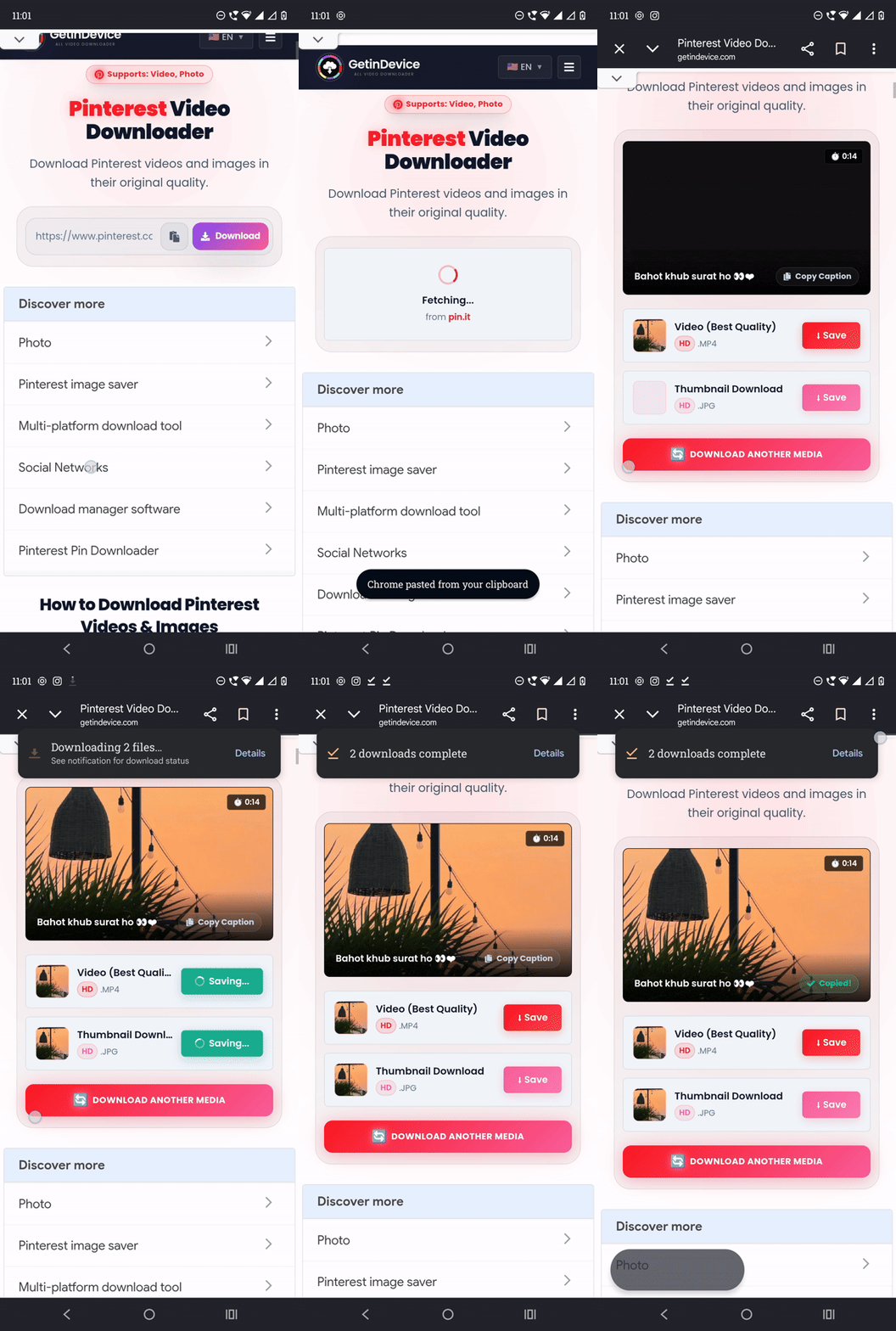
How it worked, step by step:
- Copied the Pinterest video link
- Pasted it into the box on the GetInDevice page
- The video was fetched almost instantly, with no waiting screen and no forced ad in between
- The result appeared right away with the video ready to download
Options available on the result screen:
- Copy caption (grabs the original text and hashtags from the pin)
- Save video
- Save thumbnail
- Download another media (lets you paste a new link instantly without reloading the page)
There were no pop-up ads at any point during the process. The only ads present were small, static text ads placed below the working area, easy to ignore and never blocking anything I actually needed to use.
Pros:
- Video fetched immediately after pasting the link, no delay
- Clean layout with copy caption, video download, and thumbnail download all in one place
- “Download another media” button makes it fast to do multiple pins back to back
- No pop-up ads or forced waiting screens anywhere in the process
- Supports over 50 other platforms as well, so the same tool works for Instagram, Snapchat, TikTok, Tumblr, Telegram and more
- Has a dedicated Android app on the Play Store for downloading, streaming, and playing videos directly
Cons:
- Since it supports so many platforms, first time users might take a few seconds to find the Pinterest specific page
What stood out most during this test was how little friction there was between pasting the link and actually having a usable file. There was no moment where I had to stop and figure out what to click next, and no moment where an ad forced its way between me and the download button. For something as simple as saving a video, that is really all you want from a tool like this.
2. PinDown.io
This is where the experience took a sharp turn.
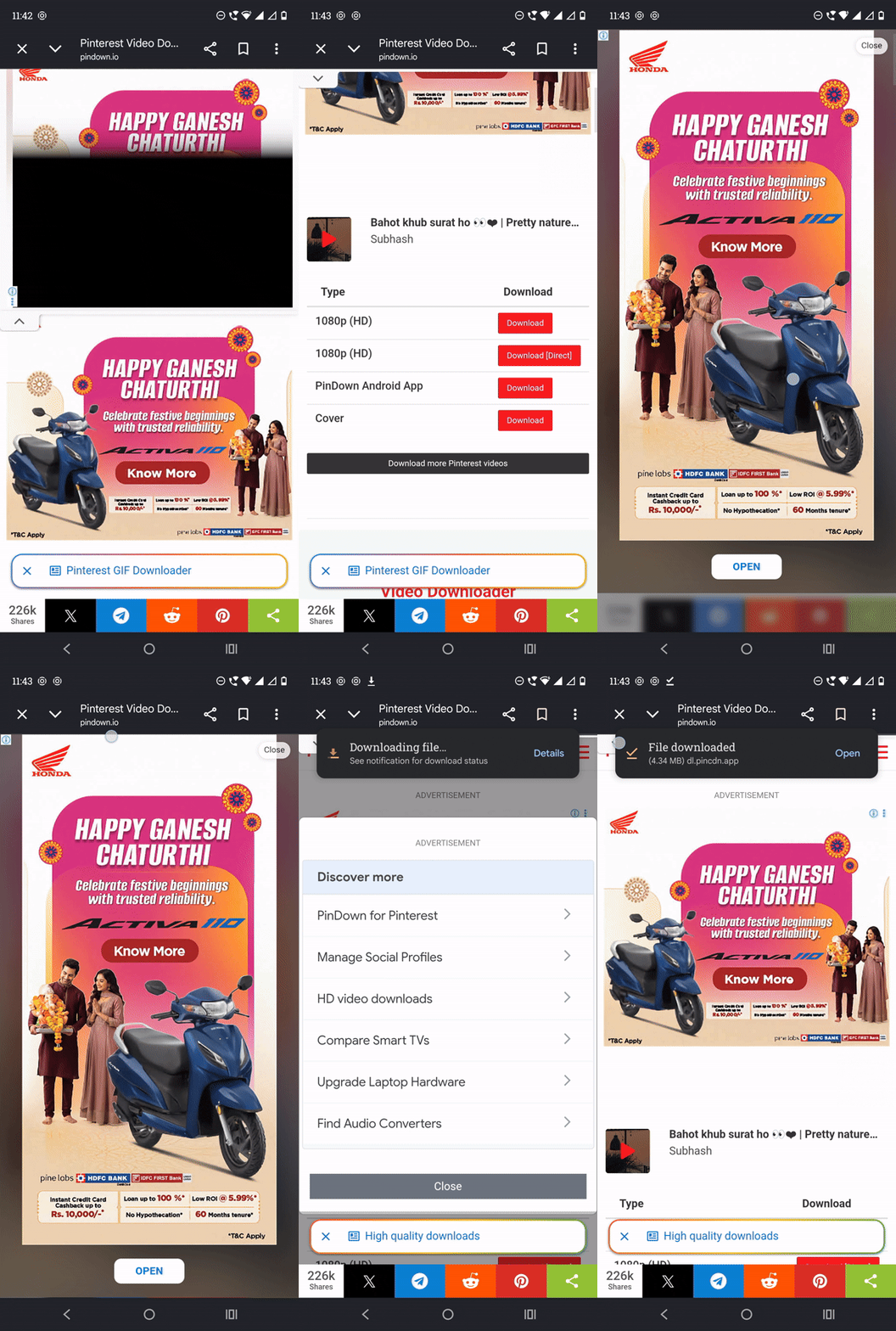
How it worked, step by step:
- Opened PinDown.io with the link already copied
- The entire screen was immediately taken over by a large banner ad, before the paste box was even visible
- Scrolled up and down looking for the paste box with no luck at first
- Found a small arrow that collapsed the ad, which finally revealed the paste box underneath
- Pasted the link (one tap worked fine) and hit download
- Another ad instantly covered the whole interface again
- Scrolled past it to finally reach the results
Download options shown on the result screen:
- 1080p (HD) — Download
- 1080p (HD) — Download [Direct]
- PinDown Android App — Download
- Cover — Download (for the thumbnail)
Having two nearly identical 1080p options with different labels was confusing on its own, with no explanation of what made the “Direct” one different.
What happened after clicking download:
- A full screen ad appeared over everything
- Closed it using a small cross icon in the top right corner
- Immediately followed by a Google “Discover more” module full of unrelated text ad links like “Manage Social Profiles” and “Compare Smart TVs”, again taking up the entire screen
- The video did eventually download in the background through all of this, coming in at 4.34MB
Pros:
- Offers a direct download link option alongside the standard one
- Also lets you download the thumbnail separately
Cons:
- Full screen ads appear the moment you open the site, before you can even find the paste box
- Ads reappear again after pasting the link and again after clicking download
- Two similarly labeled 1080p options with no clear difference explained
- A “Discover more” ad block takes over the screen right when you expect your download to start
- Overall a frustrating, multi step process to get to something that should be simple
Counting it out, I ran into a full screen ad at three separate points in this single download: once on landing, once right after pasting the link, and once again right after clicking download. For a process that should realistically take three taps, that is a lot of interruption to sit through just to get one video.
3. KlickPin
Next up was KlickPin.com, and this one had its own version of the same problem.
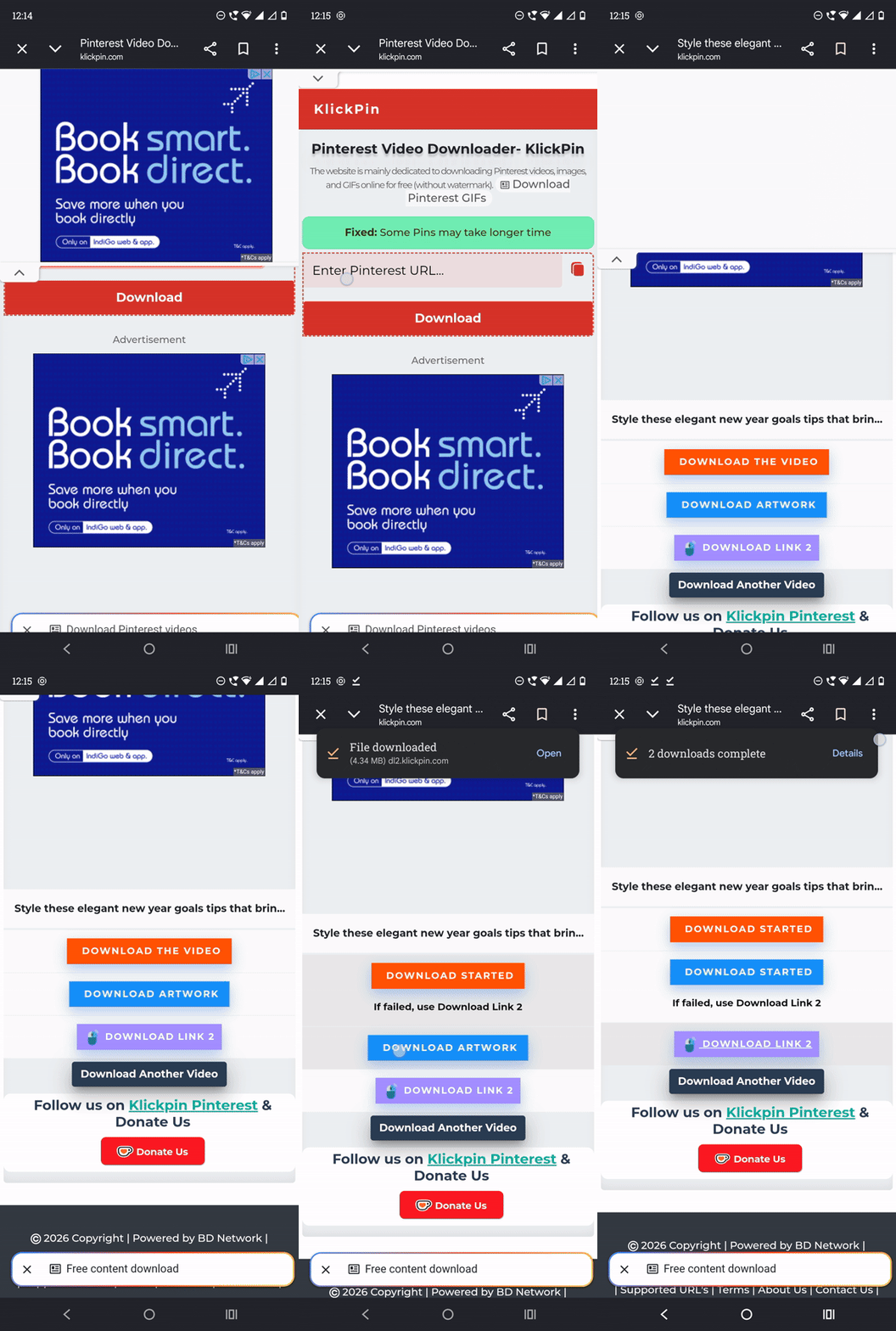
How it worked, step by step:
- Landed on the page and saw only the download button, squeezed between ads above and below it, with no paste box visible anywhere
- Scrolled down and found an upward arrow on the top ad that collapsed it
- Manually pasted the copied Pinterest link
- Another ad appeared in front of the interface right after pasting
- Had to search a second time to find the actual working download button
Options available on the result screen:
- Download the Video (orange button)
- Download Artwork (blue button, this is the thumbnail)
- Download Link 2 (purple button)
- Download Another Video (dark button, for testing a new link)
- A follow/donate section asking to follow KlickPin’s Pinterest page
To KlickPin’s credit, once I got past the ad maze, I was able to download both the video and the thumbnail (labeled as “artwork”) without further issues. But needing to search twice, once for the paste box and once for the real download button, made the whole thing feel more complicated than it needed to be.
Pros:
- Both video and thumbnail (artwork) download options available
- “Download Another Video” option to test a new link without reloading
Cons:
- No visible paste box on arrival, sandwiched between ads
- Ads reappear again after pasting the link, hiding the actual download button
- Multiple button labels (“Download Link 2”, “Artwork”) that are not immediately clear to a first time user
- Requires navigating ads twice before reaching a working download button
The confusing part with KlickPin was less about the sheer number of ads and more about the button labeling once you actually got through them. Terms like “Download Link 2” do not tell you anything about what quality or format you are getting, so you end up clicking on trust rather than clarity. It worked in the end, but it is not the kind of tool you want to hand to someone less familiar with these sites.
Pinterest Video Downloader Comparison Table
| Feature | GetInDevice | PinDown.io | KlickPin |
|---|---|---|---|
| Paste box visible immediately | Yes | No, hidden behind ads | No, hidden behind ads |
| Fetch speed after pasting | Instant | Delayed by ads | Delayed by ads |
| Pop-up or full screen ads | None | Multiple, at several steps | Multiple, at several steps |
| Video download | Yes | Yes | Yes |
| Thumbnail download | Yes | Yes (as “Cover”) | Yes (as “Artwork”) |
| Caption copy option | Yes | No | No |
| Multiple platform support | 50+ platforms | Pinterest focused | Pinterest focused |
| Dedicated app | Yes, on Play Store | Android app download link only | No |
| Overall experience | Smooth and fast | Confusing and ad heavy | Confusing and ad heavy |
Final Verdict
After testing all three tools with the same video and the same connection, the difference in experience was obvious. Both PinDown.io and KlickPin buried their actual download tools behind repeated full screen ads, which meant more scrolling, more searching, and more chances of accidentally tapping the wrong thing. Neither is unusable, and both did eventually deliver the video and thumbnail, but the path to get there was cluttered.
GetInDevice stood out simply because it did what it promised without getting in the way. The link fetched instantly, the video, thumbnail, and caption were all available in one clean screen, and there was no ad interrupting the actual task. Add in the fact that it doubles as a downloader for more than 50 other platforms and has its own Android app, and it is the one I would actually recommend if you download Pinterest videos regularly.
A Quick Note on Video Quality and File Size
One thing worth mentioning separately is how the file sizes compared across methods. The screen recording workaround off Pinterest itself produced a 72MB file for a single short video, with visibly worse quality than the original. PinDown.io’s download came in at 4.34MB for the same clip using a proper extraction method rather than screen capture. This is the real difference between recording what is on your screen versus actually pulling the original video file: proper downloaders preserve the source quality while keeping the file size reasonable, since they are not also capturing your phone’s UI, notification bar, or any lag in the process.
This matters more than it seems if you plan on saving more than the occasional pin. A handful of screen recorded videos can eat through your phone’s storage fast, while properly downloaded videos stay compact and closer to the original resolution Pinterest itself is serving.
Tips for a Smoother Pinterest Downloading Experience
A few small habits made the testing process easier, and they apply whether you go with GetInDevice or any other tool:
- Copy the link directly from the pin’s share option, not from the browser address bar, since the share link is formatted correctly for these tools to read.
- Avoid tapping anywhere on the page except the paste box and download button on ad heavy sites, since a lot of banner ads are designed to look like part of the interface.
- Check for a dedicated app if you download frequently. Having something like the GetInDevice app installed skips the browser step entirely and avoids any chance of stumbling into a fake ad button.
- Keep an eye on file size after downloading. If a short video comes out unusually large, there is a good chance it was captured via screen recording rather than a proper download, and the quality is likely lower than expected too.
Frequently Asked Questions
No. Pinterest only lets you save a pin to a board or share its link. There is no built in option to export the actual video file to your device.
Not really. Screen recording captures the on screen interface along with the video, results in noticeably lower quality, and creates a much larger file size than an actual downloaded video would be.
Most browser based tools, including GetInDevice, PinDown.io, and KlickPin, work through your phone’s browser regardless of whether you are on iPhone or Android, since you are simply pasting a link and getting a file back.
It depends on the site. Tools packed with intrusive full screen ads and unclear buttons carry a higher risk of accidental clicks on unrelated ads or downloads. Sticking to a tool with a clean interface and no forced ad interruptions, like GetInDevice, reduces that risk significantly.
Yes, all three tools tested here offer a separate option to save the thumbnail or cover image along with the video download.
No, all three tools work directly in your mobile browser. GetInDevice does also offer an optional Android app if you would rather download and manage your videos from a dedicated app instead of a browser tab.
Most of these free tools rely entirely on ad revenue since they do not charge users anything to download videos. That business model is fine in itself, but the difference lies in how a site places those ads. Some keep them to the sides or bottom of the page, while others use full screen pop-ups that interrupt the actual download steps, which is what made PinDown.io and KlickPin frustrating in this test.
Yes, tools like PinDown.io explicitly label their download options with resolution, such as 1080p (HD). GetInDevice pulls the video at its original quality as posted on Pinterest without a manual resolution picker, since there is usually only one source quality available per pin.
Using a tool with a “download another” style button, like GetInDevice’s “download another media” option, is the quickest way, since it lets you paste a new link immediately without reloading the page or repeating the ad gauntlet each time.